

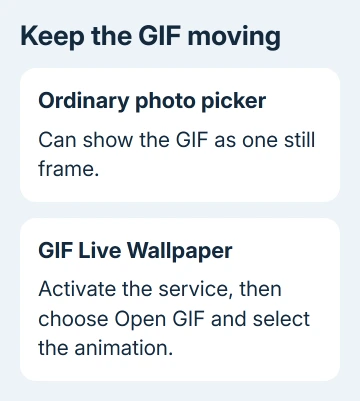
A live-wallpaper app can keep an Android GIF background moving when the photo picker shows one still frame. In GIF Live Wallpaper, activate the wallpaper and use Open GIF to select your saved animation.
Lock screen support depends on the phone. This app can't give Home and Lock different GIFs, and some phones won't show it on Lock. A Galaxy can also use its built-in video-wallpaper controls for a video file; those steps are different.
In this guide
Save the animation and choose the right wallpaper app
Start with a GIF file saved on your phone. Open it in an app that plays animations and check that it moves. A screenshot of an animation holds one frame, so selecting it as wallpaper won't make it move.
Use GIF Live Wallpaper from the Redwarp project. Check the developer and package name, net.redwarp.gifwallpaper, when comparing similarly named apps. The project's official links show where to get the app and explain how it works.
Open the developer's repository to reach those official links. It also provides the source code and issue tracker. You don't need to download its source archive or build an Android app to use the finished wallpaper app.
Choose an app source that works on your phone. F-Droid recommends its client for update notifications instead of manual APK downloads. If Android rejects the installation, check compatibility rather than forcing an old package.
Keep the original file for your current wallpaper so you can switch back. Applying the live version replaces the chosen background, so you'll want that original if the animation turns out to be too distracting.
Activate the wallpaper, then choose Open GIF
Open GIF Live Wallpaper and select Activate. This opens Android's wallpaper chooser or preview. Use the wallpaper-setting control to apply it, then choose where it should appear from the options your phone offers.
If Activate can't open that chooser, the app provides another route: open your Home screen's wallpaper picker, choose its Live Wallpapers section, then select GIF Live Wallpaper. Phone makers arrange that picker differently.
Back in GIF Live Wallpaper, select Open GIF. In Android's file picker, locate the saved animation and select it. Choose the actual GIF file, rather than a webpage shortcut or a still image saved from its preview.
Return to Home and watch the background. It should animate behind the icons. This check matters more than a thumbnail in the picker, which can look still even when the selected background will move once applied.
For a motionless background, reopen the selected file in your image app. If it plays, check which wallpaper is selected and which screen it's set to use. If the original is still too, save the animated file again.
I'd begin with a short, simple animation whose subject stays near the center. It is easier to see whether playback and framing work before choosing something with small text, quick cuts or a subject that moves out of view.
Adjust the image without losing the part you need
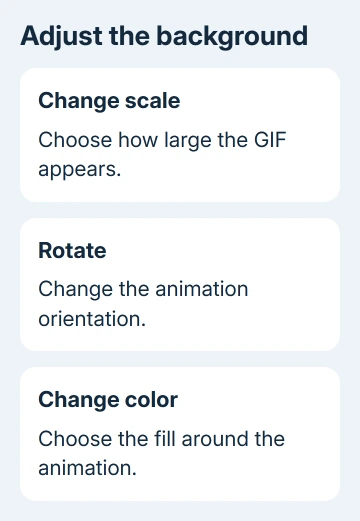
Open the wallpaper app's controls after selecting the file. Change scale adjusts how large the animation appears, Rotate changes its orientation, and Change color lets you choose the background color around it.
Make one adjustment, return to Home and inspect the result behind your icons. A wide GIF and a tall phone screen have different shapes. Enlarging the animation enough to fill the screen can crop important content at the sides.
A smaller scale with a matching background color can keep the complete subject visible. Choose the fit that suits your GIF rather than assuming every GIF can fill the whole display without cropping or unused space.
Check readability as well as motion. An animation that passes directly behind app names can make those labels difficult to read. A quiet section or a different GIF can work better than repeatedly changing the scale of a busy one.
Rotate the phone if you normally use the launcher in landscape, and inspect that view too. Check that it fits the way you use your phone, not just one orientation in the preview.
Check Home and Lock separately
Lock the phone, wake it, and inspect the background before unlocking. Then unlock and check Home. This shows which screen is using the live wallpaper instead of assuming that applying it once changed every screen.
The app's FAQ says it can't assign different GIFs to Home and Lock. It also notes that some phones don't run live wallpapers on Lock. A working Home screen animation with a different Lock screen can be a device limitation.
For a Samsung phone with a video you want to use instead, follow the Galaxy live-wallpaper steps. Those use the built-in editor and the screens it supports, rather than this app's GIF procedure.
For a regular photo or a return to a still background on Galaxy, use the Samsung wallpaper settings. A still picture is also the quickest fallback when the screen you want to use doesn't support the animation.
On Pixel, the built-in wallpaper picker offers its own photo and wallpaper choices. That picker and a third-party GIF live wallpaper are separate routes; choosing an ordinary photo doesn't activate this app.
Understand a wallpaper that pauses
Open the app's Settings and check Battery Saver and Thermal Mitigation. These settings can pause your GIF when Battery Saver is on or your phone gets hot. Paused playback in those conditions isn't necessarily a broken file.
The project also describes stopping playback when the wallpaper isn't visible or the device is locked. Don't judge background playback by switching into another app and expecting the hidden wallpaper to keep playing behind it.
If playback won't resume on Home, check the selected wallpaper and the app's pause settings, then try another saved GIF. Trying a second file helps separate trouble playing that GIF from trouble applying the live wallpaper.
If it still fails, report it in the project's issue tracker. Include your model, Android and app versions, affected screen, whether the file plays elsewhere, and whether Activate opens the chooser. Keep personal files out of public reports.
The Short Version
Use a saved animated GIF and activate GIF Live Wallpaper, then select Open GIF. Adjust scale and check the Home screen. Lock screen support varies, separate GIFs aren't available, and Battery Saver or heat controls can pause playback.
Checked November 15, 2026.
 If you have any business, I can build it online






