

To add a Microsoft 365 Copilot license, your work or school account needs an eligible base subscription. Buy seats through your organization, then assign them to the intended users. Completing the order alone doesn't give them access.
Check the organization's existing plan before buying. Some subscriptions already include Copilot, and personal Microsoft subscriptions use different licensing from a work or school add-on managed by an administrator.
In this guide
Check the account and base subscription first
In the organization's Microsoft 365 admin center, have an administrator select the intended user. Confirm the person's work or school sign-in address and the licenses already assigned to that account.
The add-on includes chat using work content and Copilot features inside apps such as Word, Excel, Outlook, and Teams. Work content means organizational material your account has permission to access.
The base subscription and add-on must belong to the account that will use the features. A personal Outlook.com sign-in and a company sign-in can look similar on the same computer but have different licenses.
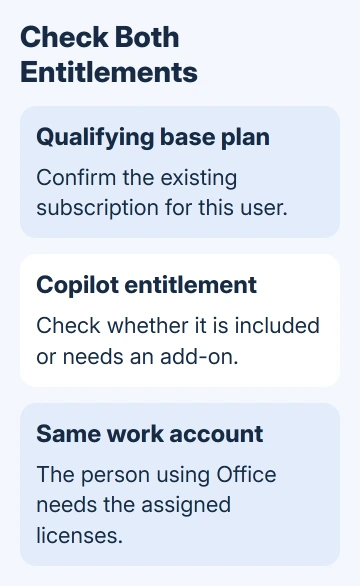
Microsoft's current Copilot licensing table lists the qualifying plans. Examples include Microsoft 365 Business Basic, Business Standard, Business Premium, and several enterprise plans.
Read the row for the actual offer you're buying. Eligibility for an add-on doesn't mean the base plan includes every desktop application you might want to use. Business Basic, for example, shouldn't be mistaken for a desktop-app license.
The table also lists plans that include Copilot. Check what those plans include before ordering extra products for each employee. If your plan already includes the features you need, you may only need to assign licenses or finish setup.
For a home subscription, stop at this account check. A business add-on isn't the route for sharing personal subscription benefits with family members. Use the consumer subscription's own account and feature information.
Choose the business offer and commitment deliberately
The current Microsoft Copilot Business offer is for organizations with up to 300 users and eligible business licenses. Its listed terms use an annual commitment and support up to 300 licensed users per tenant.
Microsoft 365 calls your organization's space a tenant. Its users and subscriptions are managed there. That limit applies to the offer, rather than allowing each administrator to buy a separate batch of 300 for the same environment.
Larger organizations should review the enterprise licensing choices. Education and government customers also have their own eligible-plan sections; don't assume a commercial business row covers those environments.
Before approving an order, check the final price per user, currency, taxes, payment schedule, commitment, and cancellation terms. A monthly payment schedule isn't necessarily permission to cancel an annual commitment each month.
I'd settle the first group of users before buying seats. A short named list makes it easier to match the purchased quantity to the people who need the paid capabilities, rather than paying for unused seats.
If the subscription comes through a reseller, ask that reseller which offer fits your existing agreement. Keep purchasing and license management in the same organization so the new seats reach the intended users.
Buy seats through the organization's purchasing route
An administrator with purchasing permission can use the Microsoft 365 admin center marketplace. Organizations can also buy through their Microsoft partner or account team. Use the route tied to the existing billing agreement.
Find the offer that works with your base plan. Check its requirements, seat quantity, and billing terms before approving payment. A similarly named consumer product isn't a substitute for a missing business offer.
After purchase, confirm that the subscription and available seats appear in the organization's billing pages. Record the product name as displayed, since current documentation and older invoices can use different Copilot branding.
If the order appears in the wrong organization, resolve that with billing support before proceeding. A subscription visible to a different signed-in organization won't supply seats to the users you're currently managing.
The public chat button isn't an order receipt. A user can have access to a Copilot chat experience without having the paid license you're trying to set up.
Assign the add-on to the intended people
In the admin center, open Users > Active users and select the person. Open Licenses and apps, check the qualifying base license, then select the purchased Copilot product and save the assignment.
The admin center also offers a product-based route through Billing > Licenses. Select the Copilot product, choose the users to assign, and complete the assignment. Check that the assignment finished after you've selected the users.
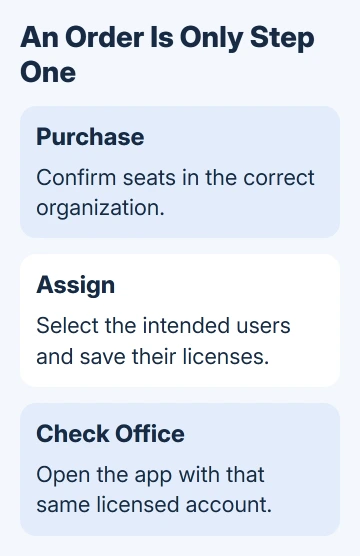
Check the available seat count when assignment fails. Buying seats doesn't mean they're all still available; some may already be assigned. The account's usage location, its country or region for licensing, also needs to be set correctly.
For a group-based assignment, have the administrator check the group's membership and assignment errors. Don't add a second manual subscription purchase just because a group change hasn't given the user the expected license.
The Microsoft 365 user-licensing instructions cover assignment controls and the required administrator permissions. Give a license administrator the exact account and product name when asking for help.
Open the apps with the licensed account
Have the user check the account in the Office app where they expect Copilot. The work sign-in should match the user who received the assignment. An app showing a personal account can lead you to troubleshoot the wrong subscription.
Keep the apps updated through your organization's supported update process. Also check the requirements for the particular feature, such as a supported app and an editable document, before assuming the license hasn't worked.
If the user's license has just changed, restart or refresh the affected app and check again after it has had time to update. Don't remove the base subscription as an activation experiment; it supplies separate services the user still needs.
Once access is working, the Microsoft 365 Copilot getting-started guide explains how to give chat a useful task. For document drafting, the Copilot in Word steps cover the Word-specific controls.
Escalate assignment and feature failures separately
For billing or missing-seat trouble, have the purchasing administrator open a support request from the Microsoft 365 admin center. Include the order, organization, product name, purchased quantity, and current available quantity.
For a licensed user missing a feature, give support the sign-in address, base license, Copilot product, app version, update channel, and exact missing control. Ask support to check what the user's license covers and what the feature needs.
That gives support a concrete account and symptom to check. It also avoids treating a successful chat sign-in as confirmation that every paid feature is available in every app.
The Short Version
Check the base plan and what's already included, buy the correct offer, then assign seats to the intended users. Office must use those same work accounts. Confirm purchase, assignment, and app access separately.
Checked November 16, 2026.
 If you have any business, I can build it online






