

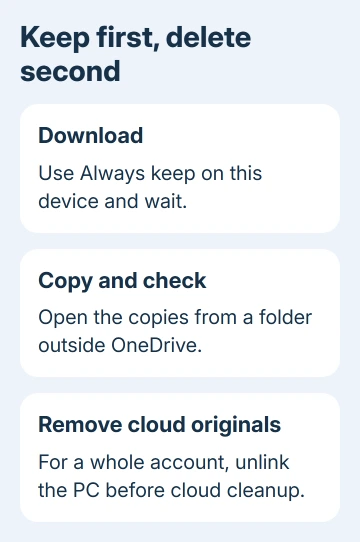
Yes, you can delete files from OneDrive and keep copies on your PC. Download the files, copy them outside every OneDrive folder, and open those copies to check them. Then delete the cloud copies, or unlink the PC before clearing an account.
Deleting a file from an actively synced folder normally deletes its cloud copy and its copies on other synced devices. Free up space does the opposite of this task: it removes the local download while keeping the cloud file.
In this guide
Make sure the files are downloaded first
Open File Explorer and select the OneDrive folder containing your files. Check the account name if you have both personal and work folders. The same filename can exist in different accounts, so confirm the source before copying anything.
The blue cloud marks an online-only item. That entry isn't a complete local copy. For each item you want to keep, right-click it, then pick Always keep on this device.
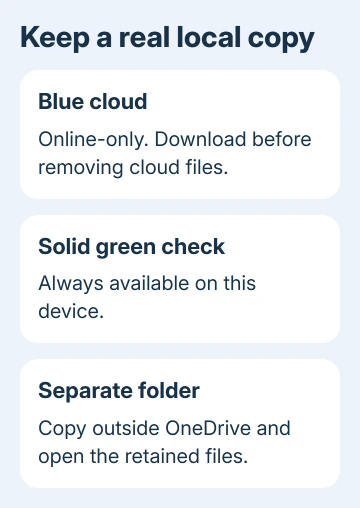
Wait for downloading to finish. An always-available item has a white check mark inside a solid green circle. Leave OneDrive running until the selected files finish downloading, and resolve any storage or connection error before continuing.
Compare your PC's free space with the size of the files you're saving. Downloading a large collection takes time. If only some files receive green checks, copy those first and deal with the remaining download errors separately.
Open several important files, including anything you can't replace. For an archive of family photos or work documents, a second copy on an external drive is sensible before removing the cloud backup.
Copy the files outside all synced folders
Create a destination you know isn't part of OneDrive. For example, enter %USERPROFILE% in File Explorer's address bar and create a new folder called Local Archive there. This puts it beside your user folders rather than inside OneDrive.
Don't assume Desktop, Documents, or Pictures is outside OneDrive. Folder backup can put those locations inside the synced account. Check the destination's full path in the address bar before using it.
Select the downloaded files, press Ctrl+C, open Local Archive, and press Ctrl+V. Using Copy leaves the originals in place while you check the new copies. Wait until the copy finishes and read any skipped-file message.
Microsoft's file deletion instructions describe moving files outside the OneDrive folder to keep them on the computer instead of in the cloud. Copying first gives you a chance to verify the destination before removing the originals.
Open the copies from Local Archive, rather than from the Recent list in an app. Recent can point back to the OneDrive originals. Check the path shown by the app or open the retained copy through File Explorer.
For a large folder, compare its contents and check that no copy errors were ignored. A folder with the expected name can still be incomplete. I'd verify the files that matter most before spending time cleaning up the cloud account.
Remove selected cloud files while keeping sync available
After checking the copies, remove your selected originals through File Explorer's OneDrive location. Keep OneDrive running so that deletion reaches the cloud. The Local Archive copies stay on your PC because that folder doesn't sync.
Alternatively, sign into OneDrive's website and open My files. Select the intended items and choose Delete after checking the account and selection. Cloud deletion also updates connected devices.
A business document that names a user instead of deleting needs the OneDrive lock checks before you repeat the removal.
Before deleting the cloud files, make a separate local copy on any other PC where you want to keep them. This computer's local archive doesn't preserve copies on every connected device.
Check Local Archive afterward and open the retained files again. Then check OneDrive to confirm the originals you selected are gone. You should have a working local copy and no active cloud copy of those selected items.
For a file that refuses to download or remove because sync is already broken, use the OneDrive sync checks first. Don't delete an online-only item while you're still trying to obtain its contents.
Unlink the PC when you're leaving OneDrive entirely
For an entire account, finish the download and separate-copy checks first. Open OneDrive's cloud icon, then select gear menu > Settings, and choose Account > Unlink this PC > Unlink account.
The account removal instructions distinguish downloaded files from online-only items. Downloaded files remain on the computer after unlinking; online-only files remain accessible through the web account.
Unlinking doesn't delete the files from the cloud. After the PC is disconnected and you've checked your separate copies, open the OneDrive website, sign in, and delete the intended cloud items.
Don't reconnect the same archive folder to OneDrive afterward unless you want it synced again. Keep those files in their separate local folder.
Using an old sync folder for your archive can make it hard to tell which copies still sync.
If you only needed to remove a few cloud files, the selected-file method is enough. Unlinking the whole account would also stop the other files you still want synced from updating on this PC.
Verify the archive and keep a recovery option
Temporarily disconnect the PC from the internet and open the important files directly from Local Archive. A usable local copy should open without fetching its contents from OneDrive. Reconnect afterward if you still use other synced files.
Leave the OneDrive Recycle bin intact while checking your archive. While you check the archive, the recycle bin lets you recover anything deleted by mistake. Don't empty it as part of an ordinary space-cleanup attempt.
For a personal account, deleted items normally remain in the OneDrive recycle bin for 30 days. For work or school accounts, the normal retention period is 93 days, though an administrator can change it.
Shared content can also disappear for people who used its cloud link.
If the aim was simply to stop folder backup, check OneDrive's folder backup controls before deleting the cloud collection. Stopping backup, unlinking, and deleting files solve different needs.
When files are already missing, check the cloud recycle bin before making more changes. For a work account, contact IT with the account, folder path, and deletion time and ask about recovery or retention.
For a personal account, use OneDrive support's file-recovery help.
The Short Version
Download, copy outside OneDrive, and check your separate copies before removing cloud originals. Unlink before clearing an entire account. Keep the recycle bin intact while checking the archive, including opening files offline.
Checked November 16, 2026.






