

The separate Word app lets you write on an Android phone. Install it from the phone's Play Store, sign in, then start or open a document. Expand its compact ribbon when you need formatting controls.
For a first document, choose where you'll save it before writing much. A phone-only document and a OneDrive file need different handling when you continue work on another device.
In this guide
Sign in to reach the intended documents
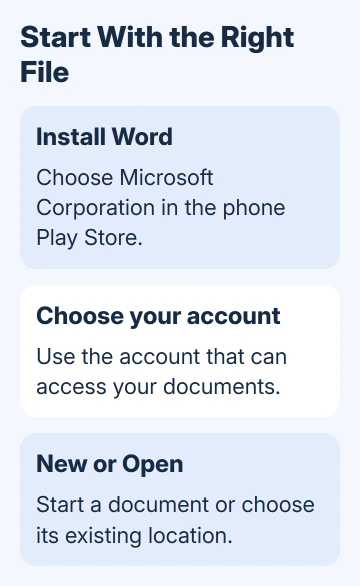
Open the phone's Play Store, search for Microsoft Word, and confirm Microsoft Corporation is its publisher. Install the separate Word app, then open it from your app list.
Sign in using your personal Microsoft account or the account supplied by work or school. Choose the one that can access your documents. Installing Word doesn't grant access to company files.
Microsoft documents separate Android apps for Word, Excel, and PowerPoint. An eligible subscription adds extra features; installation alone doesn't include every paid feature.
If setup offers a subscription and you only need the available basic tools, select Maybe later when offered. Check what the signed-in account includes before purchasing another plan for the same phone.
Your workplace may require extra setup for a work account. If a company sign-in asks for an approved management or authentication step, follow your IT team's process rather than switching to a personal account to access work documents.
I'd start with a short practice document. A few lines are enough to learn the keyboard, ribbon, and save location before you move a long report onto the smaller screen.
Start a document or open an existing one
Use Word's New control to start a blank document, or choose an available template that fits the task. For a first attempt, a blank page makes your own formatting changes easier to follow.
To continue an existing document, choose Open and select the location holding it. Seeing a document in the recent-file list doesn't mean it's downloaded to your phone.
For another cloud location, use Open > Add a place and sign in to the supported service. Select the intended account when Word lists more than one, especially if both work and personal OneDrive are present.
Read any access message before trying to edit. A file shared for viewing only needs its owner's editing permission. Opening it successfully doesn't mean Word is allowed to save changes to that original.
If someone sent a document attachment, decide whether to edit the received copy or an existing cloud file. Otherwise you can finish useful changes in one copy while the sender keeps looking at another.
Give a new document a meaningful filename when saving it. A name tied to the task is much easier to find in a phone's file picker than several files with similar default names.
Type and expand the formatting ribbon when needed
Tap in the editable document to place the cursor and bring up the keyboard. Type a short paragraph first. If the file opens for viewing, tap its edit control before you try to type.
Tap Show Ribbon, then the current tab name, such as Home, to see the available tabs. The phone layout puts tools into a smaller space than desktop Word, so the ribbon doesn't need to stay expanded while typing.
On Home, select the intended words and apply the available formatting, such as bold or a list. Check the selected words before changing them so the whole paragraph doesn't receive a style intended for one phrase.
For other tools, choose the relevant tab from that same tab list. Look for document-related controls in the ribbon rather than the Android keyboard, which handles text entry and its own suggestions.
If the keyboard covers the part you need to read, use the phone's Back control to dismiss it. With gesture navigation, use Android's back gesture. Return to the text when you're ready to continue typing.
If you can't type while the ribbon is expanded, hide the ribbon first. The Word phone-control tips explain this switch between formatting and text entry.
Save to the phone or to OneDrive
Open File > Save As to choose a location. Select This device for a local file, or select the intended cloud location. Use Add a place when the supported cloud account hasn't been connected yet.
Word saves changes periodically through AutoSave. A local save keeps the file on that device; a cloud location lets you open the same document on another device once your changes have synced.
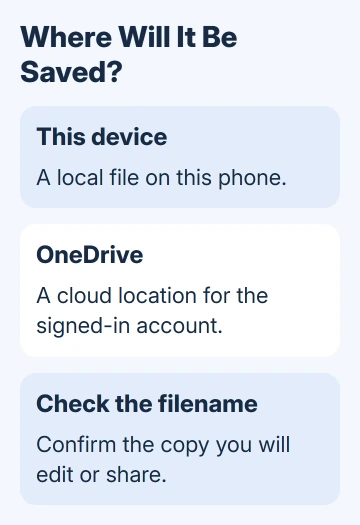
Before closing a file you've edited offline, check its name and save location. After reconnecting, let the cloud copy update before opening it elsewhere. A recent-file title doesn't tell you whether the latest edits reached OneDrive.
To keep a separate version, use Save As with a different name or location. Check which version you're editing afterward. That keeps a marked-up working version separate from the document you received.
For broader offline preparation, the Word offline guide explains why the installed app and the available file both matter. Prepare needed files while you still have a connection.
Send the right copy or save a PDF
To send an editable file, use the app's sharing controls and select the Word document you want to send. Check whether you're sending a file copy or a cloud link, since recipients handle those differently.
A link opens the shared file, where its permissions control who can access it. A file copy becomes a separate attachment. Check that the recipient can open the chosen version; sending the message doesn't confirm they have access.
For a PDF on Android, open the document's File menu or its three-dot file control, choose Print, and choose the printer entry Save as PDF. Use the PDF save control, choose a location, and save the file.
Open the saved PDF and inspect the pages before sending it. That final check catches the wrong document, an incomplete draft, or an unexpected page break while you can still correct the Word original.
For moving editable work into another editor, the Word-to-Google-Docs guide covers that separate conversion. Keep the original document until you've checked the converted copy.
Get help for a missing control or blocked account
Check the signed-in account and whether the document permits editing when a tool won't work. Read the message first: a subscription notice needs different advice from a permission error or a hidden ribbon.
If you're still stuck, open a document, open the app's side menu, and use Settings > Send Feedback or Online Help and Support. Include your phone model, Android version, Word version, and the message shown.
Ask your IT administrator about workplace account restrictions with the affected filename and permission message. They can check whether a company policy is stopping you from editing.
The Short Version
Install the separate Word app, sign in to the right account, and start or open a document. Expand the ribbon for formatting and hide it for typing. Choose This device or the intended cloud location, then check the saved copy before sharing.
Checked November 16, 2026.
 If you have any business, I can build it online






