

The HP Envy 4520 can stop printing because of a stuck queue or an ink problem. Clear the queue when jobs never reach the printer; check the cartridges when a copy made at the printer comes out blank.
A quick copy tells you which route to follow. It uses the scanner and printer without relying on your computer, its driver, or the wireless connection.
In this guide
1. Compare a local copy with computer printing
Load plain paper, lay a printed original on the glass with its printed side facing down, close the lid, and choose Copy on the touchscreen. Try a black copy and a color copy and compare the two copies.
Read any message on the printer first. An open cartridge door, paper jam, or cartridge error needs attention before Windows can send a useful job. Follow the touchscreen instructions rather than repeatedly pressing Print.
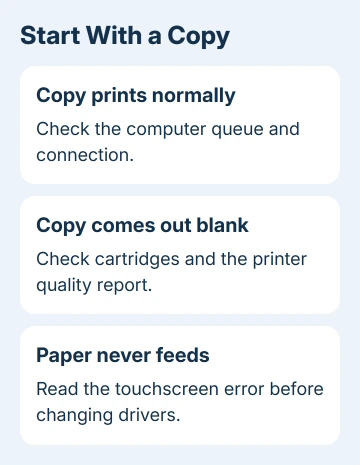
A readable copy shows that ink reaches the page. Next, check the waiting jobs and connection. A blank copy, missing black text, or missing colors means you should try the cartridge section instead.
If the printer doesn't feed paper even for a copy, check the paper placement and any jam instructions on the screen. Computer driver changes won't clear a physical paper obstruction.
I'd make this copy before reinstalling anything. It takes less effort than removing a working driver and helps you avoid fixing the wrong part of the setup.
2. Remove waiting jobs from the Envy queue
In your document, open Print and choose HP ENVY 4520 series. Check for another entry with a similar name, an old disconnected printer, or a PDF printer selected instead. Send one simple page after choosing the connected entry.
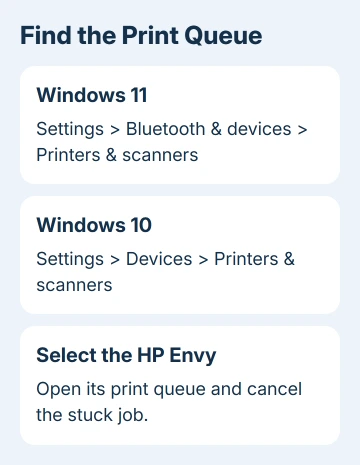
On Windows 11, open Settings > Bluetooth & devices > Printers & scanners, select the Envy, and choose Open print queue. On Windows 10, use Settings > Devices > Printers & scanners, select it, and open its queue.
Cancel jobs that are stuck or showing an error. If the queue offers Pause Printing or Use Printer Offline and either is selected, clear that selection. The older queue window puts those options in its Printer menu.
Close the document's Print window and reopen it before sending another page. A job disappearing from the queue is useful only if the printer actually produces it, so check the output tray as well as the computer screen.
For a queue that won't clear, follow the Windows print spooler reset steps. Microsoft recommends clearing the spooler, the service that stores waiting print jobs, when you can't clear jobs from the queue window.
That reset affects pending jobs for other printers on the PC too. Save anything you'll need to print again, then follow those steps to restart the service and empty its queue folder if cancellation fails.
3. Restore the USB or wireless connection
Turn the printer off, restart the computer, and turn the printer on again. Let it finish starting before printing. If the queue still calls it offline, check the connection method you're actually using.
For USB printing, use a direct cable between the Envy and computer, bypassing any dock or hub. Try another USB port and, if you have one, a printer cable you know works. A cable can be connected firmly and still fail to carry data.
For wireless printing, put the computer and printer on one home network. Guest Wi-Fi can allow internet browsing yet prevent the computer from reaching the printer. A changed router name or password can leave the printer on its old setup.
Check the wireless connection on the printer's touchscreen. Reconnect it to the current network through its wireless settings if needed. Don't reset your router simply because one printer entry is offline.
The HP printer Wi-Fi connection guide covers a printer that needs wireless setup again. Return to the print queue after the connection works, then send one fresh page rather than a stack of old jobs.
If another device prints successfully over the same network, keep troubleshooting the failing computer. If every device fails but local copies work, check the printer's network connection before working on the cartridges.
4. Fix blank pages or missing ink at the printer
Open the cartridge access area and check that both cartridges are seated correctly. If a cartridge was just installed, check that its protective tape was removed. Close the access door before trying another copy.
Check the displayed ink levels, but compare them with the printed result. A cartridge can show ink remaining and still produce missing text or streaks. Replacing a driver won't restore ink to a blank copy.
Use the printer's Setup > Tools maintenance controls to print its quality report and run cartridge cleaning when the report shows missing ink. Follow any prompts for another cleaning level and compare the new report with the first.
Stop repeating cleaning cycles if the result doesn't improve. Cleaning uses ink. Keep the report so you can show a cartridge supplier or repair technician whether black, color, or both are missing.
For a printer that produces black text but loses the other colors, the HP color printing checks cover grayscale settings and defective color blocks. A blank local copy needs cartridge work before those computer settings matter.
5. Re-add the printer when local copies work
If copies are clear and the connection is working, remove the old printer entry from Printers & scanners and add the printer again. Keep the printer powered on and connected while Windows searches for it.
Choose the Envy entry that matches the current connection. Install its available driver through Windows Update or HP's official software route for the model. Avoid driver download sites that ask you to install a separate updater.
Open the printer's properties in Windows and print its test page, then try the document that failed. If the test page works but one document doesn't, try another file or application before removing the printer again.
On a Mac, use System Settings > Printers & Scanners to select or re-add the Envy. The Windows spooler procedure doesn't apply there. Compare another app with the failing one using a small document.
Give HP the failed copy or connection result
Use HP Support's printer repair or cartridge help when local copies remain blank or the touchscreen keeps reporting a hardware error. Give them the Envy 4520 model, your cartridge details, and the quality report showing the problem.
When copies work but printing fails only on one computer, provide its operating system, connection method, and whether a Windows test page prints. That helps support check the queue or driver before replacing ink.
The Short Version
Make a copy first. Clear the queue and restore the connection when copies work; check cartridges and cleaning when copies are blank. Re-add the printer only after confirming it can print locally.
Checked November 16, 2026.
 If you have any business, I can build it online






