

A Dell laptop can run from a charger it can't identify, yet leave the battery uncharged. Plug the charger into the laptop itself, then check AC Adapter in BIOS to see whether the laptop recognizes it.
If charging repeatedly ends at one percentage, check the charge-limit setting instead.
Those two cases need different fixes. An Unknown adapter reading points to the charger or its connection. If the adapter is recognized and a charge limit is set, you don't need a new battery to get past that limit.
In this guide
1. Reconnect the power supply without the dock
Save open files and shut Windows down. Unplug the dock, monitor and remaining accessories. Connect the laptop's proper charger straight to the laptop and to a working outlet. Reseat the removable wall cable at the power brick, too.
I'd start with this connection before changing Windows settings. If charging starts, you'll know the dock or its power supply was getting in the way.
Check the cable and connector for damage while they're disconnected. Stop using a frayed cable, scorched plug or visibly damaged adapter. A swollen battery also needs service rather than another charging attempt.
If a USB-C charger fits, that alone doesn't make it suitable. Match the adapter type and power rating to your exact Dell model's specifications.
A phone charger or a lower-power dock supply can behave differently from the intended laptop adapter.
Watch whether Windows shows the laptop connected to power, and whether the percentage actually increases. The connected-power symbol means the laptop detects power, but the battery might still be losing charge.
Continue with the BIOS reading if it stays flat.
2. Read the adapter value before buying a battery
Turn the laptop off. Press its power button, then immediately tap F2 about once a second until BIOS Setup opens. BIOS Setup opens before Windows loads. Nothing needs reinstalling to make this check.
Open Overview and find AC Adapter. On other Dell models, battery and adapter information sits under General > Battery Information or a Power or Battery section. The arrangement changes with the model, so use its manual if the labels differ.
Dell's own adapter troubleshooting steps explain that Unknown, or an incorrect wattage, can prevent normal charging. Write down the actual value before leaving Setup.
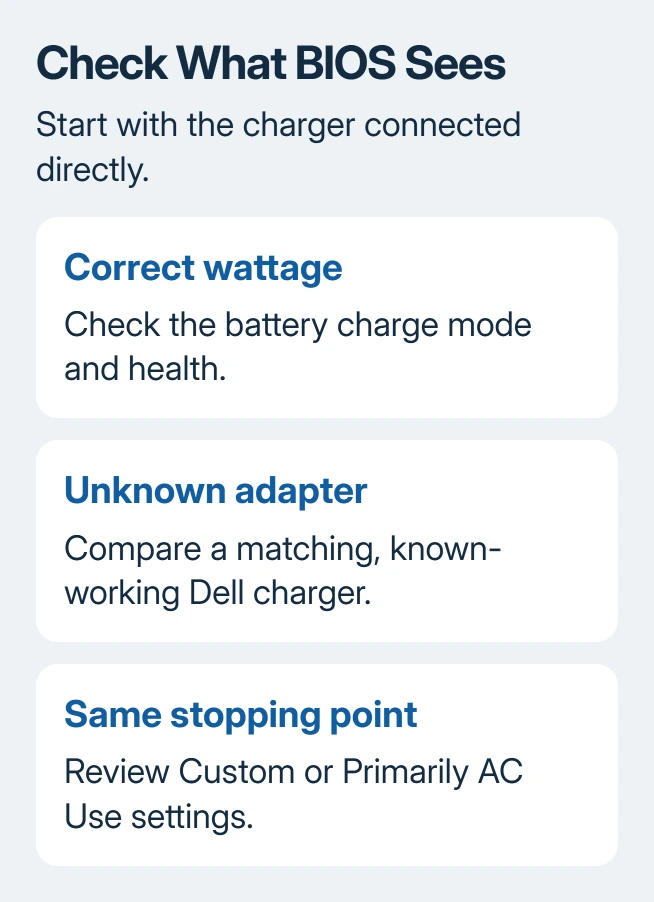
The correct wattage tells you the laptop recognizes the adapter right now. Next, check the charge settings. That still leaves the battery's condition to check; a recognized charger doesn't tell you how the battery is doing.
If it says Unknown, try another compatible charger. Borrow a known-working, Dell-approved adapter with the correct specifications, connect it directly, and read the value again.
Swap just the adapter for that comparison; keep the laptop and outlet unchanged.
If the borrowed adapter is recognized and charging resumes, replace the original charger or its faulty cable as appropriate.
If both read Unknown, ask a technician to assess the laptop's power circuitry and charging connector before ordering a battery.
3. Remove an unwanted charge ceiling
If the adapter is recognized and charging reliably stops at a chosen percentage, check for a charge limit. Open the BIOS Power or Battery section and look for Primary Battery Charge Configuration.
The setting may instead be called Battery Configuration or Battery Charge Settings. Custom lets you choose charging thresholds. Primarily AC Use adjusts charging for frequent use on external power.
Choose Standard when you want a full charge, then use Apply or Save and exit Setup. Keep a note of the previous mode if you intend to restore your usual battery-care preference after traveling.
Some models also offer Advanced Battery Charge Configuration, which follows a daily schedule. Check whether its scheduled periods match the times charging changes. Models with no charging schedule don't need this check.
Give the battery time to move past the old stopping point. If it does, the charge policy was responsible. The general laptop charging guide explains why an intentional ceiling can resemble a charging fault.
4. Compare charging while the laptop is shut down
Shut down through Start > Power > Shut down, leave the correct adapter connected, and check the charge again after a period off. Use your model's manual to interpret any charging light; Dell laptops don't all use identical indicators.
Tell support if the battery charges while the laptop is off but drains during demanding work. That's different from a battery that never charges. Tell them whether a dock was involved and which adapter wattage BIOS showed.
If the machine won't start for the next check, follow the Dell power-button checks to separate an ignored button action from missing power. A Windows power-button preference cannot repair an unpowered laptop.
5. Run diagnostics and make updates only with steady power
As the Dell logo appears during startup, tap F12 repeatedly. Select Diagnostics when it appears in the boot menu. Follow the prompts, and record any battery or adapter error together with its validation code.
An error gives the repair technician something specific to check. If the test passes, tell them what's still going wrong; it found no fault during that run. Save your BIOS readings for the technician, too.
When the adapter is recognized and power is steady, check your model's support downloads for BIOS and power-related driver updates. Follow that model's update instructions and battery requirements.
Don't force a BIOS flash around a low-battery or adapter warning.
An Intel-based model may list Intel Management Engine Interface under Device Manager's System devices. Checking that driver is an advanced power-management step. Skip it if your Dell doesn't use that Intel component.
6. Ask for the failed part to be confirmed
Contact Dell Technical Support with the Service Tag, adapter wattage or Unknown reading, battery-health result, diagnostic codes, and the result with the second charger.
Ask whether the adapter, charging connector or battery needs replacement.
Check coverage before authorizing the repair. Battery coverage can differ from the laptop's general warranty.
If the original battery is worn out and the adapter is recognized, replace it with one made for your model rather than repeatedly resetting Windows.
The Short Version
Connect the intended charger directly, then read AC Adapter in BIOS. If it says Unknown, try a compatible spare charger. If charging stops at the same percentage, check Standard charging mode.
Use diagnostics and the two adapter readings to choose the repair.
Checked November 16, 2026.






