

A DeskJet 2700 with a blinking error needs its paper or cartridge problem cleared first. With no error showing, use the printer's buttons to make a copy: a good copy points you toward the connection or print queue.
Blank sheets, an offline message, and an E-code are different failures. Read the panel and check what the printer can print on its own before deciding which part of the printing setup to repair.
In this guide
1. Clear the panel error and check the paper
Turn the printer on, load plain paper, and close the cartridge access door. A dim power light can mean Sleep; a rapidly blinking one can mean an open door or another error. Check the display before sending another job.
If a letter E appears beside a number, record both the number and the blinking lights. HP says these codes identify different failures; a blinking light doesn't always mean broken Wi-Fi.
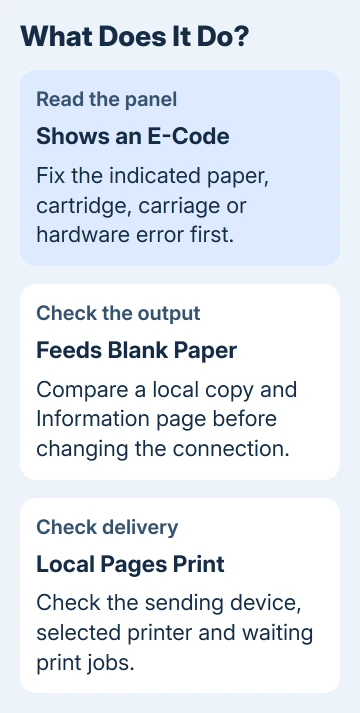
Match the displayed code to its repair:
- E0: Read the software's cartridge warning to see which cartridge needs attention. Resolve the indicated cartridge problem before retrying.
- E1 or E2: Set the job to the size of the sheets in the tray. Cancel the mismatched job and send it again with the correct size.
- E3: The cartridge carriage has stalled. Check for an obstruction using the model's jam instructions.
- E4: Clear the paper jam, then press Resume when the paper path is clear.
- E5: The scanner isn't working. Switch the printer off, then start it again. Printing can still work even when copying fails because of this scanner error.
- E6: Turn the printer off, unplug its power cord, wait one minute, restore power, and start the printer.
Don't force the carriage or pull hard against stuck paper. Use the DeskJet 2700 manual's jam-removal route for the area involved. If E6 returns after that power reset, move to service rather than repeating it indefinitely.
2. Make a local copy and print an Information page
Put a document print side down at the glass's front-right corner, then close the lid. With paper loaded, press Start Copy Black or Start Copy Color once. This checks copying without sending anything from your computer or over Wi-Fi.
A readable copy shows that both paper feeding and ink output work. It doesn't check the PC's driver or wireless connection. If that copy works, continue to the connection and queue checks.
If the copy doesn't work, press the Information button to request the printer's Information page. If the report prints but a copy doesn't, check the scanner or copying process. Note any E5 scanner error before seeking help.
If both the copy and the printer's own page are blank or badly faded, check the ink and print quality. An empty computer queue won't explain why a page generated by the printer itself has no ink on it.
If the Information light is amber, read the Information page's Instant Ink section for the indicated warning or error. Follow that specific message instead of assuming every cartridge-related stop means the cartridge is empty.
3. Check the connection you're actually using
For Wi-Fi printing, a steady blue Wireless light with signal bars means the printer is connected to a wireless network. Compare the network name with the one used by your computer or phone.
Press Wireless + Information together to print the wireless test and network configuration reports. Read the network name and any failed tests. Before trying another job, confirm the printer and sending device use the intended network.
If the wireless connection has failed, use the HP Wi-Fi recovery steps. Use those steps to repair the network setup. Don't reset a working connection just because one document is stuck.
For USB, unplug both cable ends, then reconnect them firmly at the printer and computer, bypassing any hubs. Select the USB printer entry when printing. A saved wireless entry won't switch to the cable when you plug it in.
Wi-Fi Direct is another connection, separate from the router's network. Match the printer entry to the route you intend to use. The report is more useful here than guessing from a familiar printer name in the app.
4. Select the right queue and cancel the stalled job
On Windows 11, open Settings > Bluetooth & devices > Printers & scanners, select the DeskJet, and choose Open print queue. On Windows 10, use Settings > Devices > Printers & scanners > your printer > Open queue.
Cancel the stalled job and send a short document. Check the app's selected printer first. Your DeskJet won't receive the job if the app sends it to a PDF creator or an old printer entry.
In the classic Windows queue, open Printer and clear Pause Printing or Use Printer Offline if either is selected. Newer queue interfaces can look different, so don't look for those exact checkboxes in every version.
On a Mac, open Applications > Utilities > Print Center. Select the DeskJet in the sidebar to resume printing or select a stalled job and use Delete Job. On a phone, check the printer selection and the print app's error.
The Windows app-printing checks help when a simple file prints but one application doesn't. Use that difference to decide whether you need to change the whole printer setup or check just that app.
5. Treat blank pages as a print-quality problem
Check that the cartridges fit your printer model and their protective tape was removed during installation. Follow any remaining cartridge warning. A low estimate warns about the supply; the printed page shows whether ink output has failed.
In the DeskJet 2700's classic Windows printer software, open Print & Scan > Maintain Your Printer. On Device Reports, choose Print Diagnostic Information. Examine the printed blocks for missing color, fading, or white lines.
If those blocks print poorly, use Device Services > Clean Cartridges in that toolbox. Follow the onscreen instructions and compare the next output. Those labels are for the classic software, not every version of the current HP app.
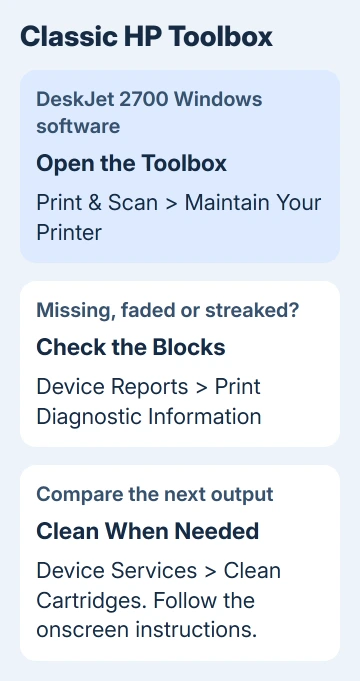
The HP missing-color guide explains the distinction between grayscale settings and physically missing ink. Use it when pages print but color or black output is missing, rather than repeating network setup.
6. Ask for repair with the local print result
If local reports print but computer jobs still fail, ask HP support for the current software supported by your operating system and exact DeskJet model. Tell support whether you're using USB or Wi-Fi and what happens in the queue.
If reports won't print, an E-code persists, or paper stays jammed, request hardware service for your model. Give support the code, light pattern, copy result, and Information-page result so they can choose the repair.
The Short Version
Clear the panel error first. Compare a local copy and Information page, then repair either the connection and queue or the printer's ink and paper handling. If it still can't print on its own, give HP service the code and print results.
Checked November 16, 2026.
 If you have any business, I can build it online






