

An unsaved PowerPoint file can often be recovered from AutoRecover after a crash. Reopen PowerPoint first and save any recovered presentation immediately; if nothing appears, use Recover Unsaved Presentations or check the recovery folder.
Choose the recovery route for your situation: a presentation never saved, missing edits in a saved file, or an overwritten cloud copy. Look for the copy PowerPoint kept before you start rebuilding your slides.
In this guide
1. Reopen PowerPoint and keep the recovered copy
After an unexpected shutdown, open PowerPoint and look for your presentation. Microsoft 365 can automatically reopen an AutoRecover file. Windows Office 2021 and earlier can show a Document Recovery pane instead.
Open the recovered entry and inspect the final slides you remember editing. More than one entry can appear, so compare their times and contents rather than assuming the first one is complete.
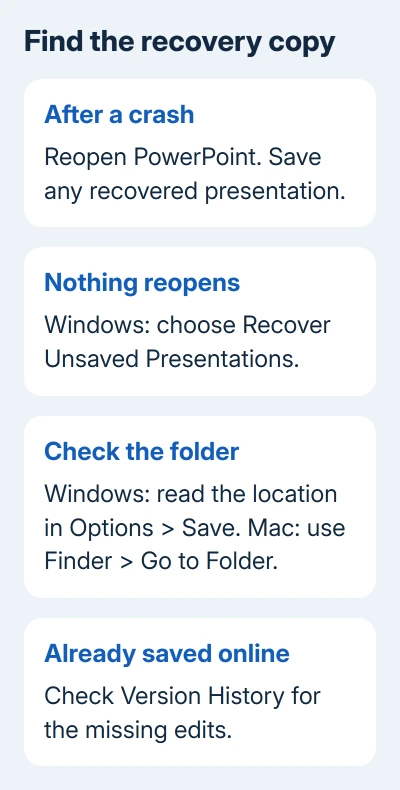
Choose File > Save As and give the recovery copy a clear filename. On a Mac, use Save As if offered, or the recovered document's save command. Check that the saved deck opens before closing the recovery view.
I'd keep a separately named copy before editing further. You can return to it if another recovery entry turns out to contain newer slides.
On a Mac, choosing Don't Save when closing a file removes its AutoRecover copy. Save a recovered presentation before dismissing it, even if you aren't yet sure which version you want.
Recovery only reaches the last copy the app kept. A few missing edits can mean PowerPoint stopped before its next recovery save. If no useful presentation opens, check the manual recovery route next.
If PowerPoint keeps closing on you after you reopen it, the PowerPoint crash fixes begin with safe mode and the add-ins it loads.
2. Find Recover Unsaved Presentations on Windows
In current Microsoft 365 PowerPoint, open File > Home and look near the bottom for Recover Unsaved Presentations. Select it, open a candidate, and save the recovered presentation to a normal folder.
In some Windows versions, you'll find the command under File > Info > Manage Presentation > Recover Unsaved Presentations. Look for the command even if your File screen has a different layout.
Microsoft's PowerPoint recovery instructions distinguish the current automatic reopening behavior from the older Document Recovery pane. A missing pane doesn't by itself mean recovery is unavailable.
Check inside each possible recovery file. A recovery filename may look different from the presentation title, especially when the original was still called Presentation1. Open the likely copies and look for a distinctive recent slide.
If the folder is empty, move to the recovery location configured in your copy of PowerPoint. Repeatedly choosing the same command won't create an older save that wasn't there.
3. Open the configured AutoRecover folder
On Windows, choose File > Options > Save. Read AutoRecover file location, copy that location, and paste it into File Explorer's address bar. Press Enter to open it.
The documented default is C:\Users\<username>\AppData\Roaming\Microsoft\PowerPoint. Replace the username placeholder with your Windows account folder, or use the actual location shown in Options if it differs.
AppData is normally hidden in folder browsing. Pasting the full location avoids having to change the visibility of hidden files throughout Windows. Use the location in Options if someone has moved the recovery folder.
Look for files modified around the time of the crash. Copy any file that looks promising before opening it in PowerPoint, then compare its slides with the other recovered versions.
An existing presentation can have a normal saved copy elsewhere even when this folder is empty. Search the folder where you usually keep presentations before treating it as a never-saved file.
For a presentation that still opens but refuses to save, use the PowerPoint saving-error steps. Keep that running document open while trying to preserve a separate copy.
4. Check the Mac recovery folder
On a Mac, start with the same automatic reopening check. If PowerPoint doesn't restore the presentation, open Finder and choose Go > Go to Folder. Paste this path and press Return:
~/Library/Containers/Microsoft PowerPoint/Data/Library/Preferences/AutoRecoveryThis is the hidden AutoRecovery folder listed for PowerPoint for Mac. The tilde stands for your home folder. Keep the space in Microsoft PowerPoint when pasting the path into Finder.
Open a likely recovery file with PowerPoint, inspect the slides, and save it with a normal presentation filename. Once the recovered slides are open, save them so you have a copy to keep.
To change how often your Mac keeps a recovery copy, open PowerPoint > Preferences > Save and look for Save AutoRecover info and its interval. The Windows File > Options instructions don't apply to this Mac menu.
If Finder can't locate that directory, the separate Office for Mac recovery page lists this container path too:
~/Library/Containers/com.Microsoft.Powerpoint/Data/Library/Preferences/AutoRecoveryTry it in Go to Folder. The two support pages use different container names; neither route needs you to create a replacement folder.
5. Recover lost changes from a file saved earlier
When the presentation already had a filename, open that file and check File > Info > Manage Presentation on Windows. Look for a retained version marked as having been closed without saving.
Open that version and check its contents before choosing Restore. Restore replaces the previously saved version, so save a separate copy first when you need to keep both sets of slides.
For a file stored in OneDrive or SharePoint, check Version History from the presentation's title or File menu where available. Compare the timestamps and open the version that contains the missing work.
AutoSave and AutoRecover do different jobs. AutoSave writes changes as you work in supported cloud files; AutoRecover keeps a recovery copy for interruptions. Switching either on now won't restore edits that were never stored.
If the cloud copy never received the changes, check the OneDrive syncing checks on the computer where the editing happened. A different device may simply be showing the last uploaded presentation.
When the recovery locations contain nothing useful
Check attachments you sent, a shared copy held by a colleague, and any backup that existed before the loss. You might find an earlier presentation there even when the app's recovery folder is empty.
Without a saved, recovered, shared or backed-up copy, there may be no file to recover. For a work account, have the Microsoft 365 administrator review recovery storage and cloud history.
For a personal account, ask Microsoft Support about the recovery locations and cloud history you've checked before buying recovery software.
For future work, enable Save AutoRecover information every in Windows Save options and save the first named copy early. For supported Microsoft 365 cloud files, check that AutoSave is on while editing.
The Short Version
Reopen PowerPoint and save any recovered presentation. Then check Recover Unsaved Presentations, the configured recovery folder, or the Mac AutoRecovery folder. An existing cloud file also deserves a Version History check.
Checked November 16, 2026.
 If you have any business, I can build it online






