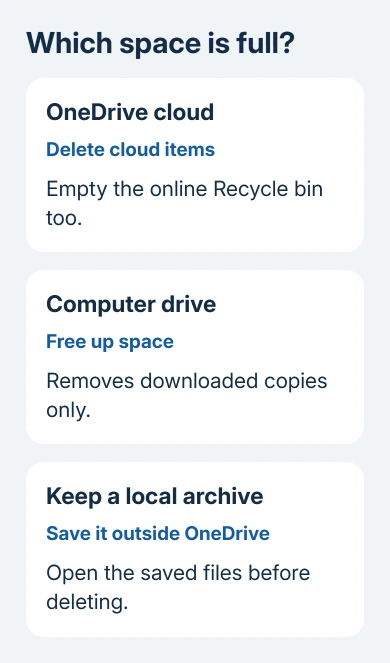
Clearing OneDrive storage means removing files from the cloud and emptying its online Recycle bin. The Free up space command in File Explorer only removes downloaded copies from your PC, so it won't reduce your cloud storage use.
Keep a separate local copy of anything you still need before deleting it from OneDrive. Then check the account's storage breakdown, since Outlook.com attachments can also use a personal Microsoft account's cloud allowance.
In this guide
Find what is using the cloud allowance
Visit the OneDrive website using the email address from the storage warning. Open its storage indicator or Manage storage option to review usage. With several accounts connected, check which email address you're using.
A nearly full Windows drive is a different problem. Settings > System > Storage measures space on the computer. OneDrive's online storage page measures the cloud allowance attached to the signed-in account.
Review the largest files first. A few old videos or duplicate archives can take up more space than hundreds of small documents. Open unfamiliar items before deciding you don't need them.
Microsoft explains in its cloud storage breakdown that the personal allowance covers OneDrive files, photos, the online Recycle bin, and Outlook.com pictures and attachments for that account.
If the storage warning appeared after a subscription change, compare the allowance with the plan on that same account. The missing OneDrive upgrade checks explain how to trace a purchase that hasn't reached the account.
A company or education account has a separate OneDrive storage page with its own quota and retention rules. Personal Outlook.com cleanup won't free space in your work or school account.
Make an independent copy before cloud deletion
Start by downloading the items you need to keep after cleanup. On the website, select the files or folder and choose Download. If a folder arrives as an archive, extract it to a folder outside OneDrive.
Open the saved documents or play the saved videos from that separate folder. A filename visible in File Explorer isn't enough if it's still an online-only placeholder, a file entry whose contents haven't downloaded yet.
Check the full location of the destination. Desktop, Documents, and Pictures can themselves be backed up by OneDrive. A folder inside one of those locations may send the copy you're trying to keep straight back to the cloud.
For example, use a clearly separate folder on another local drive or an external drive. Confirm the destination isn't inside the OneDrive folder before relying on it to keep your files safe.
The OneDrive folder-backup guide helps when Documents or Desktop has been redirected. Turning off the sync app alone doesn't move those folders or create an independent copy.
I'd test several important archived documents or recordings before discarding the cloud originals. That check is especially useful for photos and recordings that would be difficult to replace.
Delete the cloud items, then clear the online Recycle bin
Return to My files on the OneDrive website. Select only the items you've decided to remove, choose Delete, and confirm when asked. Read folder names carefully because deleting a folder removes its contents too.
Deleting an item in OneDrive removes that item on your other synced devices too. Keep the files you want in the separate folder you prepared, rather than relying on the synced folder to keep them.
Open Recycle bin in OneDrive's web navigation. Review its contents, restore anything removed by mistake, and then permanently delete the unwanted items or choose Empty recycle bin when everything there can go.
If permanent deletion waits without finishing, use the Recycle bin selection toolbar and reduce the selected group when necessary.
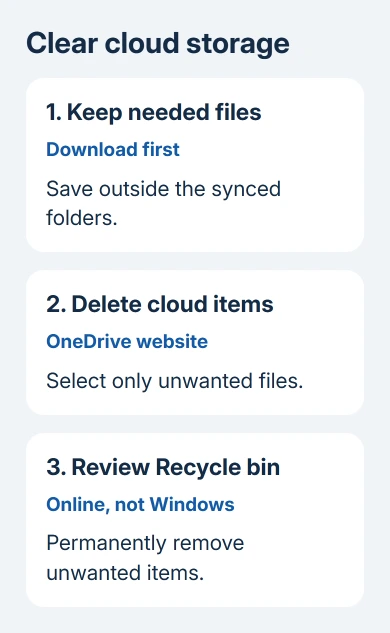
Emptying the Windows Recycle Bin isn't the same action. The cloud bin continues using personal cloud storage until its contents are removed, even when your computer's bin is empty.
The OneDrive deletion instructions separate deleting items from keeping them only on a computer. Permanently deleted files can't be restored through the normal Recycle bin.
Reopen the storage page after cleanup. The storage total may take a short time to catch up. Check whether the unwanted items are gone and the online bin is empty before repeating the deletion process.
Check Outlook.com when files don't explain the total
For a personal account, open Outlook.com and go to Settings > Subscription to review storage information. Compare the email and cloud categories rather than assuming every gigabyte comes from the OneDrive file list.
Review folders with large messages and attachments, including Sent Items. Save an attachment outside the account if you need it, then remove the message when you're ready to discard that cloud copy.
Empty Deleted Items after reviewing it. Moving a message there isn't the end of the cleanup, because that folder still contributes to mailbox storage until it is emptied or the messages expire.
Mailbox storage and Microsoft cloud storage are related but separate limits. Free space in one display doesn't automatically mean the other limit has been cleared. Read which allowance the warning actually names.
Outlook cleanup is relevant only when those messages contribute to the account you're clearing. A company mailbox on another account won't explain a full personal OneDrive allowance.
Stop the same unwanted files returning
Check which folders are backed up in the OneDrive app's Settings > Sync and backup > Manage backup. Review camera backup on phones too if unwanted new photos keep appearing after cleanup.
Change the source of those uploads rather than repeatedly deleting the same content. Keep useful folder protection enabled where you want it; the aim is to stop unwanted uploads, not turn off every backup.
If storage remains full, compare the categories again. For business or education accounts, ask the administrator about the quota and retention rules. Your organization's rules can keep data after you delete it.
If your personal account's total hasn't changed, use Contact Support in OneDrive's help options. Include your account type, storage limit, each category's usage, and when you emptied the online bin. Keep filenames private where possible.
The Short Version
Save needed files outside OneDrive, delete the unwanted cloud items, and empty OneDrive's online Recycle bin. Check Outlook.com attachments when a personal account's total stays high. Free up space only clears downloaded copies on the PC.
Checked November 16, 2026.