Extra OneDrive storage you've paid for may need a full 24 hours to appear. A purchase on another Microsoft account won't add space to the account you're viewing, so compare the subscription email with OneDrive before buying storage again.
An old limit online points to the account, purchase, or subscription. A correct web limit with a warning on one computer points to its OneDrive app. A local disk-full message needs a different fix.
In this guide
1. Match the subscription to the OneDrive account
Open your Microsoft account dashboard and choose Services & subscriptions. Find the plan you purchased and check its status. Compare the product name with the signed-in email.
In the OneDrive website, open the account menu. Check that its email matches the account receiving the storage. A browser can remain signed into an older account after a purchase for another address.
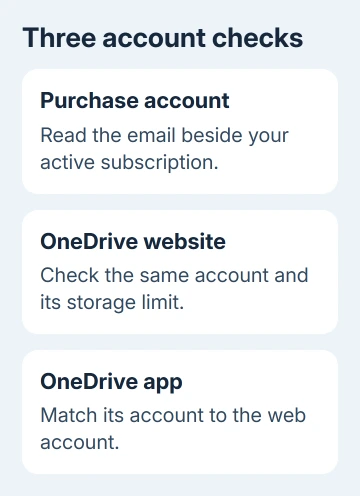
If the addresses differ, sign out of the website and sign in with the address on the purchase record. Check its storage. A larger allowance there explains why the other account hasn't changed; the purchase belongs to a different account.
On a phone, open OneDrive and its profile or Me area. If it shows a work or school account, switch to the personal account you used for the purchase. A personal subscription doesn't increase an employer's allowance.
Don't purchase the same upgrade again to correct an account mismatch. Keep the order confirmation and ask account billing support about the original purchase if it was made on the wrong account.
2. Check that the purchase has actually completed
A payment notification isn't the same as an active subscription. Find the product in Services & subscriptions and compare it with your receipt or order history. Check for a failed payment or a subscription code you haven't redeemed.
If a retailer supplied a subscription code, follow its redemption instructions using the intended Microsoft account. Buying the code alone doesn't apply it to every account on your computer. Keep the code private when requesting help.
For a mobile-store purchase, check that store's subscription record. The OneDrive billing guidance covers a subscription redeemed on another account and checking the mobile app's account.
An expired plan or failed renewal can reduce the allowance. If that's what your dashboard shows, fix the billing issue before resetting OneDrive. Resetting an app can't complete a purchase that hasn't reached your account.
If the receipt exists but no subscription appears, collect the order number, purchase date, store used, and account email. Those details let billing support trace the transaction without making you repeat a purchase.
3. Allow for the storage update, then escalate it
Allow up to 24 hours after a completed purchase for the extra storage to appear. Sign into the correct account again and recheck storage. Count from the purchase time, rather than restarting the wait after each reboot.
Microsoft lists two waiting periods. Billing support handles a subscription that still doesn't appear after 24 hours. The full-storage page says to contact support after 48 hours for purchased storage that still hasn't appeared.
Use the earlier support route when the subscription itself is missing after 24 hours. For an active subscription whose storage total is still unchanged, don't leave it unresolved past 48 hours. Explain which of those two things is missing.
I'd check how much storage the website shows before changing the computer's app. It tells you whether the account received the upgrade, so you don't spend time repairing the OneDrive app while the purchase is still being processed.
A fresh browser sign-in is also useful when two accounts have similar names. Read the full email address after signing back in. The display name by itself isn't enough to tell those accounts apart.
4. Check shared-plan benefits and the current limits
If someone else bought the plan, ask them to check that they've shared its benefits with your account. Accept the invitation using the intended address. Even in a family, sharing has to be set up for your account.
Microsoft 365 Basic and Personal aren't shared family plans. For a plan that supports sharing, check your membership and storage allowance. Signing into someone else's Office installation doesn't transfer their storage to your account.
If storage is correct but a sharing feature is absent, check the missing expiration option separately from the quota.
Current Microsoft 365 storage changes matter here. For Family and Premium plans bought from October 8, 2026, the allowance is 2 TB shared. This also applies when an expired subscription is purchased again.
Existing Family and Premium plans generally change at renewal on or after May 2, 2027, unless an eligible plan change happens earlier. Check the allowance shown on your account instead of using an older per-person figure.
Shared storage keeps each person's documents private. It changes how the allowance is divided. If the shared total is already used, another member's usage can explain a full warning after the upgrade.
5. Refresh the app only when the web allowance is right
With the new allowance visible online, check the computer's OneDrive account. Open its cloud icon and settings, then Account on Windows. Match the app's address to the one you checked online.
Quit and reopen OneDrive, then inspect its status. If uploads resume, check that a new test file reaches the web account. Seeing the larger allowance isn't enough: check that your stalled upload has finished too.
When the website has room but the app still won't upload, use the OneDrive sync repairs. Our OneDrive settings guide explains the account and folder controls if the app is connected to the wrong place.
A Disk full warning can refer to the computer's own drive. Buying cloud storage doesn't increase its physical capacity. Check Settings > System > Storage in Windows before treating a local-space problem as another failed subscription.
If your storage limit stays wrong, open support from the storage or billing help page. Send your receipt, account email, plan status, purchase time, and web allowance. Ask support to check whether your plan's storage reached your account.
The Short Version
Match the purchase and OneDrive accounts, confirm an active subscription, and check storage online. Allow processing time and check shared benefits before repairing the app. Take missing purchases or storage to support with the receipt.
Checked November 15, 2026.