

A Brother MFC-J885DW that isn't printing needs different fixes depending on whether paper never moves or comes out blank. Clear the touchscreen's error first, then print its built-in quality sheet.
If the sheet prints correctly, check the computer's queue or connection next. Missing colors point to the ink supply or a print head that needs cleaning.
In this guide
1. Deal with the touchscreen warning
Check the printer's touchscreen before sending your document again. A paper, cover or ink message can stop printing even when the computer looks ready. Follow the displayed instruction, then wait for the normal home screen.
Load a straight stack of plain paper, adjust the guides and seat the tray fully. For a jam, follow the displayed directions and the model's manual. Don't pull paper through a closed mechanism.
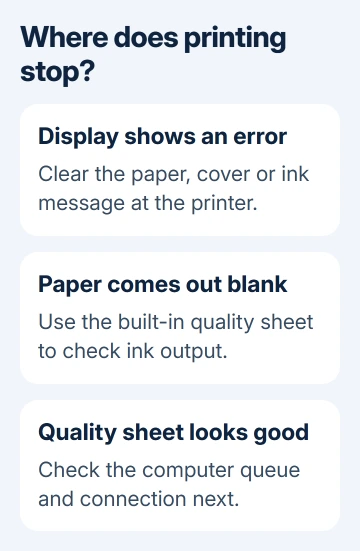
The MFC-J885DW is an inkjet with a touchscreen. Toner resets and physical Menu-button sequences for Brother laser printers don't apply to it. I'd check the display before reinstalling anything on the computer.
If the screen names a cartridge, check that cartridge first. Changing the computer's driver won't clear its warning. After clearing the message, print the quality sheet to check the machine's own output.
2. Print the quality sheet without using the computer
On the touchscreen, press Ink > Improve Print Quality > Check Print Quality. The alternative path is Settings > Maintenance > Improve Print Quality > Check Print Quality. Load paper if needed, then press Start.
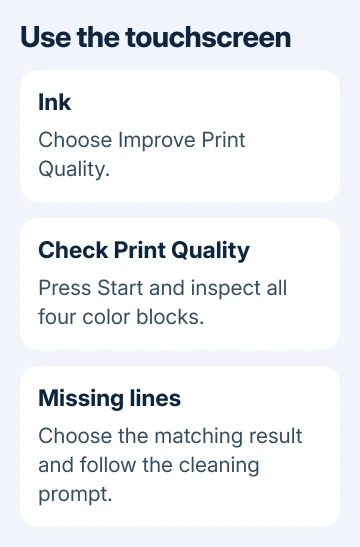
Look at the four color blocks on the printed sheet. Complete patterns with no gaps show that paper feeds correctly and all four inks print without help from Windows or macOS. Check the computer next.
If paper feeds but the sheet is blank or has missing lines, stay at the printer. Brother says the quality procedure asks whether lines are missing, then asks you to choose the picture that matches each color's result.
Choose Yes when lines are missing and select the matching result, 1, 2, 3 or 4, as prompted. For results that need cleaning, press Start. After cleaning, agree to check quality again and print the next sheet.
Compare the same color blocks on both sheets, not a photograph. Finish when every line is clear. If the guided cleaning brings no improvement, ask Brother about the print head or ink supply. Further cleaning uses more ink.
When the sheet won't start, record the new touchscreen message. Keep checking the printer itself. Changing network settings won't help it print its own internal page.
3. Remove the stuck job and select the right queue
Return to your document's Print window and choose Brother MFC-J885DW. Watch for an old copy of the printer or a PDF destination. Two similar entries can send a job to a connection you're no longer using.
In Windows 11, open Settings > Bluetooth & devices > Printers & scanners. Choose the Brother printer, then select Open print queue. In Windows 10, start at Settings > Devices > Printers & scanners.
Cancel the stalled document, then send one plain page. The Windows printing repair steps also cover a queue that won't clear. If a classic queue window offers Pause Printing or Use Printer Offline, clear an unwanted selection.
On a recent Mac, open System Settings > Printers & Scanners, select the Brother and open its queue. Older releases use System Preferences > Printers & Scanners. If printing is paused, resume it after canceling the troublesome document.
If the fresh job prints, the printer's hardware wasn't the reason that document was stuck. If the job remains queued or returns an offline error, check your Wi-Fi or USB connection in the next section.
4. Repair the Wi-Fi or USB connection
For Wi-Fi, connect the Brother to the home network used by your computer; a guest network may keep them apart. After changing the router, network name or password, check the printer's saved connection.
Follow the model's wireless setup procedure. The Brother connection guide explains the software and connection choices. Follow the controls for this model, even if another Brother has a similar name.
Resend a page after reconnection. When another device prints successfully, check the failing computer's queue, driver and permissions. When both fail, stay with the printer's network link.
For USB, reseat both ends of the printer cable and bypass docks and hubs during the check. Try another port, then a working printer cable if the computer still doesn't detect the printer.
Check the manual for the computer USB socket; a flash-drive socket serves a different purpose. Follow the installer's cable-connection prompt when one appears. Match both cable ends to the required connection.
Mac users who lost printing after a system upgrade should follow the macOS printer permission checks. If the internal quality sheet prints correctly, you can focus on why the Mac can't send a page to it.
5. Escalate with the result that failed
If the internal sheet is good but only one computer fails, have its printer entry and matching driver checked. Keep your exact Windows or macOS version handy so support can check whether this older printer supports it.
If the internal sheet is blank after the guided cleaning, ask Brother customer support to assess missing ink output on an MFC-J885DW. Tell them which colors are absent and whether cleaning changed the next sheet.
For a machine that won't feed paper, report the touchscreen message and whether it can start any internal print. Those details let support choose between a paper-path fault, an ink problem and a computer connection failure.
The Short Version
Clear the touchscreen error and print the quality sheet. Fix missing ink at the printer; a complete sheet points to the queue or connection. Tell support which check failed when you ask for a repair.
Checked November 16, 2026.
 If you have any business, I can build it online






