

F2 is the BIOS shortcut key for an ASUS laptop. Shut the laptop down, hold F2, then press its power button while keeping F2 held until firmware setup opens.
That method gets in before Windows starts, so it also works when Windows won't load. If Windows opens too quickly or the key isn't responding, use Advanced startup to request the firmware screen from inside Windows instead.
In this guide
Enter setup with F2 before Windows starts
Save any open work and shut down normally. Wait until the laptop is off. Press and hold F2 on the laptop keyboard, then press Power without releasing F2. Keep it held until setup opens. Then release it.
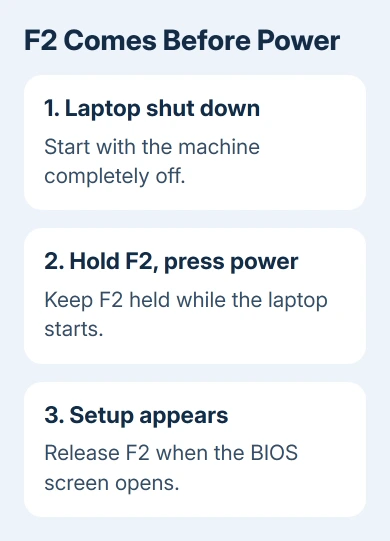
The important detail is starting with F2 already held. Waiting until the Windows sign-in screen appears misses the startup window. The power-on method works without a Windows sign-in.
ASUS's BIOS access instructions describe this method for its notebooks. The same page mentions Delete for some older desktops, which doesn't make Delete the normal shortcut for an ASUS laptop.
On a convertible such as a Transformer Book, attach its keyboard before trying. The tablet section needs that keyboard connection to receive the F2 keypress. Use the laptop's own keyboard when available.
If Windows loads instead, shut down and repeat with F2 held before power-on. If the second attempt behaves the same way and Windows works, move to the Windows route. I'd use that route rather than keep restarting and changing the timing.
Open the firmware screen from Windows 11
Open Settings > System > Recovery. Find Advanced startup, select Restart now, and confirm when asked. Save your work before confirming because this closes your apps and restarts the computer.
On the recovery screen, select Troubleshoot > Advanced options > UEFI Firmware Settings > Restart. The next restart should open the laptop's firmware setup rather than the ordinary Windows desktop.
UEFI is the modern firmware system that starts the computer before Windows. BIOS is still the familiar name for its settings screen. On a modern ASUS laptop, both names in these instructions refer to that same screen.
Another way to reach the first control is to search Windows for Change advanced startup options and open that result. Use Restart now in the Advanced startup section, then follow the same recovery choices.
The Windows recovery environment includes a UEFI Firmware Settings option on supported systems. Choose it to open firmware setup. It doesn't reset Windows.
If the recovery screen lacks that option, don't select Reset this PC as a substitute. Return to the F2 method and check the exact laptop model. A Windows reset isn't required just to enter BIOS.
Take the Windows 10 route when its Settings look different
On Windows 10, open Settings > Update & Security > Recovery. Under Advanced startup, select Restart now. The Recovery page is in a different Settings category from Windows 11.
After the restart, choose Troubleshoot > Advanced options > UEFI Firmware Settings, then Restart. Once those recovery options appear, the remaining route is the same as on Windows 11.
Searching for Change advanced startup options also opens the relevant page on Windows 10. That can be easier than looking for the Windows 11 System menu in a Windows 10 installation.
Without a working Windows desktop, skip this Settings method. Use F2 from a complete shutdown instead. Reinstalling Windows or trying repeated forced shutdowns is unnecessary for the normal keyboard entry method.
For an ASUS that doesn't produce a picture at all, follow the ASUS laptop black-screen checks. A dark display can't confirm that a shortcut failed, particularly following a component replacement or firmware update.
Recognize the BIOS screen without changing its settings
The screen may show a traditional text-based layout, an ASUS UEFI interface or MyASUS in UEFI. Different-looking screens don't mean the F2 shortcut opened the wrong tool. ASUS uses more than one firmware interface.
Look for the model, BIOS version, storage details or setup categories to confirm where you are. The mouse may work in a graphical interface; another model may expect the keyboard controls listed on its own screen.
If the aim was to read a version or confirm that storage is detected, make a note of that information. Entering the screen doesn't require a BIOS update, a factory reset or a change to boot security.
Choose the option to exit without saving when you've only looked around. Check the question in the exit dialog. If a setting was accidentally changed, discarding it avoids saving that change when leaving setup.
A laptop that asks for a firmware password has reached a security prompt, not a failed F2 shortcut. Ask the owner or organization that set the password. Give ASUS support the model and proof of ownership if further help is needed.
Use the boot menu only when you need a startup device
BIOS setup and the boot menu have different jobs. Setup lets you change firmware settings; the boot menu lets you choose which available device to start from. A list of drives isn't necessarily the full BIOS configuration screen.
On supported ASUS laptops, Esc at startup opens the boot menu. If the job is choosing a USB installer for one startup, follow the model's boot-menu procedure instead of changing unrelated firmware settings.
The BIOS shortcut is still F2. Don't treat F2, Esc and Delete as interchangeable keys simply because they appear in general computer instructions. Follow the procedure that matches both the ASUS model and the task.
If instructions refer to a model you can't identify, first find the ASUS laptop model. Support needs that complete code, even when the lid already says Zenbook or VivoBook.
When neither F2 nor the Windows method opens setup, contact ASUS support with that code, the Windows version and what appears after each method. Ask for the model's firmware-entry procedure or a keyboard check, depending on the result.
The Short Version
Hold F2 before powering on an ASUS laptop, then release it when setup appears. Windows users can request UEFI Firmware Settings through Advanced startup. Windows 10 and 11 put Recovery in different Settings categories.
Checked November 16, 2026.
 If you have any business, I can build it online






