

The ASUS laptop model you need for drivers is its full product code, rather than a broad name such as VivoBook. Open System Information and read System Model first to find the right support page.
When Windows won't start, use the underside label or read the model in the BIOS setup screen. Keep the full code, including its final letters; a similar-looking laptop can need different downloads.
In this guide
Read System Model in Windows first
Press Windows + R, type msinfo32, and press Enter. Select System Summary in the left pane. In the right pane, find System Manufacturer, then System Model.
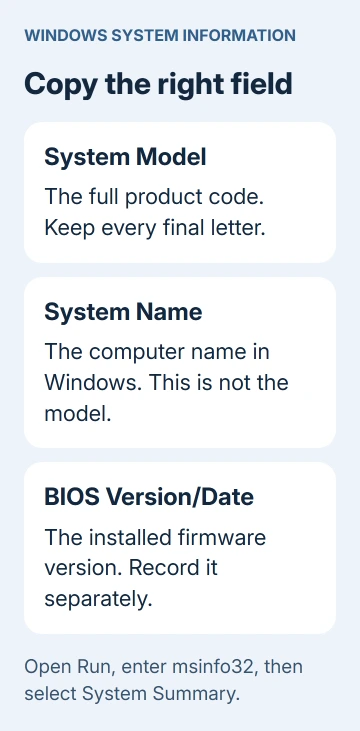
System Manufacturer should identify the maker. Copy the complete value beside System Model into your notes. Windows 10 and 11 include this tool.
Don't use System Name as the laptop model. That's the computer's name on Windows, and it can be changed. A name such as a person's name or a custom desktop label won't reliably identify an ASUS product.
The BIOS Version/Date field describes the firmware currently installed. Firmware starts and prepares the hardware before Windows takes over. Keep its version number separate from the product model.
For example, a code with letters at the end needs those letters copied too. Don't shorten it to the first few numbers when searching for a driver. I'd save the code in a note; those final letters are easy to forget.
Microsoft's PC specification instructions also distinguish the fuller System Information view from basic Settings details. Use System Information when a support form asks which laptop you have.
Check MyASUS when you already use it
Search the Start menu for MyASUS and open the app. Check the product information shown for the laptop. The layout varies with the app version, so look for the model information rather than assuming every version uses the same tab.
If MyASUS isn't installed, System Information is enough for the first check. You can identify the laptop without installing another utility.
Compare the code with the System Model value you recorded. If one screen gives a longer product description, keep both entries so support can tell the model family apart from the version you bought.
The model identifies a product type; the serial number identifies your individual laptop. Support may request both. Keep them separate when a form asks for the model and serial in different fields.
Keep that serial number out of public screenshots and forum posts. Send it privately through the manufacturer's support process when it's needed to look up your unit.
If MyASUS won't open but Windows works, continue with the Windows result and the physical label. You can still find the model even when the app won't work.
Read the physical label when Windows is unavailable
Shut down the laptop, unplug accessories, and turn it over on a stable surface. Read the printed model information on its underside. The original box can provide another product label if the laptop's print has worn away.
Look for a model or product entry rather than the serial, charger rating, or a wireless certification code. A single label can contain several codes for entirely different purposes.
Keep any longer part number alongside the main model code. The main code can lead to a support family, while the longer product information can help identify a specific configuration or replacement part.
A shop listing or purchase receipt may describe only the marketing family. Compare it with the hardware label rather than choosing a download just from a name such as Zenbook or TUF Gaming.
If you can't read the label, leave the case closed. BIOS lets you read the model without opening the laptop or changing its settings.
Use the BIOS model field without changing settings
Start with the ASUS laptop off. Hold F2 while turning it on with the power button. Keep F2 held down through startup, then release it when BIOS setup opens.
When that timing misses setup, request ASUS firmware access through Windows using the route for Windows 10 or 11.
ASUS's model and BIOS instructions show several interfaces. The location changes with the firmware, so use the route matching the screen you actually see.
In a supported UEFI interface, the newer type of BIOS screen, press F7 for Advanced Mode, open Advanced, then ASUS EZ Flash 3 Utility. Read Model and Version there. Reading those fields doesn't require starting an update.
On the older legacy BIOS screen, open Advanced > ASUS EZ Flash 3 Utility and read Platform for the model. The nearby Version field is the installed BIOS version.
On MyASUS in UEFI, the initial screen can show the combined UEFI Version value. The vendor example X1505ZA.201 separates into model X1505ZA and BIOS version 201.
Just read the model here. Don't select an update file or change the firmware. Once you've noted the model, use the BIOS option to exit without saving changes.
If you're identifying the machine for an actual update, the ASUS BIOS update guide covers the preparation separately. The model check alone doesn't call for a firmware update.
Match the code to the job you need done
For driver help, record the complete model, your Windows version, and whether the system is 64-bit. Windows 10 and 11 both show basic system information at Settings > System > About.
Once you've matched the model, use the supported driver update route for the device that needs attention.
For a charger, battery, keyboard, or display replacement, give the supplier the full model and any requested part number. Don't assume every part from the same marketing family fits every machine in it.
If you're preparing for recovery, keep your model note with your backup information. If you're preparing to erase the PC, read the ASUS reset steps before choosing a recovery option.
If Windows, MyASUS, and the physical label disagree, contact ASUS support with photos of the label and the BIOS model field. Ask them to confirm the exact support model and configuration before downloading firmware or ordering parts.
The Short Version
Read System Model in msinfo32. Use MyASUS, the underside label, or BIOS if needed. Keep the complete code and treat the serial number and BIOS version as separate information.
Checked November 16, 2026.
 If you have any business, I can build it online






