

A check mark in Microsoft Word can be a fixed symbol or a box that someone can click. For a single mark, use Insert > Symbol on Windows or Insert > Advanced Symbol on a Mac. A working task list needs a checkbox instead.
The difference matters when filling out a document: a printed box won't respond to a click, and inserting a tick doesn't make a form. Choose the kind of mark the document needs, then follow the steps for your version of Word.
In this guide
Choose a symbol or a working checklist
Use a text symbol for an approval, a completed item, or a report that only needs to show a result. The mark behaves like a letter. It can sit inside a sentence, a table cell, or a list item, and you can select and delete it.
A checkbox is better when the reader needs to change an item's status. In desktop Word, that means a control from the Developer tab. The browser edition uses a separate Checklist command.
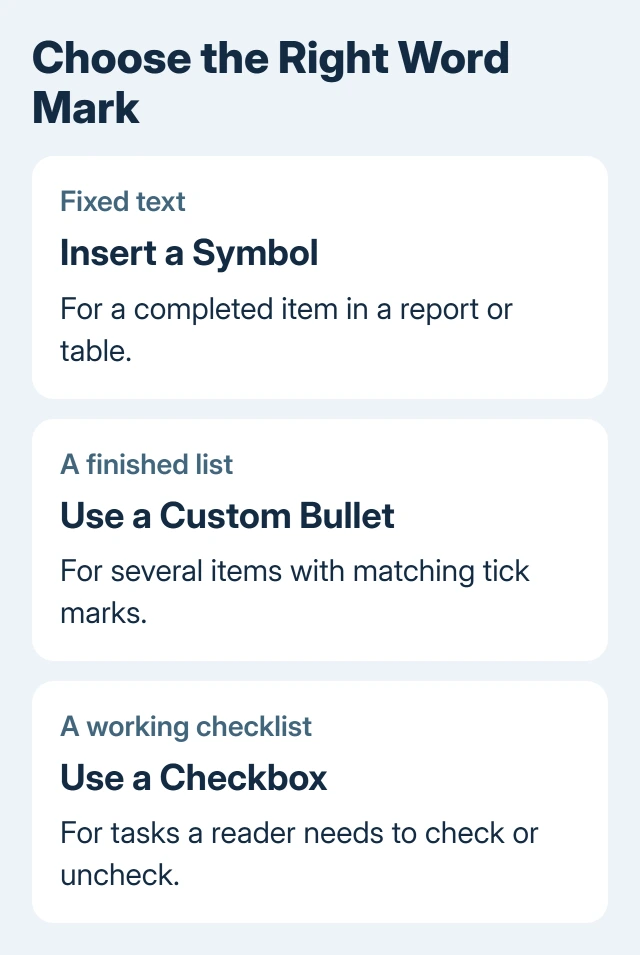
I'd use the ordinary symbol for a finished document. Building a form adds work just to show a mark beside one line. When people will complete a checklist electronically, the extra setup gives them something they can actually select.
Insert a fixed mark in Word for Windows
Click where the mark belongs. In desktop Word, open Insert > Symbol. A recently used mark may already appear in the small menu. Otherwise, select More Symbols to open the larger character grid.
Microsoft says to use Wingdings in its check-mark instructions. Set that Font, enter 252 in Character code, and choose Insert, then Close.
The character should appear at the insertion point. Code 254 in that same font gives the boxed alternative. Both are fixed characters; the surrounding box on 254 doesn't make it a clickable checkbox.
Select just the mark to change its size from Home > Font Size. Keep the surrounding words in their normal font. Applying Wingdings to the entire paragraph changes the letters too, so it isn't the right way to enlarge or restyle one mark.
If the result looks like a letter or an unexpected symbol, reopen the dialog and confirm both the font and number. The number refers to a character in that font. Repeating 252 in a different font won't necessarily produce the same shape.
For a worksheet rather than a document, the Excel check-mark steps also explain when a cell checkbox or formula is a better fit. Word's text mark doesn't become a spreadsheet status value.
Add the mark on a Mac
In desktop Word for Mac, place the insertion point in your text, then open Insert > Advanced Symbol > Symbols. Choose a check mark from the available symbols, select Insert, and close the dialog.
The mark should now appear in your text where you placed the cursor. Select it to adjust the font size, just as you would a single letter. This is useful when a large tick needs to sit beside a heading without enlarging the heading itself.
Use Advanced Symbol on a Mac rather than hunting for the Windows dialog or borrowing its numeric shortcut. If the selected font doesn't contain the shape you need, choose another font in the symbol dialog.
Save the document and reopen it before sending it. Check that the mark still appears beside the right item, especially if you've copied it between documents with different formatting.
Use a character code for repeated Windows text marks
Word for Windows can turn a Unicode character code into a symbol with Alt + X. Unicode assigns a character its own number; it isn't the same numbering system as the Wingdings example.
For a plain tick, type 2713, select those four digits, and press Alt + X. Code 2714 gives a heavier mark. These codes use Unicode rather than the Wingdings numbers.
To look up other characters, open Insert > Symbol > More Symbols and inspect Character code and from. Select a Unicode entry for the Alt + X method. That shows you which code produces the selected symbol.
Type that code where the mark belongs, then press Alt + X. If another letter or number touches it, select only the code before using the shortcut. That prevents Word from treating neighboring text as part of the number.
If the result is an empty square, try a font with the character available. Segoe UI Symbol has a large selection. If you get the wrong character instead, check the code. Changing the font won't fix a mistyped number.
Apply tick bullets to completed tasks
A list of finished tasks is easier to format with bullets than with a separately typed tick on every line. Type each item as its own paragraph, then select the items that should have the mark.
In desktop Word, open Home, expand the Bullets menu in the Paragraph group, and choose Define New Bullet. On Windows, select Symbol. On a Mac, select Bullet to open the symbol choices.
Choose a font containing the check mark and select the character. Confirm the selection to preview the new bullet, then choose OK to apply it. All selected items should now use the same mark and list spacing.
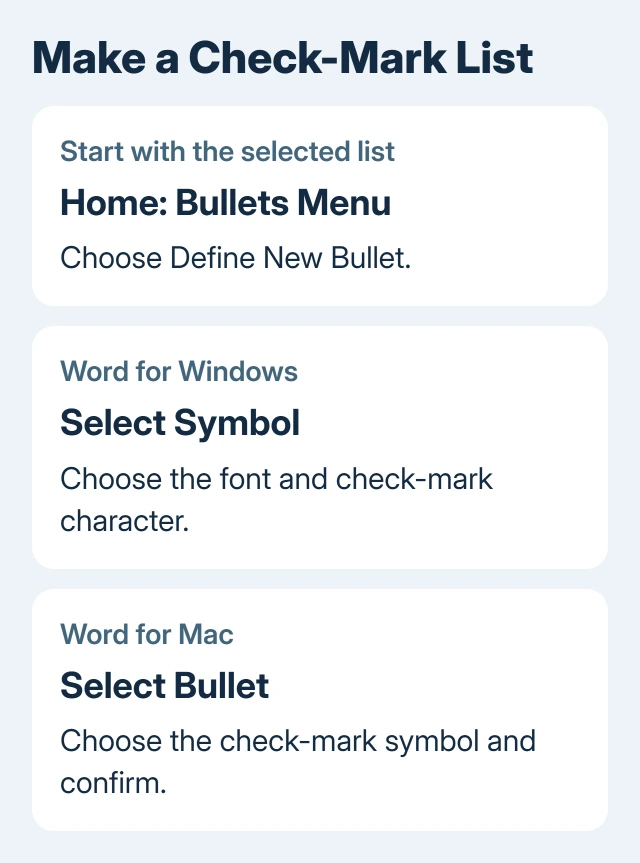
This suits a completed checklist in a report. It applies the same bullet to the selected items; recipients can't click individual items on and off. Keep unfinished items in a separate list if the document needs both states.
If wrapping or Tab behavior is the remaining problem, Word's bullet indentation settings explain the list controls. Repeated spaces before each mark make later edits harder to align.
Keep the mark intact when copying it
After inserting one correct mark, select only that character and copy it to another position. On Windows, Ctrl + C and Ctrl + V copy and paste; on a Mac, use Command + C and Command + V.
When a Wingdings mark changes after pasting between Windows documents, choose Paste Options > Keep Source Formatting. That keeps the mark's original formatting instead of switching it to the font in the paragraph you're pasting into.
When the document needs boxes that people can change, use the Word checkbox procedure instead of replacing each empty box with a typed mark. It covers desktop controls, printed boxes, and the browser's separate Checklist command.
Word in your browser has different list controls from the desktop app. For a text mark in Word for the web, paste a character from your document and check that it looks right. For an interactive task list there, use Home > Checklist.
If Word won't insert the mark, try a blank document. If that works, send the affected file to its owner and describe the failure. If every document fails, tell Office support your Word version, system, and the command you tried.
The Short Version
Use a symbol to mark finished work. Windows uses Symbol, the Mac uses Advanced Symbol, and Word for the web has Checklist for interactive lists. Match the font to the character code when a mark displays incorrectly.
Checked November 16, 2026.
 If you have any business, I can build it online






