

Fast battery drain on a Google Pixel calls for a different fix than charging that stops early or never starts. For fast drain, check Settings > Battery > Battery usage for an app using too much power. Read any charging warning separately.
Extra drain just after an update can settle after a few days. A phone that becomes dangerously hot, swells, or has physical battery damage needs a service assessment; changing software settings won't repair physical damage.
In this guide
1. Choose the check for your battery symptom
Check whether the battery percentage falls quickly while the phone is unplugged, stays at a limit while charging, or doesn't rise at all. All three can leave you short of charge, but they need different checks.
For fast drain, continue with battery usage and the app checks. For an early charging stop, read the on-screen notification and check the charging-limit section. For no charging response, use the cable and power checks.
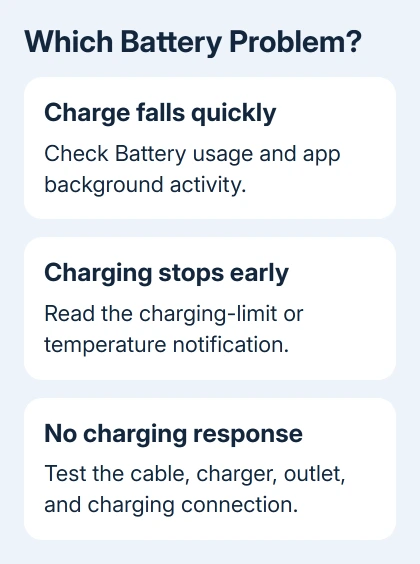
On Pixel 6 and later, open Settings > Battery > Battery diagnostics > Battery draining too quickly if that route is available. Select the symptom that matches your phone and follow the checks on screen.
Menu names can change with the installed software. Use Settings search for Battery diagnostics if you don't see it in Battery. Older Pixels don't have this same diagnostic feature, so use Battery usage and the manual checks instead.
2. Find an app that uses power in the background
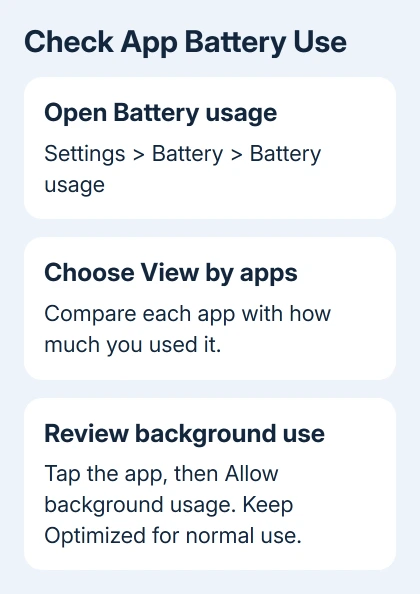
Open Settings > Battery > Battery usage, then choose View by apps. Look for an app whose activity doesn't match how much you used it. A video app used for hours is different from an unused app running throughout the day.
Tap the app, then Allow background usage to review its setting. Keep Optimized enabled for normal use. This lets the phone manage background activity instead of allowing every app to use as much power as it wants.
Google's battery-drain instructions recommend Optimized for apps. The available choices differ by app, so don't expect every system component in the list to offer the same switch.
After changing one app's setting, use the phone normally and check the next usage period. If background use drops while your daily routine stays the same, that helps show the app was contributing to the drain.
If an app you downloaded is clearly misbehaving, open Settings > Apps > See all apps, choose it, and tap Force stop > OK. Reopen it when needed and check whether the excessive use returns.
Don't force-stop essential phone services to make the chart look smaller. Google Play services is part of Android and isn't an ordinary app you can remove as a battery fix.
Update the problem app from Play Store. If the drain continues and you can do without it, uninstall that app and compare the next day's usage. Make sure any important local content is saved before removing it.
3. Restart and let updates finish their work
On Pixel 6 and later, including Fold, hold Power + Volume up for a few seconds, then tap Restart.
On Pixel 5a and earlier, press and hold Power. Keep it held for about 30 seconds, or release it when the phone starts restarting.
For more detail about the buttons and a frozen phone, use the Pixel restart guide. A restart clears a stuck session; it doesn't repair a battery that has physically worn out.
Check Settings > System > Software update and follow any available update prompts. In Play Store, tap your profile picture, choose Manage apps & devices, and install updates for the apps you use.
After a system update, the phone downloads and optimizes software in the background. Some extra drain for a few days is normal. I'd let it finish before troubleshooting persistent drain, rather than resetting the phone on the first evening.
A new phone or one recently factory-reset has a longer learning period. Adaptive Battery can take a few weeks to fully adjust to your app use. Keep Adaptive Battery and battery optimization enabled during that period.
That learning period isn't a reason to ignore sudden shutdowns or a charging error. Treat those symptoms separately, especially when they happen while the screen still shows plenty of charge.
4. Check a charging limit before replacing accessories
A phone that stops near a limit may be protecting its battery or following a charging preference. Read the notification and check charging settings before assuming the charger is broken.
When the notification reports a battery-protection charging limit, follow the Pixel charging-limit checks. That situation differs from an app draining the battery after you unplug it.
Heat can also affect charging. Move the phone out of direct sun and stop demanding activity while it cools. Don't try to overcome a heat warning by repeatedly reconnecting a higher-powered charger.
On affected Pixel 6a phones, battery management from the July 2025 update reduces capacity and charging performance after 400 charge cycles. Only specific devices are affected; Pixel 6 and 6 Pro are excluded.
The Pixel 6a battery program ended on July 8, 2026. As of this check, don't rely on past advice promising those program options. Ask support about current repair and warranty choices for your phone.
5. Test charging with a working cable and outlet
When the Pixel gains no charge, connect a compatible wired adapter to a working outlet. Check both cable ends. Test those accessories on another device, then try a different working cable and adapter with the Pixel.
Take off any case that blocks a firm cable connection. Look for visible dust or debris in the charging port. Don't insert metal tools or add liquid to the port while checking it.
A Check charging accessory notification can mean an unsupported or damaged cable or adapter. Use a compatible replacement rather than adjusting app battery settings, which won't repair that connection.
Leave a very low battery connected long enough to respond. When a Pixel has been unused and fully drained, its screen, vibration, and charging icon may take up to 25 minutes to respond to power.
If it remains unresponsive after that with working power equipment, use the repair route in the charging troubleshooting page. A screen fault can also make a working phone look dead, so note whether it rings or vibrates.
6. Escalate persistent drain with useful details
Record the Pixel model, Android version, when the trouble began, and the Battery usage app list. Tell support whether the phone loses charge while idle, shuts down unexpectedly, or fails to charge with a cable and adapter you know work.
I'd gather those details before a factory reset. They give support something specific to act on, and you keep your current data and app settings while you decide with support whether it needs repair.
Try a factory reset only late in software troubleshooting, after backing up your data. If diagnostics or support point to a worn or damaged battery, ask for an authorized inspection and repair estimate instead.
The Short Version
Use Battery usage for fast drain, the notification for a charging limit, and the cable and outlet checks for no charge. Allow update work to settle. Persistent faults or physical damage need current support or repair advice.
Checked November 16, 2026.
 If you have any business, I can build it online






