

Chrome's built-in ad setting stops some intrusive ads. For broader blocking on a computer, install a supported extension such as uBlock Origin Lite from the Chrome Web Store.
Chrome on Android and iPhone doesn't install those desktop extensions. The instructions for a computer and a phone are different.
In this guide
Get the current extension through its developer
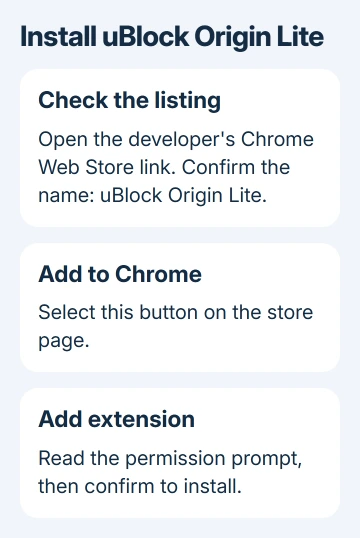
Open the uBlock Origin Lite project and follow its Chrome Web Store installation link. Starting from the developer's project helps you reach the intended extension instead of a similarly named listing.
Check that the store page says uBlock Origin Lite before choosing Add to Chrome. Read the permission prompt, then select Add extension if you want to proceed. Chrome shows a confirmation when installation finishes.
This is the Lite extension, not the older uBlock Origin extension. Use the link the current project provides rather than instructions that tell you to force an unsupported extension back into Chrome.
Google says its extension installation procedure works on desktop Chrome. That includes Windows, Mac, and Linux computers. A school or work administrator can block installation, so the usual store button may be missing.
One blocker is enough to start. With several blockers running, it's harder to tell which one broke a page since each has its own rules and permissions. Get the first extension working before considering any additional browser tools.
Pin the control and check an ordinary page
Select Chrome's Extensions button near the address bar, then pin uBlock Origin Lite. Its icon will be easier to reach when you need to change filtering for the page you're viewing.
Open a page you normally visit and reload it after installation. Compare the visible ads and page behavior. An extension can block many requests without removing every empty advertising space in the layout.
Select the extension's icon while you're on that page. Its popup lets you change filtering for the site you're on. Open the extension's options for settings that apply across sites.
I'd keep the initial setup simple and change one site at a time if something looks wrong. A working page with fewer ads is a better result than a stronger setting that breaks the button you came to use.
Blocking ads also isn't the same as blocking access to an entire website. Those controls stop the page itself from opening, which matters when supervising a child's browsing.
Choose the filtering level that matches the result
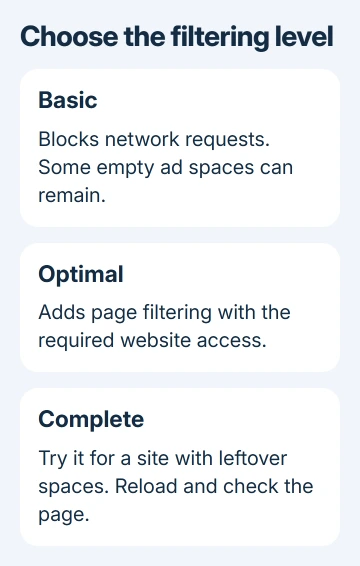
uBlock Origin Lite offers several filtering modes. Basic filters network requests, without the page-hiding and script filters used by stronger modes. Spaces left by blocked ads can remain visible.
The project's troubleshooting page describes Optimal as its intended default. For remaining advertising spaces on one site, it suggests trying Complete for that site.
Stronger modes need permission to read and change website data. If you withhold the required site access, the extension can return to Basic. Review the site-access request when the selected mode keeps changing back.
Use only the level and site access you're comfortable granting. These permissions let the blocker act on page content; they aren't a request to type your website password into the extension's settings.
Reload after changing the level. Check both the ads and the parts of the page you need, such as a video player, sign-in form, or checkout. The effect of a setting matters more than its name.
Allow a site when blocking breaks something useful
Stay on the affected page and open the blocker's popup. Reduce or disable its filtering for that site, then reload. If the missing control returns, keep the adjustment limited to that site while you decide how to proceed.
If the control returns, filtering on that page is causing the problem. It doesn't require turning off Chrome's other protections or uninstalling the browser. You can keep the existing filtering setting on other pages that work normally.
When the same action keeps failing, leave the affected site open and use the project's reporting control. Include the page address, filtering mode, and the action that fails. Leave private account details out of the report.
An ad blocker also won't stop a website permission you've already granted from producing desktop notifications. If ads appear as alerts even after you leave the page, remove that site's notification permission.
Use Chrome's built-in ad control for intrusive sites
On desktop Chrome, open Settings > Privacy and security > Site settings > Additional content settings > Intrusive ads. Set intrusive or misleading advertising to be blocked for the sites covered by this control.
This control addresses a narrower problem than an extension. Seeing ordinary ads while it's enabled doesn't mean the setting failed. It isn't designed to remove every advertisement from every page.
The intrusive-ad help describes the behavior and the option to allow ads on a particular site. That helps you decide whether this more limited control blocks enough for your needs.
A popup window is separate again. Manage Pop-ups and redirects when a site opens unwanted extra windows. Allow an exception only when you need that site's legitimate window, rather than allowing every popup because a page asks.
On a phone, use the available browser controls
Chrome on Android doesn't accept desktop Chrome extensions. Its site settings include the controls for intrusive ads and pop-ups, but they don't provide the same broad filtering as installing the desktop blocker.
A Chrome Web Store extension won't install into iPhone or iPad Chrome either. The store's send-to-desktop option installs on a computer; it doesn't add a blocker to your phone's browser.
For broader phone filtering, check a browser that supports its own content-blocking system. Read its current instructions for your operating system. A Safari extension or another browser's add-on doesn't automatically filter Chrome too.
If your work computer blocks installation, ask the administrator for an approved alternative. Send them the official listing and the restriction message. Avoid downloadable copies offered outside the store.
The Short Version
Get uBO Lite through the developer's store link, compare a familiar page, and adjust filtering where needed. Chrome's intrusive-ad setting is narrower. Desktop extensions don't install into Chrome on a phone.
Checked November 16, 2026.
 If you have any business, I can build it online






