Universal Device Client Code 31 after a Windows update cleared for several Lenovo owners when they rolled back the device's driver. Open its Driver tab and try Roll Back Driver first.
When that button is grayed out, the older package isn't available for this rollback. Check for an update for that device or try reinstalling it instead.
Windows reports this warning when it can't load the device's required driver. It doesn't identify every problem on the laptop, so check the named device before changing unrelated drivers.
In this guide
1. Confirm the warning belongs to Universal Device Client
Open Device Manager using Start's right-click menu. Expand System devices, find Universal Device Client Device, right-click it and choose Properties. Check the Device status box on the General tab.
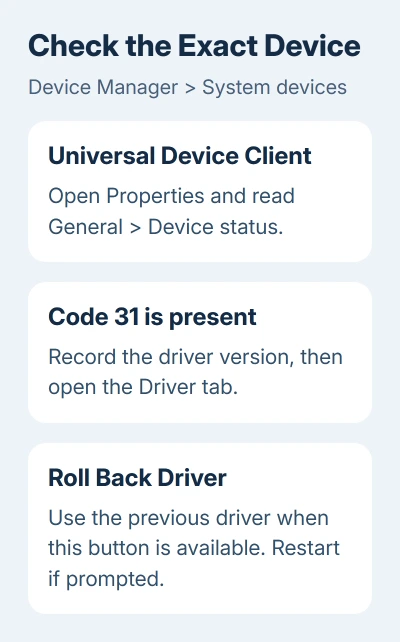
For this fault, the message ends with Code 31 and says Windows can't load the drivers required for the device. A different code needs different steps; the Device Manager code guide separates those messages.
Open the Driver tab and record the provider, date and version. Press Windows + R, run winver, and note your Windows version and build too. You can compare those details after changing the driver.
If there is no warning on this device, don't roll it back just because another Lenovo component stopped working. Select the component that actually reports a fault and read its own status first.
2. Restore the previous driver
In the device's Properties > Driver tab, select Roll Back Driver. Choose the reason that best describes the problem after updating, confirm with Yes, then accept any requested restart.
Microsoft's driver recovery steps describe this control. It returns the device to a previously installed driver without looking for a newer replacement.
Several Lenovo owners reported that rollback removed this exact warning. One later stayed free of the error after restarting and updating again. Keep the working version for now rather than reinstalling the troublesome one straight away.
Reopen Device Manager > System devices > Universal Device Client Device > Properties. Success means a normal Device status with the yellow warning gone. Compare the driver version with the one you recorded.
Then test the function that first made you notice the problem. If the warning is gone but your USB accessory still fails, note both results. You'll need them when deciding what to try next.
3. Handle a grayed-out Roll Back Driver button
Don't pick a random older driver just because the rollback button is disabled. Windows may no longer have the previous package, or there may never have been another version installed for that device.
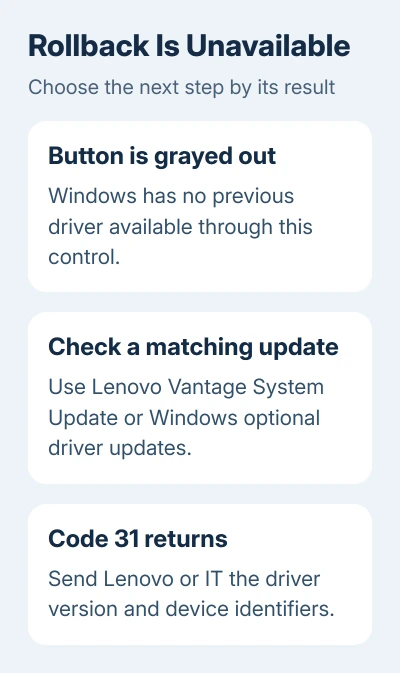
On a personal Lenovo PC, open Lenovo Vantage if installed and use its System Update feature to check for updates for your machine. Review the listed packages rather than installing every optional item at once.
Use a package that actually addresses Universal Device Client or the identified Lenovo software. A newer graphics, touchpad or wireless driver isn't a replacement for this device's driver despite being offered alongside it.
Windows 11 also offers Settings > Windows Update > Advanced options > Optional updates > Driver updates. On Windows 10, check Settings > Update & Security > Windows Update > View optional updates, when that link is available.
If a matching update is offered, install it and restart, then read Device status again. If neither tool offers one, take the device details to Lenovo support rather than using a paid driver-download utility.
The broader driver update guide explains the difference between a targeted repair and updating a working device for its version number alone.
4. Reinstall the device when rollback isn't available
Reinstalling lets Windows set up the device again, though it may use the existing package. That can help when the device hasn't been set up correctly. Rollback is the option that returns it to a previous version.
In Device Manager, right-click Universal Device Client Device and select Uninstall device. For this first attempt, leave any option to remove the driver package unchecked. Confirm, then restart Windows.
After restarting, return to Device Manager. If the entry hasn't returned, select Action > Scan for hardware changes. Open its properties and check whether Code 31 remains.
This is the standard reinstall route in the Device Manager error guidance. It gives Windows another chance to register the existing device and driver.
If the same warning immediately returns, stop repeating the uninstall. The next useful step is a matching Lenovo package or support advice, because another scan won't turn the same driver into a different version.
5. Check work-PC management before removing Lenovo software
Universal Device Client is associated with Lenovo software. Lenovo also uses that name for a service and driver that connects devices to its cloud services. Seeing it doesn't automatically mean your physical USB controller is broken.
For an organization-managed computer, send IT the device status and driver version before removing Lenovo services or software. They may need that client for the computer's management setup.
For a personal PC, ask Lenovo which software installed the device on your exact model. Support can then identify whether its client package should be repaired, replaced or removed, rather than treating every Lenovo utility as disposable.
I'd keep a working rollback in place while getting that answer. Removing unrelated Lenovo applications adds more changes without explaining why this one driver failed to load.
If Code 31 remains, give Lenovo the exact device details
In the device's Properties, open Details and choose Hardware Ids from the Property list. Copy the displayed values. If that property is empty, select Device instance path and copy that instead.
Contact Lenovo through Vantage's support option. Send the model, Windows build, error, driver version and identifiers. Explain whether rollback was unavailable or failed. Request the matching client package and recovery steps.
List any failed USB ports or touchpad behavior separately. One owner couldn't roll back and had failed USB storage; another had a touchpad complaint. Those reports don't tell us whether Universal Device Client caused the other symptoms too.
The Short Version
Confirm the client's Code 31, then try driver rollback. Without rollback, check matching updates and attempt one reinstall. Ask Lenovo or IT to identify the correct client package when the warning persists.
Checked November 16, 2026.