

Yes, Microsoft Teams is like Zoom for video meetings: both offer voice, video and screen sharing. A Teams invitation works much like a Zoom invitation, so you don't need to learn the whole app just to attend a call.
For everyday work, the differences depend on your account and plan. Teams connects meetings with work chats, channels and shared files. Zoom Workplace also includes chat and collaboration tools; neither product is limited to video calls.
In this guide
Match the invitation to the app
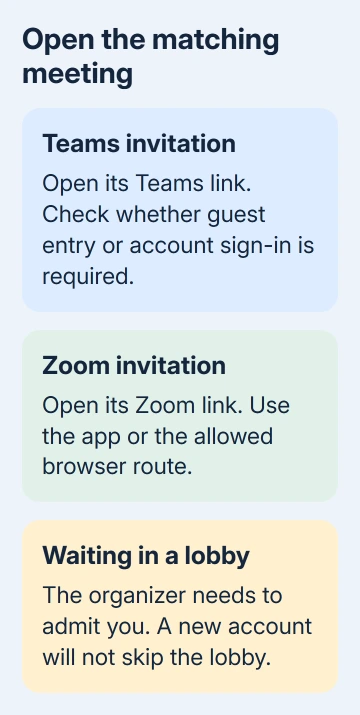
A Teams meeting link belongs in Teams, and a Zoom meeting link belongs in Zoom. The products provide similar meeting tools, but their invitations aren't interchangeable. Opening Teams won't join a Zoom link for you.
For an invited meeting, start with the organizer's link. That points to the right service and carries the meeting details. An unfamiliar app doesn't mean a new invitation is needed; use the one the organizer sent.
Teams offers a browser route for supported meetings, so you can join Teams without an account when the organizer's rules allow it. Some meetings require sign-in or an email verification code.
Zoom also lets guests join, but the host can require them to sign in. Its browser option depends on meeting settings. If a meeting requires a particular account, using another browser doesn't remove that requirement.
I'd follow the invitation before downloading anything. It tells you whether a browser is enough and helps avoid signing into an unrelated workplace or personal profile just before the meeting starts.
Expect familiar controls once the call opens
In either service, your first jobs are the same: choose the microphone and speakers, decide whether your camera is on, and join. The preview is the place to catch a laptop using its built-in microphone instead of your headset.
Once connected, look for the microphone control to mute or unmute and the camera control to switch video on or off. Their positions can differ between the desktop app, browser and phone, even within the same service.
Screen sharing is a separate action. Joining with your camera on doesn't automatically present the desktop. Choose the content you want to show when you're ready, such as one application window rather than your whole screen.
Permission to present can depend on the organizer's settings. If screen sharing is missing or unavailable, your meeting role may not allow it. The app itself may be working normally. Ask the organizer to check your presenting permission.
Meeting chat is another familiar feature, but don't assume every participant has the same access after a call ends. Account type, how someone joined and organization rules can affect which conversation remains available.
For the Teams side of those controls, the Teams chat and meeting guide walks through the work account, meeting and calendar views. It explains the individual controls once you've decided which invitation belongs to your call.
Check the free meeting limits before hosting
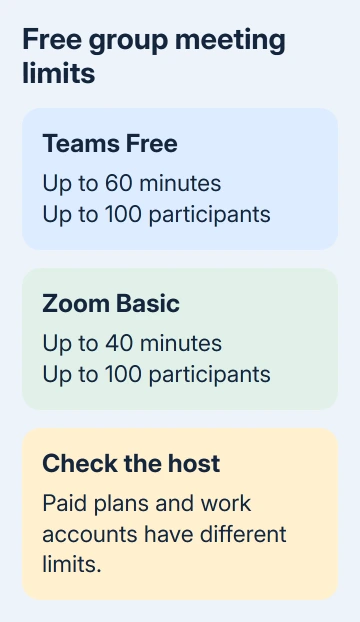
The free plans have different time limits. Microsoft's current Teams personal-use comparison lists group meetings up to 60 minutes and 100 participants for the free offering.
Zoom Workplace Basic lists 40 minutes per meeting and 100 participants. If your session needs an uninterrupted hour, that time difference matters more than a different toolbar layout.
Those limits apply to those specific free plans. They aren't a promise that every school or employer account has the same limits or features. Work licenses, paid personal subscriptions and organization policies can change what's available.
Check which subscription the host's account uses. An attendee's paid plan doesn't upgrade someone else's meeting. Before inviting a group, check that the account creating the meeting allows enough time and participants.
Check recording separately. The Teams comparison lists no meeting recording for its free personal plan; paid options differ. Confirm that the host's account has the feature and permission before promising a recording.
Compare the work around the meeting
Teams work or school accounts organize ongoing conversations through chats, teams and channels. A channel gives a group a place to keep a subject's conversation and files, rather than sending everything through separate meeting invitations.
That can fit a workplace already using Microsoft 365. Check whether colleagues can reach the intended team, files and calendar using the accounts their organization provides.
Zoom Workplace also offers Zoom Chat, Mail, Calendar, Docs and other collaboration tools. Calling it only a video meeting app would miss features listed in its current plans.
Think about how your group will use the app between calls, too. For an occasional call, easy attendance and meeting length may decide it. For a regular project, check where the discussion, documents and next meeting will live.
Ask a colleague to demonstrate joining a project conversation and opening a shared document with an account like yours. Check that you can return to it later. That's more useful than comparing features your workplace hasn't enabled.
Choose for the people who will join
For an invitation from a client, class or employer, use the service they've chosen. Similar features don't make it useful to send participants a replacement link from the other product five minutes before the call.
When you're the host, check whether attendees use work accounts, personal accounts or guest entry. A service that fits your organization's staff may still need different joining instructions for an outside visitor.
Before an important session, ask an outside participant to try a test invitation. Check whether they reach the preview, a verification request or a lobby. Keep private meeting links out of public posts.
If someone gets stuck waiting, check the meeting's attendee list and lobby controls. Creating another account won't admit a person who's waiting for the organizer to let them in.
If Teams keeps blocking someone from joining, give your IT team the invitation, account type and exact message. For Zoom, ask the host to check sign-in requirements and browser joining settings before blaming the installed app.
The Short Version
Teams and Zoom cover the same core meeting tasks, but their accounts, invitations and plans differ. Use the invited service to attend. To host, compare meeting length, guest access and the collaboration tools your group will actually use.
Checked November 16, 2026.
 If you have any business, I can build it online






