

A security update made received Outlook meetings read-only, so delegates could no longer add attachments. In classic Outlook for Microsoft 365, update the app and add Edit Meeting to use the supported editing route.
Check who organized the meeting, too. Adding a file to a received copy for your own reference doesn't send it to every attendee. Delegated access doesn't make the calendar owner the organizer of an outside invitation.
In this guide
1. Check who organized the meeting
Open the affected event from the delegated calendar in its own window. Check the organizer shown in the meeting details. Check whether the person you support organized it or received the invitation from someone else.
If the calendar owner organized the meeting, use the normal organizer or delegate workflow to change it and send updates. If somebody else organized it, use the received-meeting instructions in the next sections.
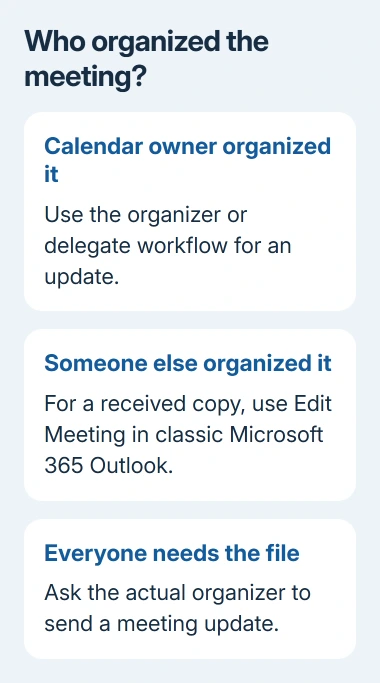
Microsoft's received-meeting resolution explains the change: the August 8, 2023 security updates made incoming meeting bodies read-only and blocked adding files.
That restriction can apply to invitations from inside the organization as well as external senders. Even with read, write, and create access to the calendar, you can still run into this restriction on received meetings.
If the delegated calendar itself is missing, restore Outlook's navigation pane first. Once you can open the calendar, return to the received meeting and check whether you can edit it.
2. Confirm the Outlook edition and install updates
In classic Outlook for Windows, open File > Office Account. Read the product name and version. The Edit Meeting fix applies to the Microsoft 365 subscription version. It isn't available in every desktop release of Outlook.
Choose Update Options > Update Now when available. For a managed computer, have IT update Outlook through its approved channel. Close Office apps when the updater asks, then reopen the affected calendar item.
The first Current Channel release with the command was Version 2311, Build 17029.20068. That was the first build for that channel. Install current supported updates rather than seeking out that old build.
The feature was also rolled out to enterprise channels. Don't compare only the version number across different channels: the older Semi-Annual Enterprise Channel received it with Version 2308 in its January 2024 update.
The published resolution says the feature wasn't planned for Outlook 2021, 2019, or 2016. It doesn't give these command steps for new Outlook, Outlook on the web, or Mac. Use the classic Microsoft 365 route for these steps.
3. Add Edit Meeting to the Quick Access Toolbar
Switch to Calendar and open a meeting in its own window before changing the toolbar. The Quick Access Toolbar is the small command area for that window, so start from a meeting rather than the main Mail window.
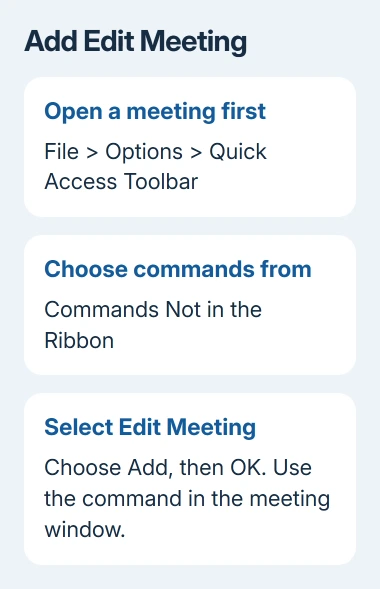
- Select File > Options > Quick Access Toolbar.
- Set Choose commands from to Commands Not in the Ribbon.
- Select Edit Meeting in the command list, then select Add.
- Select OK to save the toolbar change.
Return to the received meeting and choose the new Edit Meeting command. Choose Insert > Attach File, select your document, then save the item. Reopen that same meeting copy and check that the file is present.
If you're a delegate, check this in the calendar you manage. Saving something in your own copy doesn't show whether the intended calendar owner's copy has the attachment they need.
The command lets you edit the meeting copy you received. It doesn't turn a recipient into the organizer or send a new organizer update. If every attendee needs the file, ask the actual organizer to attach it and send the update.
4. Put the command on the meeting ribbon instead
If a visible ribbon button is easier to find, open a meeting item and select File > Options > Customize Ribbon. In the right column, find Appointment under Main Tabs in the classic ribbon settings.
Select New Group and rename the group Edit Meeting. Keep that new group selected. In the left column, set Choose commands from to Commands Not in the Ribbon and select Edit Meeting.
Choose Add, then OK. The custom group now gives you a place to find the command when working with meeting items. You can move the group in the customization window if its position is inconvenient.
Choose either this ribbon setup or the toolbar route; one is enough. I'd choose the toolbar for someone who handles meeting files all day; it keeps the command easy to reach without rebuilding the ribbon.
If Edit Meeting isn't listed, confirm that you're customizing from an open meeting window and check the product and update channel with IT. Resetting the ribbon can't supply a feature missing from that edition.
5. Handle unsupported apps and shared meeting files
If your app doesn't have this supported command, ask the organizer to send the attachment in a meeting update. If the file is only for the executive you support, send it directly with the meeting title and date so its purpose is clear.
For separate meeting notes, the support page lists Teams notes, OneNote, or a separate appointment as alternatives. Choose a location the intended reader can open rather than assuming a private note will appear on their calendar.
The security change also blocks some meeting pictures. For normal email picture problems, use the Outlook image-display checks. Adding Safe Senders won't restore received-meeting editing.
Later replies in the delegate discussion include an owner who used the command successfully before it disappeared. If that happens, note the current build and where the button was added.
Ask IT to check the button you added to the meeting window, your update channel, and your delegated permissions. Say whether received invitations alone fail or the calendar owner's own meetings fail too. Those cases need separate checks.
The Short Version
Check the organizer, update classic Outlook for Microsoft 365, and add Edit Meeting from Commands Not in the Ribbon. Use it for the received copy. Ask the organizer to send an update when the attachment needs to reach every attendee.
Checked November 16, 2026.






