

The legacy Mendeley error naming libc.dylib in Word for Mac has a confirmed fix: change the reference to /usr/lib/libc.dylib in MacIpcClient. Several owners restored their Desktop citation plug-in this way after updating to Word 16.21.
This applies to the old Desktop plug-in and that exact missing-file message. A modern Mendeley Cite panel that won't load needs different troubleshooting, even though both tools insert references into Word.
In this guide
1. Match the missing file and the plug-in first
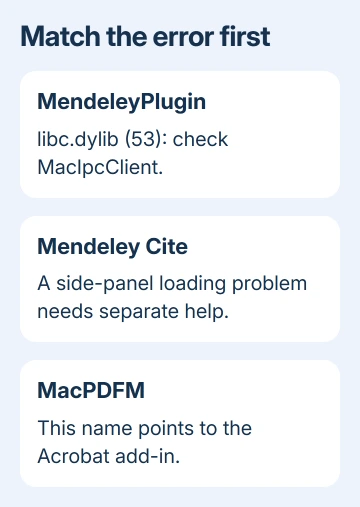
Read the complete error before changing anything. The relevant message is File not found: libc.dylib (53) in MendeleyPlugin. The original reports concern Word for Mac 16.21 and the older Mendeley Desktop integration.
Open Word > About Microsoft Word to record the installed version. Also note the Mendeley Desktop version from its About window. Those details matter if your menus or module names don't match the historical repair.
An error numbered 53 can name different missing files. If yours names MacPDFM, use the Acrobat add-in repair instead. Replacing a Mendeley library path won't fix an Adobe component.
If the error appears in a side panel labeled Mendeley Cite, stop this procedure. The Mendeley Cite installation guide explains the newer add-in and its separate account and installation checks.
Checking the name keeps you from editing the wrong plug-in: this change belongs to one part of the old Mendeley code. It isn't a general macOS missing-file repair, and it doesn't require replacing a system library.
2. Save the paper before opening the plug-in code
Save your document and keep a separate copy before editing the plug-in. Use a spare document for the first citation after the change. That lets you check the repair without touching your finished reference list.
I'd record the original module text before replacing anything. A screenshot or copied text helps you compare the edited line with its original text, especially when the editor contains several similar library declarations.
Dismiss the error so you can reach Word's menus. In the Mac menu bar, choose Tools > Macro > Visual Basic Editor. This opens the editor for Visual Basic for Applications, the code used by the old plug-in.
Microsoft's Office for Mac editor instructions use that same menu route. Opening the editor doesn't mean writing a new macro into your paper.
If your university or employer manages this Mac and blocks access to the project, send IT the message and module name. Don't try to bypass the restriction or unlock a protected project.
3. Open MacIpcClient inside MendeleyPlugin
In the editor's project list, find MendeleyPlugin. Expand its modules and open MacIpcClient. The code window should belong to that module before you start searching.
If the project list is hidden, use the editor's View > Project Explorer command. Look for the plug-in's project rather than selecting the document or Word's Normal template just because those appear first.
The repair that worked for owners changes MacIpcClient in this editor, not a file with a similar name in Finder. If MendeleyPlugin is missing, the old plug-in hasn't loaded in this editor session.
In that case, close the editor and check which citation tool you're using. Send Mendeley Support the error text and the installed versions if the old plug-in is present but its module can't be found.
Don't create a new module named MacIpcClient to make the instructions fit. The existing module contains the library call that needs correcting; an empty replacement wouldn't supply that code.
4. Replace the library reference within that module
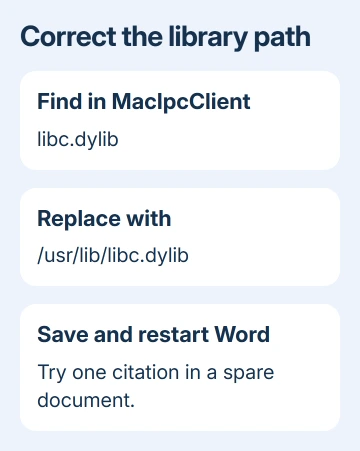
Click inside the MacIpcClient code window. Open Edit > Find and use the editor's Replace command. Owners using the Mac editor at the time also opened Find and Replace with Command + Shift + H.
Search for this exact text:
libc.dylibThe replacement is:
/usr/lib/libc.dylibKeep the search within the current module. Check the matches before replacing them. If the existing text already includes /usr/lib/, don't add the prefix again; that would create a different, incorrect path.
Use Replace All only for the bare library references described in the report. Keep the existing quotation marks and the rest of each code line intact. Only change the library's path.
Owners report in the saved Mendeley plug-in discussion that this edit restored the plug-in. That fix applies to this library path; error 53 can have other causes.
5. Save the plug-in and check a spare citation
Save the changes with the editor's Save control, then close the editor. Quit Word completely with Word > Quit Word, reopen it, and use a spare document to try the citation command again.
The fix has worked when the same command inserts a reference without showing the libc.dylib message. Next, open a copy of your real paper and check an existing citation and bibliography before continuing your edits.
If the error remains, compare the changed declaration with your saved original. Check for a doubled path or an edit made in another project. If the edit saved but the error hasn't changed, ask support to check your plug-in version.
The discussion also contains successful reports of reverting Word to 16.20. That was a response to a 2019 update. Downgrading a current installation to that old release isn't a sensible maintenance plan for a Mac used today.
When the module repair doesn't fit your installation
Ask Mendeley Support for help with Mendeley Desktop's legacy Word plug-in, including the exact error, Word version, macOS version and whether MacIpcClient exists. Include the corrected declaration and what happened after restarting Word.
If you move to the newer Cite tool, work on a copy of the paper and review its handling of existing citations first. Check that the new tool works with your existing paper and bibliography before relying on it.
The Short Version
For the legacy MendeleyPlugin error naming libc.dylib, open MacIpcClient and replace the bare library reference with /usr/lib/libc.dylib. Save, restart Word and check a spare citation. Use separate help for MacPDFM or a modern Cite panel.
Checked November 16, 2026.






