Office can keep asking for sign-in when it selects the wrong account for a OneDrive file. Switch to the account that can edit the document, then reopen the file. The banner's sign-in button can leave Office using the same saved login.
The warning can appear while OneDrive syncs normally. If the cloud app also refuses sign-in, you need to repair its saved sign-in separately. Start with the app showing the warning before removing accounts from Windows.
In this guide
1. Match the Office profile to the cloud document
Before changing accounts, open File and choose Save As or the cloud document's Save a Copy. Save outside your OneDrive folders to keep edits that haven't synced. Open that copy and check that your recent work is there.
In the Windows edition of Word or Excel, select File > Account. Check that the account under User Information has permission to edit in that OneDrive or SharePoint location. One PC can connect to both personal and workplace storage.
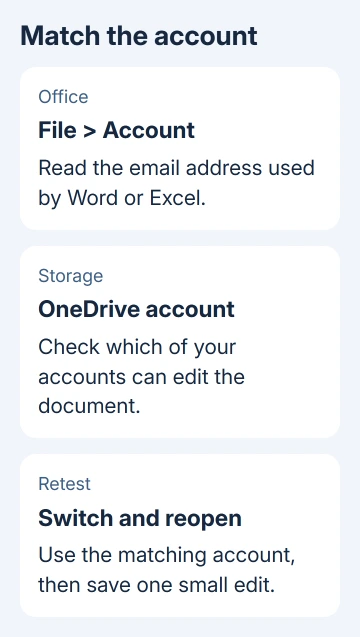
Select Switch account if that choice is available, or use the app's upper profile menu. Choose the account that can edit the file. When both profiles are already listed, switch away and then back to the intended one.
One owner on Microsoft's forum fixed the repeated warning by switching between their two Word profiles. Another still had the warning despite working Connected Services, so switching profiles won't fix every case.
Close the affected document and reopen it from the correct location. Make a small edit you can undo, save, and reopen the file. A successful sign-in should let the change save without bringing the credential warning back.
If the account isn't listed, continue with a fresh Office sign-in. Don't add another Windows user just to make it appear inside Word.
2. Sign out of Office and sign in again
Keep the local copy from step 1. Open File > Account > Sign out in the affected Office app, then close all Office applications. Reopen Word or Excel and choose the login with editing permission for that document.
Complete any password or multifactor prompt. A work or school account might ask for approval through your organization's usual sign-in method. Office can't finish connecting if you dismiss that request.
The Office sign-out instructions explain that signing out disconnects services and can affect editing during the signed-out period. It doesn't cancel your subscription.
Return to File > Open and select the intended OneDrive or SharePoint location. Check both the account label and folder name. Two organizations can use similarly named document libraries.
If the correct storage location isn't offered, inspect File > Account > Connected Services where your edition provides it. Older desktop layouts offer Add a service > Storage > OneDrive. Add the account for that location there.
The original advice used that older menu, but the asker didn't say that adding a service fixed their PC. Use it to reconnect a missing location, not as a reason to keep adding duplicate services.
3. Check whether the problem is confined to Office
Open OneDrive's cloud icon beside the Windows clock. Expand the hidden-icons area if necessary. Check the account and read the activity message. If OneDrive syncs normally while Office shows the banner, return to Office's sign-in checks.
If OneDrive itself won't sign in, it needs a different fix. Our OneDrive account checks cover the app that won't connect at all. I wouldn't reset OneDrive when just one workbook shows the warning.
For a shared document, ask the person sharing it to check that your exact account can edit it. A successful Microsoft account login doesn't restore permission that was removed from a SharePoint library.
If your organization uses two accounts on the PC, note which cloud belongs to each one. The second OneDrive account setup explains how their local folders stay separate.
Try another document from the same account. If one organization's files fail but personal files work, tell IT. If only one shared file fails, have its sharer review your permission before changing the computer.
4. Repair OneDrive's saved sign-in only when it also fails
For OneDrive for Business on Windows, the current cached-credentials workaround names a specific settings file. It isn't an instruction to wipe every password from Credential Manager.
Press Windows+R, enter %localappdata%\Microsoft\OneDrive\settings, and select OK. Delete PreSignInSettingsConfig.json if it is present, then open OneDrive and complete its sign-in.
That support page also covers duplicate filenames containing the computer's name. Use this targeted workaround for the OneDrive sign-in symptoms it describes. If the file isn't there, don't remove neighboring settings files instead.
On a Mac with a OneDrive sign-in problem, open Keychain Access through Spotlight or Applications > Utilities. Search for OneDrive and delete the item named OneDrive Cached Credential, then run OneDrive again.
Removing that keychain item repairs OneDrive's stored sign-in. It isn't a replacement for checking which profile Word is using. Check that OneDrive connects before returning to the affected document.
I'd leave unrelated saved passwords alone. The original Windows asker had already cleared credentials and rebuilt OneDrive syncing without success, so I wouldn't repeat that broad cleanup.
5. Update Office or give IT the failing account details
From the Windows Office app, choose File > Account > Update Options > Update Now. Save any open documents. If the update asks you to close Office, do that and let installation finish before reopening the cloud file.
If Update Options is missing, your organization may manage Office updates. Ask IT to review that account and the installed Office build rather than changing registry sign-in settings yourself.
For a work account that still loops, send IT the full banner, the Office version from About Word or About Excel, the affected storage location, and whether the OneDrive app connects. Include whether another organization's files work.
Ask IT to check sign-in failures and document permissions. For a personal subscription, choose Contact Microsoft Support, then Microsoft 365 sign-in or activation. Explain that the loop happens inside the desktop app.
The Short Version
Match Office to the file's account, preserve unsynced edits, and refresh its sign-in. Repair OneDrive credentials only when that app also fails to connect. Give IT the account and app details if the loop persists.
Checked November 16, 2026.