

OneDrive files can enter File Explorer's Recent list through cloud-account activity, even when you haven't opened them on this PC. Turn off account-based files in Folder Options to hide those entries without stopping sync.
An unexpected entry alone doesn't tell you whether someone accessed your account. Treat unfamiliar sign-ins or actual changes to files separately from a crowded Recent list.
In this guide
1. Turn off account-based files in File Explorer Home
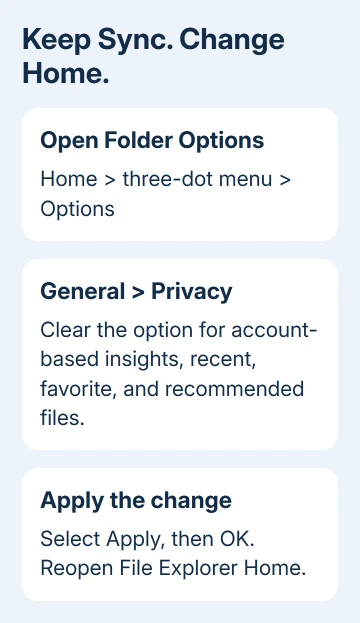
Press Windows+E, select Home, then select the three-dot menu > Options. In Folder Options > General, look under Privacy for Include account-based insights, recent, favorite, and recommended files.
Clear that checkbox, select Apply, then OK. Close and reopen File Explorer and inspect Home again. This stops account activity from adding entries to Home. Your files stay available in their usual folders.
Microsoft's file search instructions identify this as the control for Microsoft365.com files in File Explorer. It isn't a OneDrive backup switch.
The wording can change between Windows builds. Read the whole label and choose the option about account-based or cloud activity. Leave file extensions, hidden files, and unrelated display settings as they are.
If that checkbox isn't present, continue with the local Recent settings in the next section. A Windows 10 Quick access window doesn't have the same Home controls as current Windows 11.
I'd change the account setting before clearing the whole history. It targets the unwanted cloud entries and lets you keep a useful list of files opened locally.
2. Hide local recent files when the list still gets in the way
Folder Options has separate controls for recent documents and frequent folders. Turning off cloud activity doesn't mean every remaining item disappears: locally recorded items are a separate part of the view.
On Windows 11, return to three-dot menu > Options > General > Privacy. Clear Show recently used files if you want Home to stop showing that list entirely, then select Apply.
On Windows 10, open File Explorer and choose View > Options. In the General tab's Privacy area, clear Show recently used files in Quick access, then select Apply.
Leave the frequent-folders option enabled if those shortcuts help you. Files and folders have separate controls, so hiding documents doesn't require removing folder suggestions too.
If you see Clear beside Clear File Explorer history, select it to empty the saved history. Clearing history is a one-time action; leaving a recent-files checkbox enabled allows the list to fill again as you work.
Check the result by reopening Explorer, then opening a document from its actual folder. If you've hidden recent files, you should still be able to open that document from its folder without a new Recent entry.
Don't delete the document to remove its history entry. Deleting from a synchronized OneDrive folder can remove the cloud copy too. Hiding a suggestion leaves the document in place.
3. Open This PC and pin the folders you actually use
Home is convenient when its suggestions suit your work. When they don't, File Explorer can open to This PC, which shows drives instead of making the Recent list your starting point.
Open Folder Options > General. Change Open File Explorer to to This PC, then select Apply > OK. Open a new Explorer window to check that it starts at your drives.
This changes where Explorer opens. Selecting Home manually can still show the items allowed by its Privacy settings, so use the earlier checkboxes if you want those entries hidden there too.
Right-click a regularly used folder. Choose Pin to Quick access from its menu. A pinned project folder gives you a dependable shortcut without relying on which document Windows decides is recent.
Pin the folder that contains the work, rather than every file in it. That keeps the navigation pane manageable and makes it easier to notice when you've opened a similarly named folder from a different location.
The OneDrive settings guide covers the separate decisions about syncing and folder backup. Changing those controls isn't necessary just to tidy File Explorer Home.
4. Separate a list problem from an account problem
A file appearing in Recent tells you that Explorer displayed an entry. It doesn't tell you who read the document, which application supplied the activity, or whether the file's contents changed.
One owner reported unwanted entries with matching times when they started a Windows session. They saw the same list problem, but their report doesn't explain what accessed each file.
Compare Home with the document's actual folder. Check that your file is still there. A missing file, an unexpected edit, and an unwanted suggestion need different responses.
For an unfamiliar sign-in alert, open your account's Recent activity page. Expand the entry under Unusual activity and choose This wasn't me.
Follow the prompts to secure the account. Hiding suggestions doesn't protect it from unauthorized access, and a Recent file entry alone doesn't identify a particular sign-in.
With an organization account, give the administrator the affected filename, the displayed time, and any separate sign-in warning. They can review account records that a File Explorer list can't show.
Unlinking OneDrive is a much bigger change. The guide to stopping OneDrive without losing files explains that choice when you actually want to stop syncing, rather than hide recent items.
When the setting is missing or won't stay changed
On a work computer, IT can control File Explorer settings. Ask IT to review the policy named Turn off account-based insights, recent, favorite, and recommended files in File Explorer.
That policy controls cloud file information in Explorer. Tell IT whether the checkbox is missing, unavailable, or returns to its previous state after sign-in; those are more useful details than saying OneDrive is broken.
On a personal PC, open Start > Get Help and describe the File Explorer Home problem. Include your Windows version from Windows+R > winver and the exact Privacy options visible on the General tab.
The Short Version
Turn off account-based files in Folder Options first. Hide local recent files separately if needed, or start Explorer at This PC. An unfamiliar sign-in needs an account security review even when the Recent list looks normal again.
Checked November 16, 2026.
 If you have any business, I can build it online






