

A Windows 11 Installation Assistant not found popup can come from an unwanted startup command. Read its missing filename first: the reported case involved a misspelled .scr target, and malware removal stopped the alert.
A legitimate upgrade tool that you've deleted is a different situation. The filename, location, and time the message appears help separate a missing download from something repeatedly trying to run.
In this guide
1. Read the whole missing-file path
Leave the message open long enough to record its full path and filename. Take your own screenshot or copy the text into a note. A friendly-looking popup title isn't enough to identify the program it's looking for.
In the reported case, the missing file was windowsinstaiiation.scr. Notice the spelling and the .scr extension. That isn't the name of the normal Windows 11 Installation Assistant download.
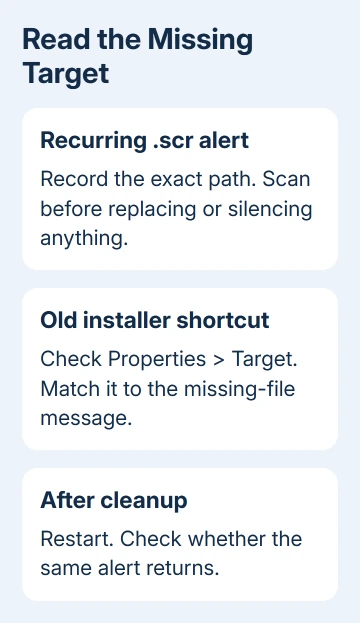
The extension .scr is used for Windows screen savers, which can run program code. It isn't a harmless document extension, and putting Windows in a filename doesn't make its code safe.
Don't search for that missing file and download a replacement. When a command keeps trying to open a suspicious file, check what's launching it rather than supplying the program it wants to run.
If the message happens only when you click an old shortcut to a genuine installer, close it and remove that obsolete shortcut. Use the Windows 11 update assistant guide when you actually need a supported upgrade.
Write down whether the alert starts immediately after sign-in, follows a particular app, or repeats while the computer is idle. Those details help you find what's trying to launch the file, even if the file has already been removed.
2. Scan for malware before silencing a suspicious alert
Open Start, type Windows Security, and open it. Choose Virus & threat protection. Check which security provider is active before following scan instructions, especially if you already use a separate antivirus product.
When Microsoft Defender Antivirus is active, open Protection updates and check for updates. Return to Virus & threat protection > Scan options, select Full scan, then Scan now.
Microsoft's scan guidance explains that a full scan checks every file and program. Follow the recommended action for anything detected, then restart if requested.
Windows 10 and 11 both provide these scan controls. Another antivirus can take over protection. If Defender's scan controls aren't available, update your active antivirus and run its full scan.
An owner reported that an additional malware scan removed several detections and the alert stopped during the following 20 minutes. Their existing Norton installation hadn't detected those items.
Review Defender's actions in Windows Security > Virus & threat protection > Protection history. Record detection names and action status. Leave quarantined files alone even when the old launcher complains that its target is missing.
3. Check for the leftover startup shortcut
After dealing with detections, press Windows+R, type shell:startup, and press Enter. The folder lists startup shortcuts belonging to your current sign-in. Look for an entry named Windows11InstallationAssistant or one matching the alert.
Right-click the suspected shortcut and select Properties. Read its Target. Compare that path with the missing path you recorded, including the extension and any unusual spelling.
Only remove a shortcut when its Target matches the unwanted command. Deleting the matching shortcut removes that launch instruction; it doesn't scan your PC or remove every other way that program could start.
Also check Settings > Apps > Startup for a clearly related entry. Turn off the matching item if present. Restart and observe whether the same popup returns without manually opening an installer.
An empty Startup folder doesn't mean the alert is imaginary. Windows also supports scheduled tasks, services, and other startup locations. Don't start deleting unrelated entries because the first folder doesn't contain a match.
4. Use an offline scan when the suspicious behavior continues
If Defender is active and you still suspect malware after the full scan, return to Virus & threat protection > Scan options. Select Microsoft Defender Antivirus (offline scan) and choose Scan now.
Save your open work first. Defender restarts into a recovery scan instead of examining threats from the usual desktop session. Threats that stay hidden during normal use have less chance to hide there.
The computer should restart again when the scan finishes. Once signed in, return to Protection history and review the result. Then check whether the same missing-file popup returns during the activity that triggered it earlier.
If the message persists after scans, keep the exact target and the scan results. A command may still try to launch a file that's been removed. The alert alone can't tell you whether more malware is present.
The guide to avoiding computer viruses covers safer downloads once this immediate problem is handled. A replacement file from an unfamiliar download page can recreate the risk you're trying to remove.
5. Get the launcher checked when the alert keeps returning
Open Start > Get Help and describe a recurring missing-file launch, including the complete target. Ask for help identifying its startup entry or scheduled task after malware scanning, rather than asking only for an installer download.
For a work computer, bring the problem to IT. Include detection names, whether the scan removed anything, and whether the alert happens before you've opened other apps.
For a closer look, Microsoft provides Sysinternals Autoruns, which lists many startup locations and lets a technician disable an entry without deleting it. Give the technician the path so they can match the launcher accurately.
Don't jump from a failed launch to a Windows reset. First check whether only the leftover startup command remains and whether your antivirus has finished dealing with everything it detected.
The Short Version
Record the missing target, run a malware scan, then inspect matching startup shortcuts. Malware removal stopped the reported .scr alert. Treat a deleted genuine installer separately from an unknown command that keeps returning.
Checked November 16, 2026.






