PowerPoint's stock images service can fail when Windows prevents encrypted pages from being saved to disk. Check Internet Properties first, then Office's permission to download online content if the image picker still won't load.
This applies to the Windows desktop app. A missing Stock Images command, a disabled command, and a service-failed message need different checks. An owner confirmed the cache fix for this error; other picture failures need their own checks.
In this guide
1. Allow the encrypted-page cache in Windows
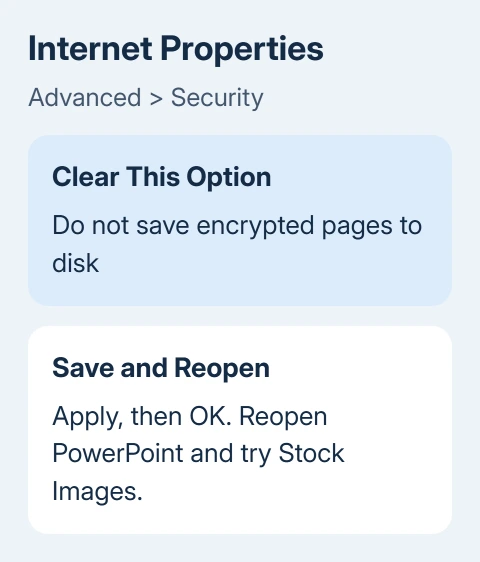
In the Microsoft forum thread, an owner cleared Do not save encrypted pages to disk and the error stopped. They'd already tried Online Repair, reinstalling Office, and enabling the privacy options for online content without success.
- Save your presentation and close PowerPoint.
- Press Windows + R, enter
inetcpl.cpl, and press Enter to open Internet Properties. - Select Advanced and scroll to the Security settings.
- Clear Do not save encrypted pages to disk if it's selected.
- Select Apply, then OK. Open PowerPoint and try Insert > Pictures > Stock Images again.
This Windows setting controls whether encrypted web content can be saved on your PC. Clearing it doesn't turn off encrypted connections. The option can affect Office content even when your everyday browser isn't Internet Explorer.
If the picker loads and an image reaches the slide, the setting was blocking it. Try a second image before returning to your presentation to check that the first result wasn't just a previously loaded thumbnail.
On a managed work PC, ask IT before changing a locked security setting. Tell them which option is selected and that Office stock images fail. If it changes back after a restart, have them check the policy that controls it.
If the box is already clear, leave it that way and continue with the next check. Changing it again won't give your account access to extra content or restore an unavailable service.
2. Check permission to download online content
Office's connected experiences are features that use online services. Some download content, including online pictures. PowerPoint can open and edit local presentations while those features are unavailable.
Open File > Account. Under Account Privacy, choose Manage Settings. Check whether connected experiences that download online content are allowed. Save any change, close the Office apps, and reopen PowerPoint.
Your account and company policy control which settings appear. A work account may say the administrator manages them. Send IT that message and say whether the setting is on or off. Don't bypass it with a personal account.
Microsoft covers the choices in its connected experiences guidance. Downloading content has its own permission. Changing an unrelated diagnostic-data choice won't check that permission.
Return to the stock image picker. If the gallery works after this change, the content permission was stopping it. If the same error remains, move to the account and feature checks instead of enabling every optional privacy choice.
3. Separate a missing feature from a failed service
Check the product and signed-in account in File > Account > Product Information. Check for Microsoft 365 or a one-time purchase. Content availability differs by product, and Microsoft 365 subscribers have access to more of the library.
Try a blank presentation. Select a slide, then open Insert > Pictures. If Stock Images is available but returns the error, you're dealing with a service request that failed rather than a missing ribbon command.
If the command doesn't appear, check that you're using the desktop PowerPoint edition you expected. The PowerPoint getting-started guide explains where pictures fit into a slide and how the other picture sources differ.
If it's the Icons button that's missing instead, the PowerPoint Icons checks cover the versions that have it and the folded Illustrations group.
A local picture is also a useful comparison. Try Insert > Pictures > This Device with an image you own. If that works, you can keep building the deck while checking the online library. It doesn't mean the stock service has recovered.
If local pictures fail too, record that result. A problem affecting all picture insertion needs broader Office troubleshooting than a stock-content download error.
4. Compare another Office app and connection
Try the same online content feature in Word, if it's installed and available with your account. If both programs fail, check what they share, such as Office content permissions, the Windows setting, or the connection.
If your organization allows it, compare another trusted network. Keep the presentation and account the same. If it works there, have IT review filtering and proxy settings on the original network.
One owner in the original discussion tried a phone hotspot and still received the error. Switching networks won't fix every case. If both connections fail, give support that result instead of resetting the router again.
Don't turn off your firewall or antivirus to make a gallery load. On a work computer, ask IT to check whether Office's online-content requests are blocked while you reproduce the failure.
If only one app fails, note which app and version. That comparison is more useful for the next step than a general report that Microsoft 365 is broken.
5. Update Office before another reinstall
In PowerPoint, open File > Account > Update Options > Update Now if your installation offers it. Finish the update, reopen the app, and retry a blank presentation. Managed installations may need their administrator to deliver the update.
I'd check the cache option before repeating an Office repair. In the confirmed case, repairs and a reinstall had already failed because the relevant Windows setting remained selected.
If you need a temporary way to finish the slides, insert your own licensed pictures from the device. The PowerPoint picture citation guide explains how to keep source details with images that need a credit.
If it still fails, use Help > Feedback in PowerPoint to report it. For a business account, have your administrator report the failure through Microsoft 365 support. Include the error, Office build, account type, and comparison results.
Include whether 3D models fail too, as they did in the original report. That helps support understand which online content features are affected without assuming every download uses the same route.
The Short Version
Clear the encrypted-page cache restriction first. Then check Office's online-content permission, account, and connection. If it still fails, send the error and Office build to support instead of repeating a reinstall.
Checked November 16, 2026.
 If you have any business, I can build it online