An NVIDIA GPU missing from Device Manager on an ASUS gaming laptop can be switched off by its GPU power-saving mode. Open Armoury Crate and select Standard under GPU Mode before reinstalling drivers.
On other PCs, check whether the adapter is disabled, listed as Microsoft Basic Display Adapter, or absent altogether. Those are different states: a missing NVIDIA name doesn't always mean Windows has lost the hardware.
In this guide
1. Restore Standard mode on an ASUS laptop
Connect AC power before opening Armoury Crate. Find Device > GPU Power Saving > GPU Mode. On versions with a GPU Mode tile on the main page, use that tile to reach the same choice.
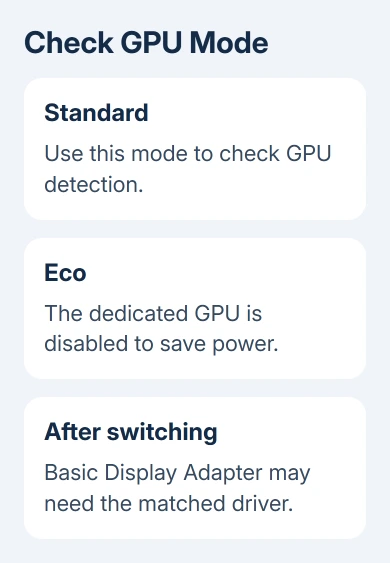
Select Standard and complete any restart the app requests. Eco mode disables the dedicated GPU to save power, so its absence from Device Manager can be the expected result of that setting.
An owner with an ASUS TUF A15 confirmed that selecting Standard restored their NVIDIA GPU after Optimized mode had disabled it. Try this fix on a laptop with those power controls; it doesn't apply to every NVIDIA desktop card.
Locate your BitLocker recovery key before choosing another GPU mode; some systems can request it after a switch. Use Standard for this detection check rather than choosing Ultimate because its name sounds stronger.
On supported consumer ASUS laptops, check MyASUS > Device Settings > Power & Performance > GPU Mode and select Standard there. Not every ASUS product has the same controls, so skip a menu your model doesn't have.
For supported ProArt models, the equivalent setting is in ProArt Creator Hub > Dashboard > GPU Mode. Follow the choices shown for your machine instead of installing another model's control utility.
Open Device Manager > Display adapters again. If NVIDIA now appears normally, launch the game that was running slowly and check it again. If Microsoft Basic Display Adapter appears instead, continue to the driver section.
2. Read what Device Manager actually shows
Right-click Start, choose Device Manager, and expand Display adapters. Note every adapter listed. An Intel or AMD entry can be the integrated graphics built into the processor, while NVIDIA is the separate GPU.
Choose View > Show hidden devices. A faded NVIDIA entry describes a device Windows isn't currently treating as present; it doesn't mean the GPU is working again.
Select Action > Scan for hardware changes. If Windows detects the adapter, check whether its name appears normally and open its Properties. Read the Device status box on the General tab.
An entry with Enable device in its right-click menu is disabled. Select Enable device and check the status again. If the menu offers Disable device, the adapter is already enabled; don't click it as a repair.
An error number tells you which problem to check next. Use the Device Manager code guide when Properties reports Code 22, Code 43, or another code rather than treating all entries as the same fault.
The Windows driver instructions explain how to update or reinstall a detected adapter. If there is no live NVIDIA entry, clicking Update driver on the integrated GPU won't update the missing NVIDIA adapter.
3. Repair a Basic Display Adapter or driver error
After a long period in Eco mode, returning to Standard may leave some ASUS systems showing Microsoft Basic Display Adapter. That can mean the dedicated GPU is visible but its proper graphics driver hasn't loaded.
ASUS's graphics detection procedure specifically identifies this case and recommends reinstalling the official ASUS graphics driver. Start with your laptop's exact model, not just its GPU family.
Use MyASUS to find the matched graphics package when available. Otherwise, read your model from System Information or the laptop's label, then open its support page. Select the matching operating system before downloading.
Save the correct driver package before removing an existing driver. In Control Panel > Programs > Uninstall a program, select the relevant graphics driver entry and follow its uninstall prompts, then restart and install the matched package.
Restart once installation finishes and inspect Display adapters again. Before trying a game again, check for a normal NVIDIA entry and read Device status to confirm Windows reports no problem with it.
If the installer still says no compatible NVIDIA hardware is detected, stop repeating the same installation. Return to the GPU mode check and note whether the device is absent or only faded. Tell the laptop maker which of those you see.
4. Follow the PC's own hardware recovery procedure
If Standard mode and the matched driver don't restore detection, check Windows updates and your manufacturer's BIOS and firmware guidance. A BIOS update must match the exact model; a similar-looking laptop can use a different package.
For ASUS notebooks, the detection procedure also includes an EC or RTC reset. These reset the hardware controller or clock settings. Use the linked procedure for your model, since power-adapter and button-hold instructions differ.
Desktop PCs don't use these laptop GPU modes. If Windows never sees the card, ask the builder to check its power connections, seating, and firmware settings. Have the warranty provider handle work covered by your warranty.
If the GPU disappeared immediately after a driver update but remains listed, tell support that history. A driver rollback is a different route from a card that is absent before a driver installer can detect it.
The graphics restart shortcut can help a display that stops responding. It doesn't select Standard mode or install a missing driver, so it can't replace checking mode and driver status.
When the NVIDIA adapter still doesn't return
Contact your laptop or PC maker with the exact model, Windows version, GPU mode, and a screenshot of Display adapters with hidden devices visible. Include the driver installer message and any Device status code.
Ask for a detection check before a motherboard replacement quote. The TUF owner restored their GPU through software after hardware failure was suggested.
If the GPU stays missing, you'll still need service, especially when the firmware, your PC's built-in hardware software, can't see it.
The Short Version
Select Standard GPU mode on an ASUS laptop. Then check whether NVIDIA is disabled, replaced by Basic Display Adapter, or entirely absent. Use the matched driver after detection returns; take persistent absence to the PC maker.
Checked November 16, 2026.