

Classic Outlook can show the item-cannot-be-saved error when an IMAP draft changes while you're editing it. Keep your message safe: accept the offered copy, then reopen the email from Drafts and save your next edit there.
For replies written in the reading pane, try opening replies and forwards in a separate window. The error also appears outside IMAP, so match the steps to your account and item. It doesn't mean someone else necessarily edited your email.
In this guide
1. Preserve the message before closing its window
Leave the failed message open while you read the prompt. When it offers a copy in the default folder, select Yes. For the documented IMAP draft problem, this saves a copy in the Inbox.
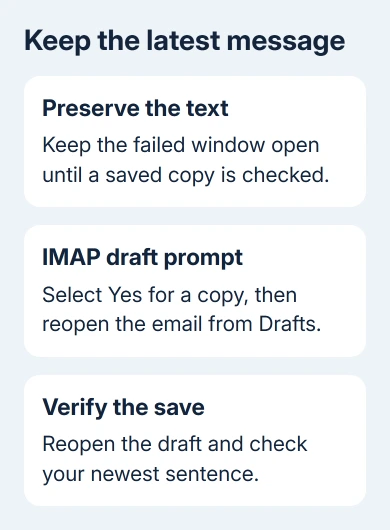
Copy important text into a temporary document before dismissing the error. Keep the original window until you've checked a saved copy, especially after writing a long reply since the last successful save.
Microsoft's IMAP draft workaround then says to open Drafts, open the draft email, edit it and select Save. These steps are a workaround; the page doesn't say the bug is fixed.
After saving, close and reopen that draft to check your latest changes. Confirm the recipients, subject, attachment list and the last paragraph you wrote. Seeing a message in a folder doesn't tell you whether its newest edits survived.
If the expected Drafts copy is missing or older, keep the preserved text and check the Inbox copy created by the prompt. Don't delete competing copies until you've identified which one contains the message you intend to send.
2. Make replies open in their own window
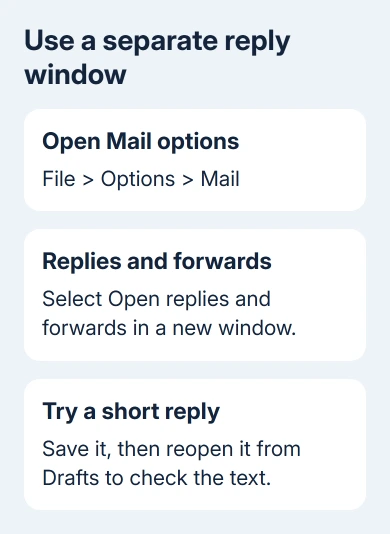
In classic Outlook, select File > Options > Mail. Scroll to Replies and forwards, select Open replies and forwards in a new window, then choose OK.
Start a fresh reply to an ordinary message. It should open in a separate message window instead of staying in the reading pane. Write a short test, save it and open it from Drafts to check the result.
Opening replies in a separate window fixed this for one owner, who recommended it instead of replying inside the reading pane. It changes how you compose replies and forwards; it isn't a repair for every item that can produce this error.
I'd try that setting before creating another mail profile. It's one reversible setting, and it matches the reported case where the problem happens while saving replies in the main Outlook window.
Keep the setting if a separate-window reply saves correctly. If it still fails, preserve the text and check the account type next. Repeatedly pressing Save in the failed window won't explain which copy is current.
Once replies save, a sent copy landing in the wrong folder needs the separate sent-folder check.
This setting is part of Windows classic Outlook. The new app and browser-based Outlook don't use File > Options > Mail, so a missing menu there means you need instructions for that app rather than a repair of its ribbon.
3. Check which account and item failed
In classic Outlook, open File > Account Settings > Account Settings and look at the Email tab. Check the Type shown for the affected account. IMAP means email folders are synchronized with the provider's server.
The vendor workaround covers IMAP draft emails. For Microsoft Exchange or Microsoft 365 accounts, record that difference when reporting it. Don't change the account to IMAP to fit the workaround.
Also note whether the failure happens while writing a new email, replying, forwarding or changing an existing received message. The same error can appear during each of those actions, so tell support which one failed.
One owner saw the error after downloading pictures in received mail; another used Exchange. Later replies said the draft workaround didn't solve their cases. These reports show the limits of the IMAP advice.
If the failure instead names a data file that can't be accessed, the Outlook data-file checks address that separate error. A changed-item prompt alone isn't a reason to run a PST repair.
4. Compare one saved copy with the provider's mailbox
Once you've kept a copy of the text, open your provider's webmail and inspect Drafts. Use the provider hosting the affected account, rather than another Microsoft account that happens to open in your browser.
Check the subject and newest sentence against desktop Outlook. If webmail has an older copy, your latest desktop edit hasn't reached that server copy. If there are several similar drafts, compare their content before choosing one.
For urgent mail, finish one copy in webmail and check recipients and attachments. Verify that it appears in Sent before returning to the desktop copy. That helps avoid sending the reply from both places.
Don't delete and re-add the account while an important draft exists only on this computer. First preserve its content and attachments. A connection reset is a poor trade for losing the message you're trying to finish.
If Outlook is also failing to synchronize other folder changes, record that alongside the draft result. A single save conflict and a mailbox that won't sync any changes give support different starting points.
5. Update Outlook and send support a repeatable example
Open File > Office Account > About Outlook to note its build and version. Use Update Options > Update Now if available, then reopen Outlook after updates finish. Managed installations may need IT to supply the approved update.
Try one short draft in the same account and record the sequence that fails. Include whether it was an inline reply, a separate window, an existing draft or a received message with downloaded pictures.
If several Office features are broken too, the Office repair steps are relevant. For this save error on its own, give Microsoft 365 support or your mail administrator the precise account type and editing sequence first.
Include the exact prompt, the build and whether webmail held the newest edit. Crop private message content from any screenshots. The prompt, build and webmail result help support tell whether this is the same IMAP bug.
The Short Version
Protect the message, accept the offered copy and reopen the draft before saving again. For classic Outlook inline replies, enable separate windows. If that fails, report the account type and editing action before rebuilding the mailbox.
Checked November 16, 2026.






