

A serious disk error in Word for Mac on a ~Word Work File temporary file can come from an old Word bug. Preserve your document, then update Word. On Office 2016 builds, check the software before assuming the drive has failed.
Saving can also fail because the destination or storage needs attention. Try saving a local copy to check that possibility, and keep your original safe while you work through the repairs.
In this guide
1. Get a readable copy out before restarting
Leave the affected document open while you try File > Save As and give the copy another name in local storage, such as Documents. Use On My Mac when the save dialog starts with cloud destinations.
If your Word version offers Save a Copy for the current file, use it to create a separate document. Keep the original filename and location unchanged while you check the new result.
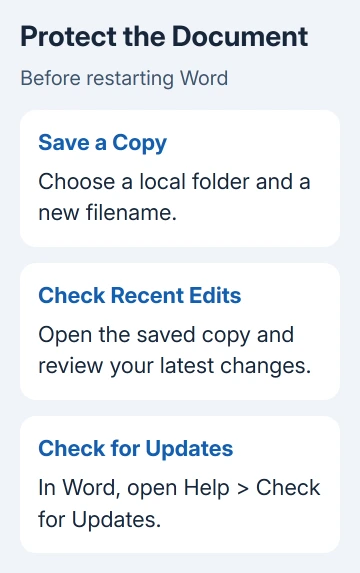
Reopen your new copy and review its latest edits before relying on it. Seeing a filename in a folder isn't enough when the last changes are the part you need to preserve. Check a recent paragraph, table or comment.
If a Word-format copy won't save, try exporting a PDF to preserve a readable snapshot. A PDF won't replace an editable document with tracked changes, but it can retain text and page appearance while you arrange recovery.
For a file that hasn't saved at all, don't deliberately force-quit Word to trigger recovery. That turns a saving problem into a possible loss of unsaved work. Keep trying non-destructive ways to get the contents into a separate file.
If Word has already closed, follow the Mac Word recovery steps. AutoRecover can help retrieve work. Check the recovered document for your latest edits before relying on it.
2. Update Word before assuming the drive has failed
In Word, choose Word > About Microsoft Word and note its version and build number. The historical case started with 15.22.1, so that number matters for this exact temporary-file message.
Open Help > Check for Updates from the menu bar. For installations maintained by Microsoft AutoUpdate, install the available Office updates and restart the applications when asked.
Microsoft's Office for Mac update instructions explain this route. If you installed Word from the App Store, update it through that store instead.
In the serious disk error discussion, one owner reported no recurrence for two to three weeks after updating to 15.28. An Office team announcement also described a September 2016 fix.
That result came from an older Word release. Don't install that old build today. Update your current edition through its usual updater, and ask IT about an upgrade if that edition no longer receives fixes.
If AutoUpdate refuses your macOS version, record that message too. Ask IT which supported Office release the Mac can run, rather than repeatedly reinstalling the same unsupported Word version.
Once you've saved a safe copy of your document and the update is complete, create a small blank document. Save it locally, edit a line, and save again. Then test another copy of the document that failed.
3. Compare the document with its save destination
If a blank document saves but the original still fails, focus on that document. Try a duplicate and record whether the error names the same temporary file pattern each time. Avoid replacing the original while the result is uncertain.
If both fail only in a shared, external or cloud-backed location, compare a local folder. A successful local save gives you a working copy and tells you to check that location and whether you have permission to save there.
If only the local copy works, ask the share administrator or sync-service support to check folder access. Give them the location and exact error. Follow your organization's rules before sharing a confidential document.
If blank documents fail locally too, check the Mac's available storage and whether other apps can save a small new file. A broader saving failure calls for a storage check, rather than another round of document formatting changes.
A file named ~Word Work File is a temporary file Word uses while you work. Don't delete Word's working folders while unsaved documents are open. Removing a temporary file doesn't repair the reason it can't be written.
If the message actually says 0x0 rather than serious disk error, use the separate Word and Excel 0x0 save-error guide. A different error code can need a different software fix.
4. Check storage when the failure extends beyond Word
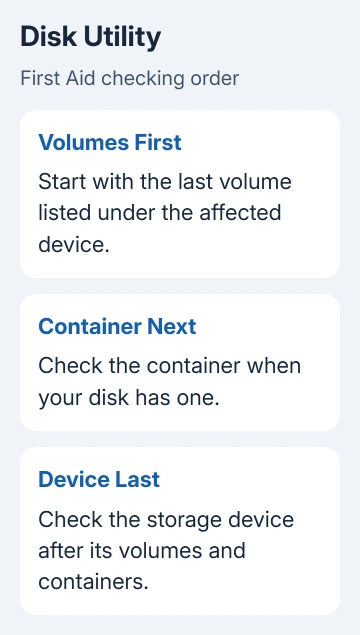
Back up important files before running disk repair. Open Applications > Utilities > Disk Utility and choose View > Show All Devices where that menu is available.
For a current macOS installation, start with the affected device's final listed volume. Select it, choose First Aid, then Run. Work through the other volumes, the container and finally the device, following the result messages.
If Disk Utility needs to repair the startup disk while it isn't in use, start in macOS Recovery. On Apple silicon, shut down, keep holding the power button until the startup choices appear, then select Options > Continue.
On an Intel Mac, restart and immediately hold Command+R to enter local Recovery. Open Disk Utility there, select the affected storage, and run First Aid in volume-to-device order.
Older OS X versions can show a simpler disk layout without an APFS container. Work with the volumes and device that Disk Utility actually lists; don't search for a container that your disk format doesn't use.
If First Aid reports an error it can't repair, preserve what you can and arrange storage help. Don't erase the disk as an ordinary next click when the files on it are still needed.
When the error needs support
For a Word-only failure after updating, have your workplace IT team or Microsoft support check temporary-file creation. Provide the Word build, macOS version, exact error text and whether a blank local document saves.
Save an image showing the error. Note whether it follows sleep, a long editing session or one document. Those details help reproduce this specific error. They don't tell you on their own whether the old bug has returned.
If several apps fail, the drive disappears, or First Aid cannot repair it, have the drive checked by Apple or a repair provider. Explain that you need the files preserved before agreeing to erasure or replacement.
The Short Version
Protect the document and update Word first. Compare a blank local save with the affected file and destination. Use First Aid and storage support when saving fails beyond Word or the disk reports errors.
Checked November 16, 2026.
 If you have any business, I can build it online






