Service registration is missing or corrupt can appear while Windows troubleshoots an update or Microsoft Store failure. Start with the task that's actually failing, rather than trying a registry fix just because of that message.
When Store, Start and other Windows features fail together, Windows repair becomes the more useful route.
One owner restored their broken Store and other Windows features with a cloud-download reset. That was a recovery step after several failures, so try the less disruptive repairs first and understand what a reset removes before choosing it.
In this guide
1. Separate a Store failure from an update failure
Restart the PC, then check the task that originally failed. Open Microsoft Store if apps won't open or install. Open Settings > Windows Update if Windows updates won't download or finish.
Write down the current error and whether the original task still fails. A troubleshooter's earlier service-registration result can remain in its report even after the symptom changes.
For a Store-only failure, press Windows+R, enter wsreset.exe, and select OK. A blank command window should appear briefly, then the Store should open. Try opening the same app page again.
This resets the Store cache, not Windows itself. It won't repair every cause of the service-registration report. If Store opens and the download works, you can stop there. Windows recovery isn't needed when that was the only problem.
For an update-only failure, run the Windows Update troubleshooter through the Get Help app. Keep the resulting error code if it can't complete its repair.
The Windows Update troubleshooting guide covers a stalled download separately. Don't clear update folders just because a Store app reports a problem with services.
2. Repair Store before resetting the whole PC
In Windows 11, open Settings > Apps > Installed apps. Find Microsoft Store, open its three-dot menu, and choose Advanced options if available. Under Reset, choose Repair first.
On Windows 10, the comparable route is Settings > Apps > Apps & features, then Microsoft Store > Advanced options. These controls can differ on a PC managed by your organization, or they may be missing along with the app.
Reopen Store and try the failed task. Start with Repair, which attempts an app fix without clearing its data. If it changes nothing, reopen Advanced options and consider Reset.
Reset discards this app's saved data and preferences. Read the confirmation before accepting, then sign back in if Store asks. Check whether the Store app itself works before checking a dependent app.
If Microsoft Store isn't listed, or several built-in apps and Start are also failing, move to Windows repair. A missing app entry isn't a reason to paste a long package-registration command intended for another PC.
3. Repair Windows components from a normal startup
Search Start for cmd, then right-click its Command Prompt result. Choose Run as administrator. Enter the following commands one at a time, waiting for each to finish:
DISM.exe /Online /Cleanup-image /Restorehealth
sfc /scannow
DISM restores the components Windows keeps for repairs, so SFC can use them to replace damaged system files. SFC then checks protected system files. Keep your internet connection active so DISM can download repair files when needed.
Restart after a completed repair and test Store or Windows Update again. If a command fails, save its exact final message. A command window closing without a recorded result doesn't tell you whether anything was repaired.
The source thread's Safe Mode instructions left the owner unable to sign in normally or get online. They got Windows working with a cloud reset. Safe Mode isn't needed for this first online DISM and SFC pass.
I'd avoid adding another startup restriction to a PC whose Start menu and sign-in are already unreliable. Keep the repair path simple enough that you can still reach your files and recovery controls.
4. Try the Windows 11 repair that keeps apps
Open Settings > System > Recovery. If Fix problems using Windows Update appears, select Reinstall now. Leave the charger plugged in and internet access active throughout this reinstallation.
This option preserves installed apps, personal files and settings. It's different from Reset this PC, which removes apps. The repair-install instructions explain availability and the exact choice.
Windows 10 doesn't have this Windows 11 button. Some older Windows 11 installations and managed PCs won't show it either. Ask your organization's IT team before trying to replace a managed installation.
When it finishes, check both the original failed task and another affected feature. A working Store with Start still broken means the wider Windows problem hasn't been fully resolved.
5. Use a cloud-download reset when recovery is necessary
Back up personal files to separate storage. For an encrypted PC, have its BitLocker key ready too. Make a list of installed apps and the sign-ins or licenses you'll need to reinstall them.
Microsoft explains the retention choices in its Reset your PC instructions. Read those choices before starting.
Keep my files preserves your documents and other personal files; installed apps and their settings are removed. Remove everything erases the personal files too.
In Windows 11, open Settings > System > Recovery > Reset PC. In Windows 10, use Settings > Update & Security > Recovery > Reset this PC > Get started.
Select the option that keeps or removes your personal files, then choose Cloud download to download Windows rather than use the reinstall files already on your PC. Review the final summary before starting, especially its list of removals.
The owner reported that everything worked after a cloud-download reset. They also said they had backups of the apps and files they lost. Check what your chosen reset option removes; their successful reset still cost them apps and files.
Leave the PC to finish, even if the display goes black during the process. Once setup completes, test Store and Windows Update before reinstalling all your additional software.
If reset fails, open Get Help and request Windows recovery assistance. Include the reset error, your Windows version and whether Store, Start and updates all fail. For a work PC, share that information with your IT team instead.
The Short Version
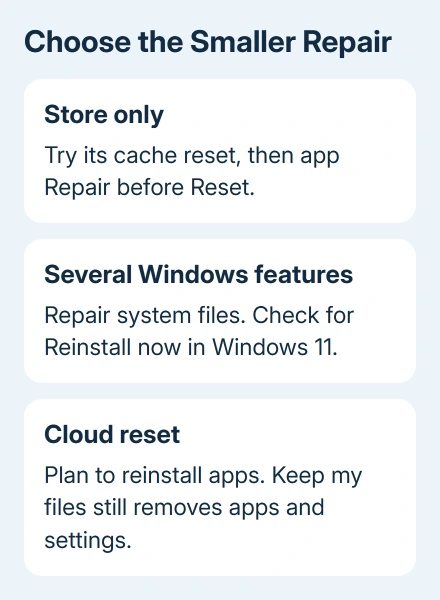
Choose Store or Windows Update repairs according to the failed task. Try Windows 11's app-preserving reinstall when offered.
A cloud reset got the original owner's PC working again, but you'll need to plan for reinstalling apps.
Checked November 16, 2026.