

MSOINTL.dll errors usually need an Office repair, rather than a separate DLL download. Start with the Office version named in the error, especially if the message appeared after installing or removing another version.
When Word or Excel opens normally but double-clicking a document fails, check which Office installation Windows is trying to start. An older version can still be involved even when the app you normally use works.
In this guide
1. Repair the Office installation named in the message
Close each Office app after saving its open files, including Outlook. Repair works on the installed Office product. If you have a suite, it can repair other Office apps too, not just the one showing the message.
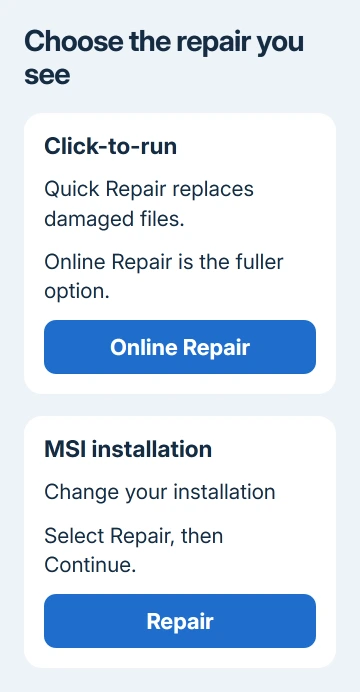
Microsoft's Office repair instructions distinguish two installation types. Follow the steps for the repair screen on your PC; the buttons differ between installation types.
On Windows 11, open Settings > Apps > Installed apps. Locate your Office product, use its three-dot menu, and choose Modify if offered. Approve the administrator prompt to open the repair options.
On Windows 10, right-click Start > Apps and Features, select Office, and choose Modify. Select Word or Excel's own entry if you installed it separately from a suite.
For Click-to-run, Office's streaming installation, Quick Repair checks and replaces corrupted files. If startup still fails, choose Online Repair. Keep the PC online for this more complete repair.
An MSI (Windows Installer) installation shows Change your installation instead. Select Repair, then Continue and finish the prompts. This older installer uses different wording from Click-to-run.
Restart the computer if the repair requests it. Then open Word or Excel from Start and open the same document that triggered the error. If both work without the DLL message, Office can now start and open that document normally.
2. Use the older repair controls for Office 2003
The original reports involve older Office combinations, including Office 2003 and the Office 2007 Compatibility Pack. The old question now appears in a Windows 11 category, but its replies describe those older Office versions.
For Office 2003 on its original Windows setup, open Control Panel > Add or Remove Programs, select Microsoft Office, and choose Change. Select Reinstall or Repair, then the option to detect and repair installation errors.
Have the original installation media available if Setup asks for it. Without a repair source, Setup can't restore the installation. Insert the requested disc or provide the installation files so repair can continue.
Leave the option to restore Start menu shortcuts unchecked if you don't want Setup rebuilding shortcuts you've arranged yourself. That choice changes your shortcuts; it doesn't stop Setup from repairing the DLL.
Afterward, launch the program and use File > Open to load a document. Close the program, then double-click that same file. Check that both ways of opening the file now work.
I'd use the installed product's repair before trying a file copied from another PC. It gives Setup a chance to restore the files and installation settings together.
3. Check which Office version opens the document
Compare a document opened inside the app with one opened by double-clicking its file. If the first works and the second starts a different Office version or a setup dialog, write down which version or setup dialog appears.
Look at the product name in the application and the Office entries in the installed-apps list. A remaining Office 2007 entry beside Office 2003 matters here, even if you normally use only the older program.
One owner on Microsoft's forum initially got relief from repair, but later reported the error returning. Reinstalling the Compatibility Pack then led to repeated Office configuration dialogs, rather than a lasting repair.
Don't keep reinstalling the converter because it worked once. Check the installed Office versions together, identify their exact editions, and find their installation media before making more changes.
If the document opens in an unexpected app, check its default program. Then repeat the double-click check. A correct default is useful, but it won't replace damaged Office files.
4. Reinstall the affected product when repair can't finish
Before removing Office, confirm that you can reinstall the same licensed product. Keep the installer, account or product key, and any installation media required for that edition. This matters especially for an old disc-based version.
Uninstall the affected Office product through its Windows installed-programs entry, restart if requested, and reinstall from its legitimate source. On a work computer with several Office components, ask IT which entries belong together.
Don't remove registry entries or delete shared Office folders to imitate an old forum cleanup. The reported cleanup still left document-opening problems, and those folders can belong to another installed Office component.
If Setup itself fails, note its complete message and when the media request appears. Send support both that installation error and the MSOINTL.dll message; another DLL search won't answer a Setup error.
For a supported Word installation with a broader startup failure, the Word opening checks help separate a program launch problem from one document. Keep this DLL-specific repair as the first route here.
5. Give support the two opening results
If repair and a legitimate reinstall fail, ask your IT team or the installed product's Microsoft Support service to review it. Include the Office edition, Windows version, and all other Office products still listed.
Also report whether Start launches the app, whether File > Open works, and whether double-clicking starts a different version. Include any request for an installation disc or a product you thought had already been removed.
For an obsolete Office installation without working media, ask about moving the documents to a supported Office version. You don't need to keep searching for a separate DLL download to get back to your documents.
The Short Version
Repair the Office product that actually triggers MSOINTL.dll, using Modify for current installations or Change for the older setup. If only double-clicking fails, check for competing Office versions before reinstalling anything else.
Checked November 16, 2026.
 If you have any business, I can build it online






