

A Surface Pen leaving ink marks when you tap Excel cells is in drawing mode. Set Excel to use the pen for selecting content by default, then tap a cell again. Excel will treat pen taps as clicks without changing Bluetooth pairing.
This is different from a pen that doesn't respond anywhere. Owners reported this in Office 2016 after an update changed how the pen worked in Excel and Word. A working pen can still need the selection setting changed separately in each app.
In this guide
1. Make cell selection the default
Open the desktop version of Excel on your Surface. Use a mouse, touchpad or keyboard to reach the options while pen taps are still leaving ink marks.
Go to File > Options > Advanced. In the Pen section, enable the checkbox beginning Use pen to select and ending content by default. Choose OK. The checked box makes selection the normal action instead of automatic drawing.
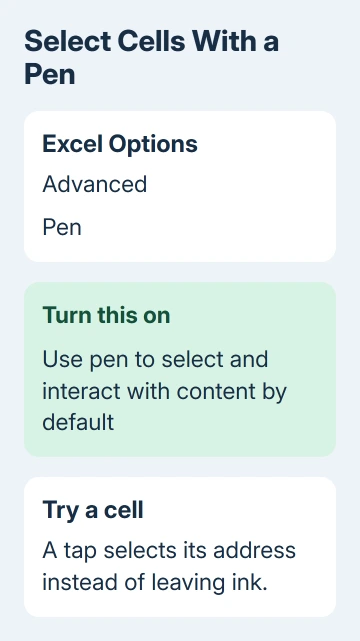
Microsoft's Office inking instructions describe this preference. The setting applies to the app where you change it, so changing Excel doesn't also change Word or PowerPoint.
Tap an ordinary cell once and look for its selection frame. Its address should appear in the Name Box, on the formula bar's left side. A tap on B3 should select B3 rather than leave a dot over it.
Type a small entry in a spare cell to confirm that typing reaches the selected cell. Selecting a cell isn't the same as editing what's in it. One pen tap doesn't have to place the text cursor inside the cell's contents.
I'd change this preference before touching any Surface drivers. When Excel draws a mark, it's already receiving your pen's input. Start by changing what Excel does with those taps.
If selection now works, repeat the preference change in Word only if Word has the same problem. If the setting is missing, check the Office installation in the next section.
2. Check the Office build when Pen options are missing
In Excel 2016 for Windows, open File > Account > About Excel and note the product and full version. The 2016 inking change and the later selection controls didn't arrive at the same time.
The original Office-team response announced a Draw-tab selection control and a default mouse-like pen preference. Those were rolling out; the announcement didn't mean both were available on every installation.
On installations that offer it, choose File > Account > Update Options > Update Now. Close and reopen Excel when the update finishes, then check Advanced options again. An organization may manage these controls through IT.
Office 2016 for Windows reached the end of support on October 14, 2025. Don't expect an update check on that old installation to deliver a new fix in 2026.
If the old build lacks this setting, have IT check your Surface's compatibility before choosing a supported Office release. Give them the About Excel details and explain that the pen draws correctly but cannot select cells.
Keep a mouse or touchpad available while that is arranged. Re-pairing the pen won't add an Excel menu that the installed Office build doesn't contain.
3. Leave the drawing tool when you only need a selection
The default preference doesn't remove drawing. Choose a pen on the Draw tab when you want handwritten notes, then leave the drawing tool when you want to enter cell data again.
Press Esc to stop the active inking action. Use the selection control on your Draw ribbon, then tap a spare cell and check its address. The exact ribbon layout depends on the installed version.
Lasso Select is for selecting ink strokes and drawn objects. It isn't a substitute for selecting worksheet cells. A circle around handwriting tells you the ink was selected, not that Excel has selected the cell underneath it.
One owner reported that Select Objects did nothing on the affected build. If that button fails for you, use the default pen preference instead; the button wasn't a confirmed repair for that early release.
For accidental marks, use Ctrl+Z immediately if the last action was the unwanted stroke. Check the result before continuing; repeated undo commands can also remove legitimate worksheet edits.
When the pen selects the correct address but the cell won't accept typing, look for worksheet protection or a read-only workbook. Those restrictions affect editing after selection and need a different response from ink mode.
4. Compare pen input with normal mouse clicks
Click the same cell with a mouse or touchpad. If that works while the pen draws, stay with the inking controls. If both select the wrong address, use the Excel wrong-cell checks instead.
Try the pen in a newly created workbook too. If selection works there, compare the original file for differences such as shapes covering the cells you're tapping.
Then try writing in another pen-capable app. If writing works there, the Surface is receiving strokes. If the pen no longer writes in any app, follow the Surface Pen power and input checks.
Bluetooth shortcuts and pen-tip input aren't the same function. The top button can work while Excel is still in ink mode. A selection problem that only happens in Excel isn't a reason to erase and reset your Surface.
For continuing pen-selection trouble in supported Office, contact your IT team or open a Microsoft Support request. Include the Excel build, Surface model, blank-workbook result and whether mouse selection still works.
Mention whether the default pen checkbox is present and whether it stays checked after reopening Excel. That helps them tell whether your build lacks the feature or Excel isn't keeping your chosen setting.
The Short Version
Set the default pen preference in Advanced options, then leave the drawing tool to enter cells. Check the Office build if that preference is absent. Try another app if the pen also fails outside Excel.
Checked November 16, 2026.
 If you have any business, I can build it online






