

The Word serious disk error naming a ~Word Work File S{...}.tmp file affected Office 2016 for Mac, and an update helped some owners. Keep unsaved work open and protect the text before checking Word's version or the drive.
A Word temporary-file warning needs different checks from disk errors in other apps. For a Word-only warning, check Word and where you're saving. If other apps show disk errors too, you'll also need a storage check and a current backup.
In this guide
1. Keep the open document safe
Leave Word running while the unsaved document is visible. Try File > Save As with a new filename in a folder on your Mac. Use On My Mac if the save dialog opens to online locations.
Choose a folder outside a cloud-sync folder for this comparison. Saving locally lets you check whether Word can save without relying on a network share or cloud service.
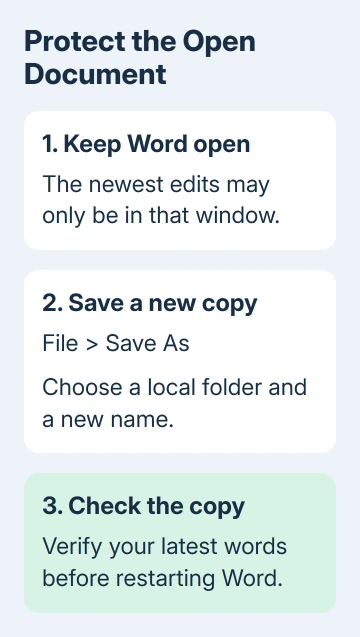
After a successful save, open the separately named copy and inspect the latest changes. The Word for Mac saving guide explains the local and online destination choices if the dialog is unfamiliar.
If Save As also fails, copy important text into another editor and save that rescue copy. Plain text won't preserve all document formatting, tables or images, so keep the Word window open until you've checked what survived.
I'd secure the words before restarting Word. Restarting can close the only visible copy of your latest changes. With a separate saved document, you've got a copy to return to.
If Word has already closed, use the Mac Word recovery checks before changing its temporary folders. Recovery depends on a retained copy, so don't clear those folders as the first repair.
Once your work is safe, check the version. If saving fails in other applications too, make a backup before the disk checks in section 4.
2. Check the version behind the temporary-file error
Open Word > About Word from the menu bar. Write down the complete version shown. The original report involved Word 15.22.1, not the current Microsoft 365 release.
In the original disk-error thread, the Office team identified 15.26 (160910), released September 13, 2016, as an update intended to address this problem.
One owner later reported two to three weeks without the error on 15.28 (160927). The update helped that owner, but this error message alone won't tell you whether your drive is healthy.
Later replies still include a temporary-file complaint in Outlook 15.30. Don't treat the old Word update as a universal cure for every app or every version that displays a similar filename.
With the document safely saved, use Help > Check for Updates in Word. Install what the updater offers for your edition. Close any apps it asks you to close, then reopen the saved document when installation finishes.
The Mac Office update instructions cover both Microsoft AutoUpdate and Mac App Store copies. For an App Store copy of a current Office app, check its updates in the App Store.
Support for Mac Office 2016 ended October 13, 2020. If you're still running version 15.x, plan to upgrade; another Office 2016 patch isn't coming. Have IT check the Mac's compatibility before replacing the suite.
3. Compare one document with a new local file
Create a blank document, type a short sentence and save it locally with a recognizable name. Close and reopen that test file, then check whether Word can save another change to it.
If the new document saves correctly, compare it with your original. Note whether the failure follows one document, one folder or one external drive. That detail helps support narrow the problem; another failed Save attempt won't add much.
A document that saves locally but fails on a shared or cloud folder needs its destination checked. Confirm the folder is available and that your account can create a separate file there before moving the only good copy back.
If every new local document fails in Word but other apps save normally, record that result for Office support. Include the exact temporary filename and any other message shown in the same dialog.
Check available storage as well. On a recent macOS release, use System Settings > General > Storage. On an older Mac with the original Office 2016 setup, use Apple menu > About This Mac > Storage.
A nearly full drive needs free space, but the error text alone doesn't tell you that space is the cause. Keep the saved document and backup separate from any files you decide to remove.
4. Do other apps fail to save too?
Make a current backup of important files before repairing storage. Use Disk Utility when saving or copying also fails outside Word, or when the Mac reports other drive problems.
Open Applications > Utilities > Disk Utility. Choose View > Show All Devices if that option is available, then select the affected volume and choose First Aid > Run.
Check each volume, then its container and finally the device. Older layouts may have no container. Follow the items Disk Utility shows instead of searching for a container your disk doesn't have.
Apple's Disk Utility repair steps explain when to use macOS Recovery for a startup disk. Follow that route if a full startup-disk repair is needed rather than trying to erase or reformat anything from Word.
Read the final result. If First Aid cannot repair or detect the drive, have Apple Support or a repair technician assess the drive. Explain that preserving the files matters before they attempt further repairs.
If the disk check succeeds but Word still fails, give IT the Word build, error, save destination and blank-document result. Ask them to check Office and the document, and keep your rescue copy safe.
The Short Version
Protect open work, check the Word build and compare a local save. The historical update helped some owners. Check storage when other apps fail too, and retain temporary files while recovery is still needed.
Checked November 16, 2026.






