

OneNote's package export can fail because of section order, even when its error mentions permissions or disk space. For the message containing |0, alphabetize the section tabs and retry the export.
This fits a specific pattern: pages and sections export, but a whole notebook won't save as a OneNote Package (.onepkg). Check that distinction before deleting files or changing account permissions. The asker confirmed sorting worked.
In this guide
1. Put the notebook's sections in alphabetical order
Open the affected notebook in OneNote for Windows on the desktop. Check that it's the notebook you want to export, then look at the order of its section names. Section tabs divide a notebook into groups of pages.
Note that order before rearranging it, especially in a shared notebook. Taking a simple note of the names lets you restore your team's layout after the export attempt without having to remember where each section belonged.
Drag the section tabs into alphabetical order. For example, place Accounts, Meetings, and Projects in that order even if Projects is normally your first tab. Move the section tabs, not the individual pages listed inside a section.
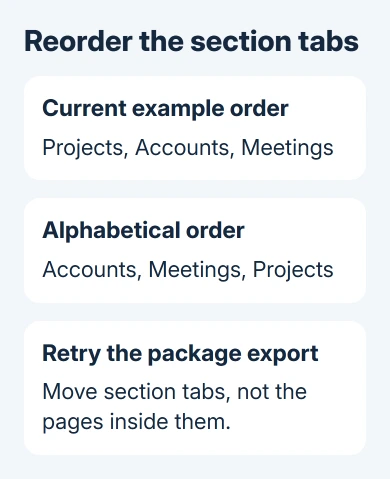
Microsoft's section-sorting instructions describe manually dragging the tabs. Leave section names unchanged; no sorting add-in is needed.
In a layout with horizontal tabs, drag a section left or right along the tab row. A vertical section list uses the same idea: move the section into its intended position in that notebook. Don't drop it into a different notebook.
When the tab order is alphabetical, click one of the sections and check that its pages remain present. Rearranging a tab changes its position; it shouldn't require rebuilding its notes or copying every page.
2. Export the whole notebook as a package again
Choose File > Export in desktop OneNote for Windows. Under Export Current, select Notebook. Under Select Format, choose OneNote Package (*.onepkg), then choose Export.
Pick a folder you can normally save files in and give the package a recognizable filename. Use the same notebook and package format so you can see whether changing the section order helped.
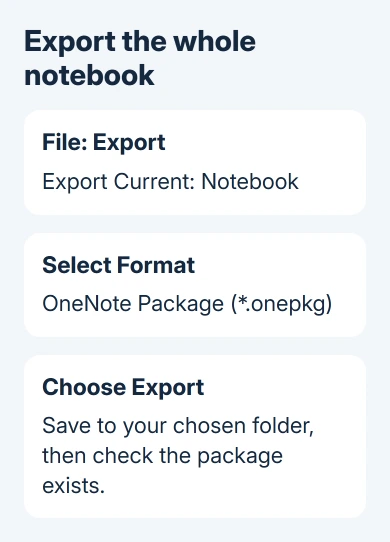
If OneNote now creates the package without the error, check that the file exists in your chosen folder. Don't judge success from the disappearance of the dialog alone. The exported file is the copy you were trying to create.
One owner, the original asker, exported successfully after alphabetizing sections. They confirmed that only package export was failing. Cache clearing hadn't fixed it. That's why section order comes before a cache reset in this repair.
This is a workaround for the reported failure, not a requirement for every notebook export. Notebooks can normally keep sections in whatever order you prefer. Keep the original notebook while you check the exported copy.
If the export still fails, note whether the message is exactly the same. A new error about a named location needs attention to that location; it shouldn't automatically be treated as the section-order problem.
3. Check whether only whole-notebook export fails
Return to File > Export and select Section instead of Notebook. Export one small section in an available OneNote format to the same destination folder. This checks a narrower part of the job without moving the notebook.
If the section exports but the notebook package doesn't, the problem is still with exporting the whole notebook. That matches the original report more closely than a failure to save any file anywhere would.
If even a small section won't save, try a folder where another app can save a harmless test file. Check free space on that drive too. Permissions and space still matter when all exports fail, even though sorting fixed this reported case.
Don't start OneNote as administrator just because the message mentions permissions. The asker had tried that without success. Saving an ordinary file to that folder is a more useful way to check whether you can write to it.
For a section whose pages haven't finished syncing, deal with the sync warning before relying on an archive. Before relying on the export, check that your recent work has synced to the notebook, rather than only being saved on this PC.
4. Use the right app and file type for the copy you need
These package steps belong to desktop OneNote for Windows, with its File > Export screen. An iPad sharing menu or a browser's download command isn't the same operation, even when the notebook itself opens there.
Opening a package is Windows-only too, so anyone handed a .onepkg on an iPad needs to unpack it on a Windows PC first and move it to OneDrive.
An iPad user who only needs a readable page can save a OneNote page as PDF. That produces a document for reading or sending, rather than the editable notebook package you're trying to export.
For classwork, keep the difference clear between the notebook holding the work and the copy submitted to someone else. The OneNote homework workflow covers that page-based use on an iPad.
I'd use a PDF only when the recipient needs to read the notes. If the goal is an editable notebook archive or transfer, keep working toward the OneNote package and tell support that PDF output isn't an equivalent replacement.
If File > Export is missing, tell IT which OneNote app and version you have before trying other instructions. Asking them for desktop OneNote with package export is more specific than asking for another way to download a notebook.
5. Send support the export pattern if sorting doesn't help
Keep the notebook open and preserve its existing notes. Avoid deleting its cache while the only recent copy of some work might still be local. Clearing the cache didn't help the owner who reported this, so I wouldn't make it the next step.
For a work or school notebook, contact your Microsoft 365 administrator. Provide the OneNote version, account type, exact message, and whether you can export a Page, Section, and Notebook to the same folder.
Include the section-order result and whether the error contains |0 rather than a real filename. That placeholder was part of the reported symptom. It doesn't identify a section that you should delete.
Ask support to try exporting a safe copy and check whether it works in a supported OneNote build. For a personal notebook, send those details through the support option in OneNote's Help menu. Keep private pages out of public posts.
The Short Version
For the package error containing |0, alphabetize section tabs and retry File > Export > Notebook > OneNote Package. Compare a section export if needed. PDF page sharing is separate from making an editable notebook package.
Checked November 16, 2026.
 If you have any business, I can build it online






