

A category visible beside an Outlook message has already been applied, even if its Reading Pane tag is missing. Select another message, then return to refresh the preview. Clicking the category again can remove it.
This display fault was reported in classic Outlook version 2406. Missing tags everywhere, or a missing Categorize command, need a different check. Check where you can still see the category before changing the list.
In this guide
1. Refresh the selected message without toggling its tag
Apply the category once using right-click the message > Categorize, then choose the category. Check the Categories column in the message list. If it shows the color but the selected message doesn't, select a different email and come back.
Check whether the same category appears in the preview after that switch. One owner confirmed this refresh workaround; another described leaving the message to see whether the tag had been set.
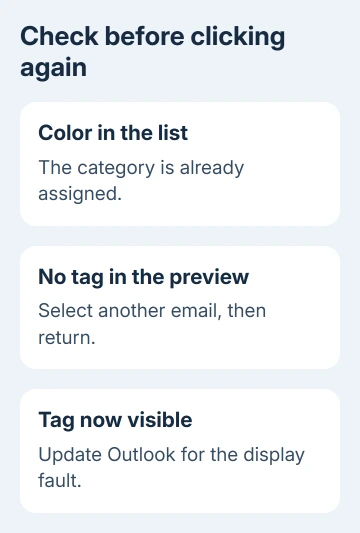
Don't click the category again just because the preview hasn't changed. Choosing an already applied category removes it. A second click can undo the first, leaving you with a genuinely untagged message instead of a stale preview.
This check separates a display refresh problem from a category that isn't being saved. If the tag remains in the list and appears after reselecting, you can keep switching messages to refresh it while you check for an Outlook update.
If the tag doesn't appear anywhere, skip to the account and command check. That isn't the same result, and the old Reading Pane fault doesn't explain every missing category.
2. Check the version before treating it as a new bug
In classic Outlook, open File > Office Account > About Outlook. Record both version and build. The July 2024 reports concerned version 2406; check your version before linking the problem to those reports.
The accepted reply reported fixes in Beta build 17913.15000 and Current Channel/Current Channel Preview build 17928.20000. Those are old rollout details; use the update now offered for your installation rather than either historical build.
An early forum reply called the behavior normal, but a later reply reported a fix. Don't assume the delay is an intentional change to how categories should display.
The normal category behavior includes category colors in the Inbox and open items. A tag saved on the message but absent from its current preview is a display symptom to report.
If your build is much newer, don't label it the 2406 issue solely because it looks similar. Note whether changing the selection refreshes it, then install the current update and test it again.
3. Update Office, then test one category assignment
From File > Office Account, choose Update Options > Update Now. If the updater requests it, exit Office apps and wait for installation before reopening Outlook. These are the Office update controls.
Use a test message you can discard, or an ordinary message whose category you can safely change. Apply one category, watch the message list, and check whether the Reading Pane updates immediately without selecting another email.
I'd use that small check before reorganizing categories. Renaming or rebuilding your category list isn't needed when the category is saved and only the preview is slow to show it.
If Update Options isn't offered, your workplace may manage updates or use another installation type. Give the build to your administrator and ask about the update channel. Avoid old rollback commands.
If it still happens on the latest release, report it with your current version and build. Keep the selection-switch workaround if it works, and record whether the behavior affects all messages or only one folder or mailbox.
4. Separate missing categories from account limitations
Right-click a message and look for Categorize. The classic app also offers it under Home, in the Tags group. Choose All Categories to inspect the list without deleting anything.
If Categorize is unavailable, check the account type under File > Account Settings > Account Settings > Email. Classic Outlook doesn't support assigning categories to items in an IMAP account in the same way as supported mailbox types.
That limitation differs from a previously working category appearing in the list but not refreshing in the preview. Don't remove and re-add the account to try to make categories work on an account that doesn't support them.
If you have several mailboxes, select a message in the affected account before checking. A command that works in one mailbox doesn't mean every account in the same Outlook window has the same category support.
Once you've applied a tag, use that same message for each check. Comparing unrelated messages with different categories can hide a delay in the preview's update.
5. Keep other Outlook display problems separate
A missing color tag alone doesn't mean mail is failing to arrive. If messages themselves are absent, use the checks for Outlook not receiving email instead of changing category settings.
Likewise, a folder list that has disappeared needs the Folder Pane visibility checks. Those controls change navigation, not category assignments or the way a selected message refreshes.
The original report was about classic Outlook for Windows. It didn't confirm the same fault in other Outlook editions. Avoid applying desktop update paths to an app that has no File > Office Account screen.
If the problem persists, send your administrator or Outlook support the build, account type, and a short reproduction: apply one category, see its color in the list, then change messages to make it appear in the preview.
Use Help > Contact Support when available, or your company's service desk. Ask for a category display problem in the Reading Pane to be checked against the installed build. Hide message contents and addresses in any images you attach.
The Short Version
Reselect the message when its category is visible in the list but missing from the preview. Update classic Outlook and retest. For a missing Categorize command or a tag that never saves, check the account type.
Checked November 16, 2026.






