

A transparent PNG signature can look right while composing but gain a white rectangle in classic Outlook dark mode after sending. If the sent message stays transparent in webmail, start with Outlook's display controls.
Owners in the older discussion tried changing their signatures, but one workaround made the logo overlap text. Use a light message background first, then change the signature only if you need to improve what recipients see.
In this guide
1. Check the sent message rather than the draft
Send a short test message with the affected signature to another mailbox you control. Open the received copy in classic Outlook and compare it with the same received message in Outlook on the web.
Keep the logo and message unchanged during that comparison. A signature preview only shows how it looks in the editor. It doesn't tell you how another app will display the message after it's sent.
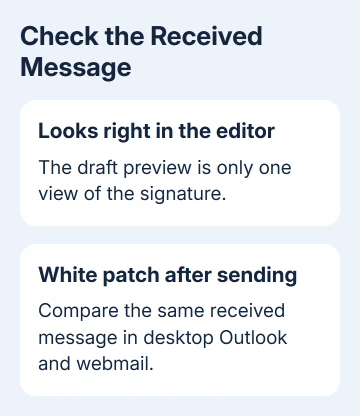
The original owner saw the white square in Outlook dark mode while the sent message remained transparent in Outlook Online. Another reply reported the same desktop behavior with an image inserted directly into a message.
That pattern points toward how the message is displayed. If every app shows the same white rectangle, check whether the actual image has a white background before changing Outlook's dark-mode settings.
For example, a logo exported with solid white pixels won't become transparent simply because the filename ends in PNG. Ask the person who supplied the artwork to confirm that the intended background really is transparent.
For a completely missing signature, use the Outlook signature setup steps instead. A missing signature and an image with a white rectangle need different changes.
2. Switch the message to a light background
In classic Outlook's black theme, open the affected message and use the sun button at the top of its message window. It changes the reading background to white, which can make the unwanted white patch blend into the message.
This changes how the message looks on your PC. It doesn't replace the sent image or choose the background that every recipient sees. Check the received message to see whether it's now comfortable to read.
For a permanent light message background in classic Outlook, open File > Options > General. Under Personalize your copy of Microsoft Office, select the Black Office theme if needed.
Select Never change the message background color, then OK. The rest of the interface can remain dark while message windows use a white background. The message-background toggle is disabled with that option selected.
Microsoft's dark-mode controls describe those choices. They change how messages look, so you can use them even when your company manages the signature and you can't edit it.
In new Outlook, use View > Light Reading Pane for a light reading and compose area. In Outlook on the web, appearance controls are under Settings > General > Appearance. These apps don't use the classic Windows options dialog.
If a light background makes the signature usable, you can stop there for your own reading. Continue only if the signature itself needs adjusting for the people who receive your mail.
3. Reinsert the original image through the signature editor
For classic Outlook, open File > Options > Mail > Signatures and select the affected signature. Keep a copy of its text and original artwork before replacing the image so you can restore it.
Remove the logo from the editing area, then use the Image button to insert the original file. That inserts the image directly instead of using a copy pasted from a web page or another message.
Use the image's size controls if needed and keep its proportions locked. Save the signature and create a fresh message. An already-open draft may still contain the old signature, so don't judge the change from that draft alone.
Send another short test and compare the received message. Reinserting the file can help if it was inserted incorrectly, but the older discussion didn't confirm it as a general fix for the dark-mode problem.
If your company inserts signatures through a central service, ask its administrator to make the test in that system. Editing your local signature won't change a logo that the service adds after you send the message.
Our transparent image insertion guide helps with a separate problem where transparency is lost during pasting. Use it when the image is already wrong before the message is sent.
4. Keep HTML changes with the signature maintainer
One owner reported success by placing the hosted image inside an element with a background color in the signature's HTML. Their example used a span with background-color: white around the image.
That worked for their signature, but it doesn't mean Outlook treats every PNG the same way. It also sets a white background, so don't expect transparency against every recipient's chosen color.
For an older locally stored classic signature, the reported files were in %APPDATA%\Microsoft\Signatures, with the signature's HTML stored in an .htm file. That folder isn't the signature editor for new Outlook or webmail.
Ask whoever maintains the HTML to keep a backup and test the change on a copy. If your company deploys signatures centrally or manages them in the cloud, make the change through that service rather than relying on a local file.
Another reply confirmed that placing the image in front of text removed the white patch, then reported that the image overlaid the signature. I'd avoid that layout change on a business signature.
A readable signature matters more than removing a rectangle at the cost of covering contact details people need. Ask the maintainer for a layout that stays usable in both light and dark received messages.
When the received signature still looks wrong
Give your signature administrator the original PNG, a received sample and the Outlook version that displays it incorrectly. Say whether the same sent message looks correct in webmail and whether the signature is centrally managed.
For a supported Outlook build, report a display problem you can reproduce through your organization's Microsoft support route. Include the comparison of received messages so support can see more than the preview before sending.
The Short Version
Compare the received message in desktop Outlook and webmail. Use a light message background for reading, reinsert the source image when needed and leave HTML changes to the signature maintainer.
Checked November 16, 2026.
 If you have any business, I can build it online






