
Old Equation Editor objects need a compatible editor. Word for Mac's Insert > Equation creates new math but can't edit those objects. Recreate a short formula there. For a collection, check conversion or a compatible MathType version.
The missing Microsoft Equation 3.0 entry isn't an option that an Office reinstall restores. The missing old editor and a newer equation command broken by an update are separate problems.
On a Windows computer running Office 2013, the legacy-object editing choices separate removed-editor errors from the old reinstall workaround.
In this guide
1. Identify which kind of equation stopped working
Duplicate the file, open it, and click a formula. Try editing one symbol. Then create a blank document and choose Insert > Equation to enter a small new expression.
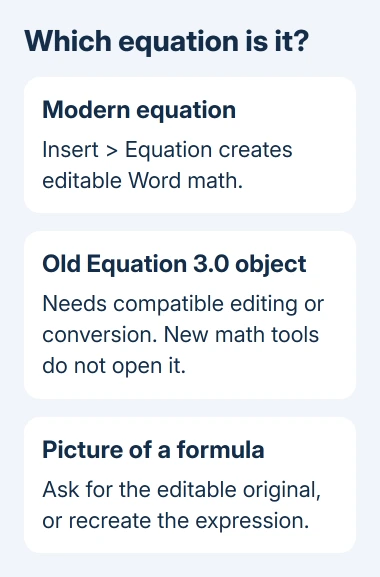
If the new expression works but the old object won't open, Word's built-in equation tools are available. It's the old object's editor that isn't working; Word can still create new equations.
A Windows installation where Word 2013 crashes on new equations needs insertion and Clipboard checks separate from legacy object conversion.
One owner using Word 2016 for Mac could insert a new equation but couldn't edit objects made with the earlier external editor. Saving in the newer document format didn't solve their problem.
A formula pasted as a picture is another case. Clicking it selects an image rather than editable math. You'll need the original editable formula or to recreate it. Changing the document extension can't turn a picture into editable math.
Check Word > About Microsoft Word and Apple menu > About This Mac. Record both versions before choosing a replacement tool. A product named MathType can refer to an older desktop application or a newer add-in with different requirements.
2. Recreate a small number with Insert > Equation
For a few short formulas, place the cursor beside the old expression and use Insert > Equation. Enter the expression using Word's equation tools, then compare it carefully with the original before removing the old object.
Check fractions, subscripts, superscripts, brackets, and minus signs. A formula can look close while changing meaning. Keep the old expression visible until you have checked each part, especially in a publication or assessed assignment.
Word's modern math format is called OMML. It keeps the editable formula inside your document instead of opening the old Equation Editor program. A fresh equation doesn't depend on the missing Insert Object entry.
For raised or lowered text outside a full formula, the Word subscript and superscript guide covers ordinary character formatting. Formatting a character that way doesn't rebuild a structured fraction or matrix.
Save your working copy, close it, and reopen it to check that you can still edit the new equation. I'd do this with one representative formula before spending time rebuilding an entire chapter.
3. Choose a compatible route for a large equation collection
Microsoft's legacy-equation guidance explains that Equation Editor 3.0 was removed from Office updates in January 2018. It directs users toward the modern equation tools or MathType for older equations.
That removal date doesn't mean Office 2016 for Mac originally included the old component. The saved 2015 Mac discussion already described it missing. Restoring an old Windows component isn't a repair for the Mac version.
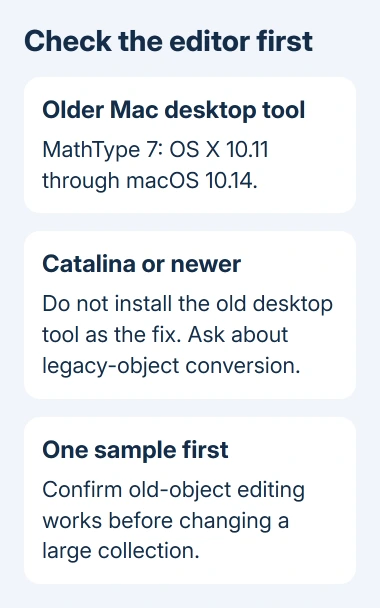
Before buying or installing MathType, give its support team the Word version, macOS version, and a small sample containing the old objects. Ask whether their recommended product can edit your old objects as well as insert new formulas.
The desktop MathType 7 for Mac lists support only through macOS Mojave 10.14. It isn't the desktop solution for Catalina or a later macOS release.
That older integration requires Word 2016 version 15.39 or later. The 2016 discussion's claim that MathType didn't integrate described the versions available then, not every later release.
A current add-in won't necessarily edit the same old objects as the desktop program. Ask how to import or convert your sample before using the tool on a large document collection.
For a Mac that needs a supported Office installation, the Office on Mac guide explains the license and system choices. A newer license and a legacy-equation converter are separate decisions.
4. Use conversion only in the Word version that offers it
The Office equation-conversion instructions describe a conversion prompt when an old equation is double-clicked in a supported Office version. They don't give Word 2016 for Mac that capability.
Ask IT to try converting a copy in a Windows Word version that supports it. The converter requires Office 2019 or Microsoft 365 build 16.0.10730 or later. That Windows-style build number isn't a Mac version requirement.
If an older .doc file needs conversion, save a separate .docx copy in that workflow. File-format conversion alone didn't fix the original Mac report, but the modern format is a requirement for the documented converter.
Check the converted equations against your untouched original. Conversion can change spacing or fonts, and equation colors may need restoring. Long division isn't supported by that converter and needs recreating.
Ask a coauthor to review a representative page of converted math before using the result for publication. Keep the untouched original until the document's equations and layout have been checked.
5. Update Word for the separate 16.96 equation fault
A working modern equation command that broke after Word for Mac 16.96 is a different problem. The symptoms include an equation shortcut that doesn't work and expressions that don't convert as expected.
That fault was fixed in 16.96.2. In a Microsoft-installed copy, open Help > Check for Updates. Install the supported update offered there. Update an App Store installation from App Store > Updates.
Retry the new-expression check after updating. An update that repairs the modern command won't add the old Equation 3.0 object to Word 2016's Insert Object list.
Another missing control, Word for Mac Dictate, depends on its Microsoft 365 account and speech settings.
If editing still fails, give MathType support or your document team a sample with private information removed. Explain whether you need to preserve editable objects, convert the collection, or recreate a few formulas.
The Short Version
Use Insert > Equation to recreate short formulas. For legacy collections, check the editor's exact Mac compatibility or arrange conversion in a supported Word workflow. The 16.96 modern-equation fault has a separate update fix in 16.96.2.
Checked November 16, 2026.






