

An atikmpag.sys blue screen with stop code 0x116 means Windows couldn't recover an unresponsive graphics driver. Start with the AMD display driver, especially when the crashes began immediately after you changed that driver.
Overheating, power trouble or a failing graphics card can cause the same timeout, so a driver reinstall isn't the last step when crashes continue.
In this guide
1. Open Safe Mode when the desktop won't stay running
Save the stop code and filename from the crash screen. VIDEO_TDR_FAILURE and 0x00000116 describe the failed graphics recovery; atikmpag.sys points to the AMD/ATI display-driver path involved in it.
If the desktop stays open, use it for the driver checks. If it crashes during startup, use Safe Mode, which starts with fewer drivers loaded. That can give you enough time to remove the problematic display driver.
On Windows 10 or 11, hold Shift while choosing Restart from the sign-in screen's power menu. In recovery, choose Troubleshoot > Advanced options > Startup Settings > Restart, then press 4 for Safe Mode.
BitLocker can ask for its recovery key during this process. Have that key available before using the recovery menus.
On the Windows 7-era system in the original thread, F8 before Windows starts opens the older advanced boot menu, where you can choose Safe Mode.
A PC that runs reliably only in Safe Mode could have a driver or software problem. The graphics hardware could still be faulty, since Safe Mode uses the display differently and loads fewer drivers. Continue with the last driver change.
2. Roll back a recently changed AMD display driver
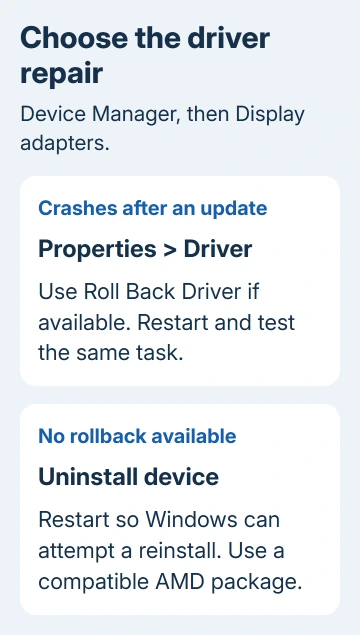
Press Windows + R, enter devmgmt.msc and press Enter. Expand Display adapters, right-click the AMD or ATI adapter and choose Properties > Driver. Note its name, driver date and version.
Select Roll Back Driver if the crashes started after an update and the button is available. Choose a reason, confirm and restart normally. Then try the program or task that triggered the earlier failures.
If it remains stable during that activity, keep the working driver while checking for a compatible replacement.
If the button is unavailable, no previous driver is saved for rollback. Continue with a reinstall.
On laptops with switchable graphics, record both display adapters. Use the laptop manufacturer's graphics package when it specifies one for the model.
A generic desktop-card package isn't automatically the right combination for a laptop's internal display.
3. Reinstall the display driver if rollback isn't available
In Device Manager, right-click the affected entry under Display adapters and choose Uninstall device. Read the confirmation and uninstall the device. Restart the computer so Windows can attempt to reinstall its driver.
An owner reported on Microsoft's forum that removing the video drivers let Windows start normally.
They later confirmed there hadn't been another blue screen, but didn't report whether a replacement driver kept the PC working.
Expect the desktop to look different while a basic driver is in use. A low resolution or limited graphics features at that stage doesn't mean you should fetch a replacement atikmpag.sys file from a DLL website.
Use the supported driver update controls and the package approved for your exact GPU and Windows version. On a modern PC, Windows Update is the first place to check.
For Windows 11, open Settings > Windows Update > Advanced options > Optional updates. For Windows 10, open Settings > Update & Security > Windows Update > View optional updates when that link is offered.
If the required package isn't offered, ask AMD support or the computer manufacturer for a package that supports the listed adapter. The thread's Radeon HD 4850 is old hardware; don't assume the newest AMD software supports it.
4. Remove the overclocking change before another load test
Return any GPU or CPU tuning you changed to its stock settings. Close or remove an old tuning utility if the crashes started after it was installed. Make the changes separately and compare stability after each.
The thread's dump review also identified AODDriver2.sys, an AMD OverDrive component. An adviser suspected it after reading that PC's crash record. That doesn't mean OverDrive causes every atikmpag.sys crash.
If AMD OverDrive is installed and you no longer need it, remove it through Windows' app-uninstall controls and restart. Don't delete its driver file by hand. On Windows 7 or 8, use Control Panel > Programs > Programs and Features.
Windows 10 lists programs under Settings > Apps > Apps & features. Windows 11 uses Settings > Apps > Installed apps. Select the tuning utility there and use its uninstall option.
If another crash names a different driver, record that change. The stop-code guide helps preserve the useful details instead of treating every crash as the same fault.
5. Check cooling and power when the driver isn't enough
The 0x116 troubleshooting guidance lists insufficient cooling, power, overclocking and defective parts among the possible causes. If the timeout keeps happening while games or other graphics-heavy apps run, check those causes too.
With the PC shut down and unplugged, inspect accessible vents for dust or obstruction. Follow the computer's service instructions for cleaning. On a laptop, use a firm surface so bedding or clothing doesn't cover its cooling openings.
For a desktop that began crashing after a graphics-card upgrade, have a technician compare the power supply and card connections with the GPU's requirements. Don't open the power supply itself.
Watch whether crashes occur only during games, whenever the AMD driver loads, or even at idle. Describe when the crashes happen to help support decide what to test next. Any one of these patterns alone doesn't mean the card is faulty.
Get the next crash checked before replacing parts
If compatible drivers and stock settings don't stop the fault, send the GPU model to the computer manufacturer or your repair shop, along with the Windows version and driver versions tried.
Preserve files in C:\Windows\Minidump if they exist, and share them privately with trusted support.
Ask them to read the crash records (crash dumps) and check graphics cooling and power. A different named driver crash needs its own route; replacing the AMD card just because the screen was blue can miss the actual fault.
The Short Version
Use Safe Mode if needed, roll back a recent AMD driver, or reinstall the display adapter with a compatible package. Return tuning to stock. Persistent 0x116 crashes need cooling, power and dump checks before a graphics-card replacement.
Checked November 16, 2026.
 If you have any business, I can build it online






