

rtwlane.sys on an IRQL crash screen points toward the Realtek wireless driver. If the crashes started after a driver update, roll it back. Otherwise, look for a compatible Wi-Fi update before changing Windows system files.
The filename helps choose a repair. A crash dump, a saved record of the failure, can identify another driver or security product involved. Turning off automatic restart makes the screen easier to read; it doesn't repair the fault.
In this guide
1. Match the crash to the wireless adapter
Record both the stop code and the filename displayed with it. Check that the screen names rtwlane.sys. Other crashes can mention IRQL or name a different Realtek file used by another device.
For atikmpag.sys instead of rtwlane.sys, use the AMD graphics-timeout repair rather than changing the wireless adapter.
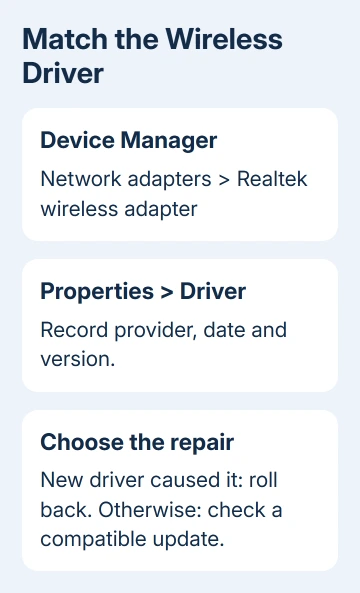
Open Device Manager through Start's right-click menu. Expand Network adapters and find the Realtek wireless or WLAN device. An Ethernet controller is separate; don't change it just because it also says Realtek.
Open the wireless adapter's Properties > Driver tab. Note Driver Provider, Driver Date, and Driver Version. Also record your computer model from Windows+R > msinfo32 > System Model.
A yellow warning symbol can help identify a device problem, but the adapter can appear normal between crashes. Keep the recorded crash filename with the driver details even if Device status says it's working.
If your Network adapters list contains no Realtek wireless device, stop guessing. The missing Wi-Fi adapter checks cover detection problems; a technician can also confirm what loaded the named driver.
Before further changes, save open work. A driver change can interrupt the network connection, so keep any installer you've already downloaded for your model on the PC, rather than leaving your only copy online.
2. Roll back an update that immediately preceded the crashes
For crashes that started right after a wireless update, return to the adapter's Properties > Driver tab and select Roll Back Driver. You'll need administrator permissions.
Choose the reason if asked and finish the process. Restart, then return to the Driver tab to see which version is now installed. Resume the network task that caused the earlier failures and compare stability.
Microsoft's driver repair instructions include rollback for problems that followed an update. Windows 10 and 11 both support rollback.
A grayed-out rollback control means Windows can't offer that operation for this adapter right now. It doesn't mean that the installed driver is the right version or that the wireless hardware must be replaced.
If the PC becomes stable with the earlier driver, keep both version numbers and tell the computer maker which newer package caused trouble. Reinstalling the failing package too soon would undo that change before you know whether it helped.
If there was no recent update, or rollback isn't available, continue to an update instead. I'd use the timing of the first crash to choose between these two routes, rather than cycling versions at random.
3. Install an appropriate wireless update
On Windows 11, open Settings > Windows Update > Check for updates. For optional drivers, open Advanced options > Optional updates > Driver updates and look for a matching wireless package.
On Windows 10, use Settings > Update & Security > Windows Update. Where View optional updates is available, open it and review Driver updates for the wireless adapter.
Install the matching driver offered and restart when asked. Revisit Driver Version in the adapter properties to confirm what was installed, then try the same network activity during normal use.
Windows 10's regular support cutoff was October 14, 2025. An older driver package remaining available doesn't extend Windows support or make a driver intended for another operating system compatible.
If Windows offers nothing suitable, use the manufacturer's update app. Alternatively, ask support to match a wireless package to the model code and installed Windows release. Don't choose a package for audio or Ethernet.
Some wireless-driver updates fix blue screens on specific models. For example, HP's Realtek RTL8000 release notes list a fix for a 0xD1 crash on supported systems. That old package isn't a universal rtwlane.sys download.
The network adapter driver guide explains matching the device and package. Use the laptop model and adapter identity together when the maker offers several wireless options.
4. Reinstall the adapter when updating doesn't help
With a compatible driver available locally, open Device Manager > Network adapters. Right-click the identified wireless adapter and select Uninstall device. Restart afterward; Windows will try detecting and installing the adapter again.
For this first reinstall, leave any option to remove or delete its driver package unselected. Keeping the package lets Windows try installing the adapter again without a working Wi-Fi connection.
After restart, inspect Network adapters and test Wi-Fi. If Windows doesn't reinstall the device, run your saved compatible installer. If that fails, request adapter-restoration help from the computer manufacturer.
A reinstall and an update aren't the same result. A reinstall can put the same version back; check the version rather than assuming you've received a newer driver or ruled out every software problem.
If crashes continue, tell support which versions you tried and when the crashes happen. Mention any break from crashes, too. Staying stable through work that usually causes crashes matters more than one successful reboot.
5. Get help with competing drivers and repeated crashes
The original thread suggested a conflict with Symantec software, but the accepted answer had no follow-up from an owner saying it worked. Don't treat that brand as the cause on every PC showing rtwlane.sys.
If the crashes started after a VPN, firewall, or security-suite change, include that in the support request. Ask its vendor about a compatible update or a supported temporary removal procedure, keeping antivirus protection available.
For a PC that won't stay running, hold Shift while selecting Restart, then choose Troubleshoot > Advanced options > Startup Settings > Restart. Press 4 for Safe Mode, which starts with fewer drivers and services.
An encrypted device can request its BitLocker recovery key during recovery, so locate that key first. Safe Mode lets you reach repair controls. It won't show whether your usual Wi-Fi activity still causes crashes.
Ask the computer maker to review C:\Windows\Minidump files if crashes persist. Send them through its support channel with your adapter details, rather than replacing rtwlane.sys with a loose file downloaded from a driver site.
The Short Version
Match the Realtek WLAN device, then choose rollback for a newly failing update or a compatible replacement. Keep its installer before reinstalling. Ongoing crashes need dump analysis and a review of recent network-software changes.
Checked November 16, 2026.
 If you have any business, I can build it online






