Printing to PDF can fail when the destination is a local OneDrive folder, even though other files sync normally. Save the PDF to a folder outside OneDrive, open it to check it, then copy it into the synced folder.
That worked in the reported case. Word's PDF export also worked there, making it an option when printing directly to the OneDrive folder produces no file.
In this guide
1. Save outside OneDrive and copy the finished PDF
Start the print job again and select Microsoft Print to PDF as the printer. When the save dialog appears, choose a local folder outside OneDrive. Use a short, recognizable filename ending in .pdf.
Check the full destination path. Desktop and Documents may be backed up by OneDrive, so choosing one of those names doesn't necessarily put the file outside the synced folder. Use a folder whose location you can verify.
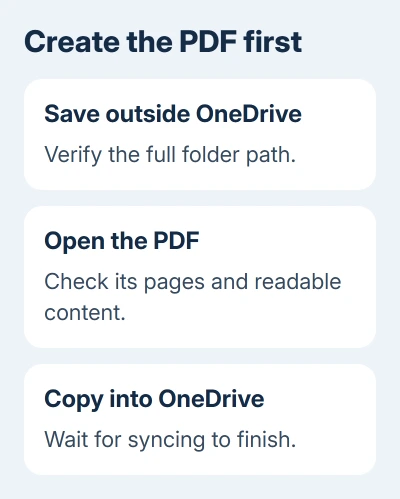
Open the PDF from that local folder. Confirm that it has the expected pages and that text and pictures are readable. The print dialog can close without saving a file, so check the finished document itself.
Copy the verified PDF into the intended OneDrive folder in File Explorer. Let OneDrive finish syncing before telling a colleague it's ready. Keep the local copy until the cloud copy is available.
One owner reported that printing outside OneDrive worked and files pasted into its local folder synced correctly. The PDF printer worked in other folders, so saving locally gave them a way to finish the job.
If the PDF doesn't appear in the outside folder either, move to the printer comparison in step 4. If it appears locally but won't sync after copying, use the destination checks in step 3.
2. Export from Word when the print route fails
In desktop Word for Windows, choose File > Export > Create PDF/XPS Document, then Create PDF/XPS. Select the destination, check that the output type is PDF, and choose Publish.
Review Options when you need a particular page range or other output choices. The exported document should contain the pages you intend to share, rather than an unintended selection or a partial print job.
Microsoft's Office PDF guidance describes PDF export as a separate route. It doesn't depend on sending the document to Microsoft Print to PDF.
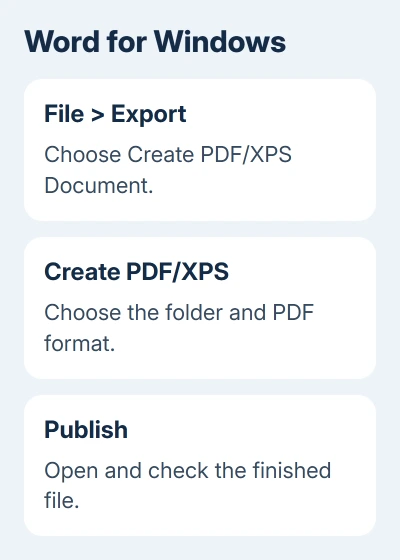
In the reported Windows 10 case, Word exported a PDF successfully both inside and outside the local OneDrive folder. That makes export a useful choice for Word documents while the printing fault remains unresolved.
Review the PDF after exporting, including its layout, before sending it. Keep the editable Word document for corrections. A PDF is the output copy; fixing a typo is usually easier in the source document and then exporting again.
If your real problem is choosing the output format, the Word-to-PDF steps cover that task. This destination fault is narrower: the print command completes, but the requested PDF never appears.
Word's export command doesn't apply to every program. For Outlook or another app without that route, use the local-save workaround rather than searching for a Word menu that the app doesn't have.
3. Check whether the destination can accept a normal file
Open the intended OneDrive folder in File Explorer. Copy a small existing file into it and check whether OneDrive reports an error. Use a recognizable file so you can tell this upload apart from an earlier test.
If copying works but printing into that same folder doesn't, the problem is creating a PDF directly in that folder. Don't reset an otherwise working OneDrive connection just because one program's print route fails.
If copying fails too, record the error from File Explorer or OneDrive. A folder without write permission, unavailable storage or a rejected filename needs different checks from a PDF printer that finishes without creating a file.
Try a simple filename without unusual punctuation for the PDF. The OneDrive filename and path checks explain restrictions when the file exists locally but the sync client rejects it.
For a shared work folder, ask its owner to confirm that you can add files there. Being able to read files doesn't necessarily mean you can add a new file, and switching printer settings won't change folder access.
If the copied PDF appears locally but remains pending, inspect OneDrive's activity message. Resolve that message before deleting the local backup. A successful print job and a completed cloud upload are two separate results.
4. Compare another app before repairing the PDF printer
Launch Notepad and enter a nonprivate sentence. Choose File > Print, select Microsoft Print to PDF, and save outside OneDrive. Check that the PDF appears and opens.
If that works, compare the affected app using the same outside folder. If only one app fails, check that app before removing a printer that works in other programs.
If several apps can't create a PDF even outside OneDrive, open Windows printer settings. On Windows 11, use Settings > Bluetooth & devices > Printers & scanners. On Windows 10, use Settings > Devices > Printers & scanners.
Check that Microsoft Print to PDF is listed. A missing printer differs from one that appears, accepts the job and then fails only for one folder. Tell support which of those happens when you ask for repair steps.
The accepted answer proposed removing and adding the PDF printer again. There was no later owner confirmation that this solved the destination fault, so start with the working workaround instead.
I'd keep the printer while local saving works. If support recommends reinstalling it after reviewing your results, use instructions for your Windows version. The owner didn't confirm that the old driver procedure fixed this problem.
When to ask for a printer or OneDrive repair
Contact Microsoft Support for the PDF printer if several apps fail to create local PDFs. Send your Windows version, affected apps and the results from Notepad, including whether the save dialog appears.
For failure only in a work OneDrive folder, request a destination check from your Microsoft 365 administrator. Supply its path through the support channel and explain whether export, local printing and file copying work.
The Short Version
Print the PDF outside OneDrive, verify it and copy it into the synced folder. Use Word's PDF export when available. Check folder access if copying fails, and compare another app before repairing Microsoft Print to PDF.
Checked November 16, 2026.
 If you have any business, I can build it online