USB-C that detects a drive only after restarting with it connected can have a Windows controller or update problem. Try that restart for temporary access, then review the controller status and Windows release.
A port that never transfers data needs a cable and device comparison too. A cable can charge your device even when its data connection doesn't work.
In this guide
1. Restart with the device connected and check reconnection
Save your work, connect the affected USB device directly to the laptop, and choose Start > Power > Restart. Keep the device connected while Windows starts. Check whether it appears and works after sign-in.
For a storage drive, open File Explorer > This PC and try reading a familiar file. For a phone, unlock it and select its file-transfer mode when prompted. A charging icon alone isn't a successful data test.
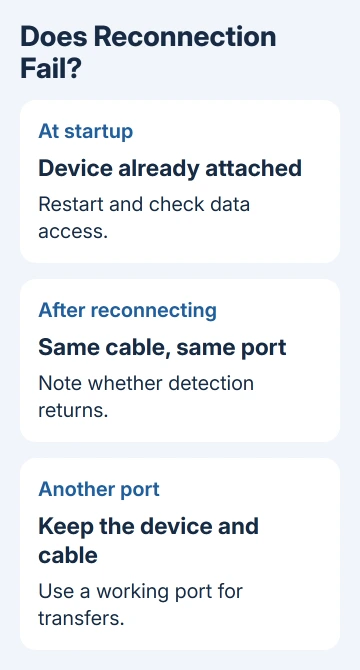
For a drive that works, use its safe-eject control before unplugging. Reconnect once to the same port and note whether Windows detects it again. What matters is whether it works at startup but fails when you reconnect it.
The original owner described exactly that pattern on a Huawei MateBook X Pro 2018 running Windows 11 Pro 23H2. Their other USB-C port and USB-A port still transferred data. On that laptop, the fault affected just one connection.
Restarting with the device attached let them use it temporarily, but didn't repair the fault. If yours works this way too, use a reliable alternate port for routine transfers while checking the update history.
2. Compare the same device and cable on another port
Try a second data-capable port without changing that device or cable. Connect directly, leaving a dock or hub out of this comparison. Leave all other equipment as it was; the port should be the only change.
If that connection works, the device and cable can transfer data through at least one path. If it fails everywhere, try another device and a cable whose data transfer already works before focusing on the Windows upgrade.
Some USB-C cables are intended mainly for charging, and USB-C ports can support different functions. Our USB-C compatibility checks explain the difference between the connector shape and the job a connection supports.
These steps apply to a port that transferred data before the upgrade but now fails with equipment that works elsewhere. A new cable that has never transferred data needs its capabilities checked first.
I'd keep a working port available rather than remove every USB controller at once. That lets you continue copying files and avoids losing the keyboard or mouse connection you need to troubleshoot.
If one port consistently fails only after reconnecting, record the exact laptop model and Windows version next. A controller update for your exact laptop model can be more useful than a general USB driver search.
3. Check the update date without treating an old patch as new
Press Windows + R, enter winver, and write down the Windows version alongside its build number. Open Settings > Windows Update > Update history and compare the installation dates with the first day the port failed.
The original discussion dates to November 2023. One owner reported that removing KB5032190 restored USB-C data, then Windows reinstalled it and the fault returned. That was a confirmed temporary result on their installation.
It isn't an instruction to remove that patch from a current PC. Windows updates issued since then have changed the software involved. Check your own build and update timing before deciding an old discussion matches your laptop.
Install the current updates offered in Settings > Windows Update and restart if required. Microsoft's USB-C troubleshooting instructions also point to current Windows and device software when a connected device isn't functioning properly.
When a recent update matches the first failure, give the laptop maker its KB number and the startup-versus-reconnection result. Ask whether there is a known issue for that model and build before removing a security update.
4. Read the USB controller's current status
Open Device Manager through the menu shown by right-clicking Start. Expand Universal Serial Bus controllers, then choose View > Show hidden devices. Look for the controller that changes between the working startup and failed reconnection.
A gray entry means Windows isn't currently showing that device as connected. That alone doesn't tell you how to fix it. Open the relevant entry's Properties and read Device status on the General tab.
Check the Events tab too, but keep its dates in view. A device-settings-not-migrated event left over from the upgrade isn't the same as a current error code. Include both the event date and current status when asking for help.
The original owner's Intel USB 3.1 controller and USB Root Hub stayed hidden until a restart with a device attached. Removing the hidden device and scanning for hardware didn't restore reliable reconnection.
That failed attempt matters. Don't keep repeating it because an accepted answer elsewhere mentions Device Manager. If the controller disappears again, move to the laptop maker's software and model-specific support.
5. Get the laptop's matching controller software
Use the manufacturer's installed support application, if available, to identify the laptop and check its recommended updates. Depending on the model, the relevant package can involve chipset, USB, Thunderbolt or firmware components.
The package listing must match both your laptop model and installed Windows release. A label such as Intel USB controller doesn't make another laptop's package suitable for yours.
On a Huawei laptop, start with its installed support tools and model information. The original owner couldn't find suitable drivers on the public website, so repeating that search wasn't a solution.
If the manufacturer recommends firmware, follow that package's power and restart instructions. Don't interrupt an update once it has started.
After the requested restarts, check that Windows detects the device both when you first connect it and when you reconnect it.
When the port still needs a restart
Ask the maker why Windows isn't detecting the controller when you reconnect a device. Supply the model, Windows build, update timing and Device Manager status, plus the alternate-port result.
For a single accessory that fails across ports, take that comparison to the accessory maker instead. Our laptop USB driver guide covers targeted driver maintenance once you've identified the failing device.
The Short Version
Another port or a restart with the device attached can give you temporary access. Check reconnection, the Windows build and controller status, then ask the maker for help. The 2023 rollback report isn't a current universal fix.
Checked November 16, 2026.