Start with the new board's drivers when an Intel Quick SPI Host Controller 7A50 error appears after a motherboard change. A board-specific repair worked for an ASUS owner with Code 10 and missing headphone detection.
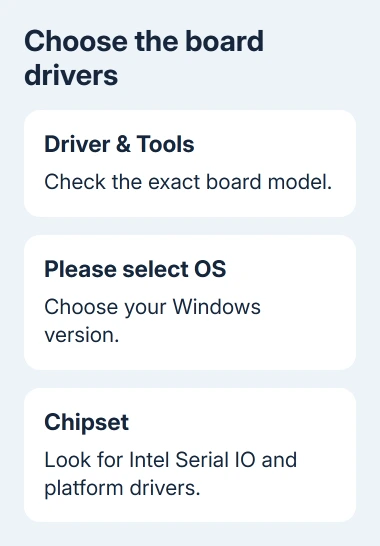
Check the exact board model before using any of its downloads.
In this guide
1. Confirm the board and the error together
Open Device Manager, locate Intel(R) Quick SPI Host Controller - 7A50, and open Properties. Read Device status. These steps cover Code 10, including STATUS_DEVICE_POWER_FAILURE, rather than every unknown Intel device.
Press Windows key + R, type msinfo32, and press Enter. In System Summary, note BaseBoard Manufacturer, BaseBoard Product, and BIOS Version/Date. Keep those details beside the Device Manager message.
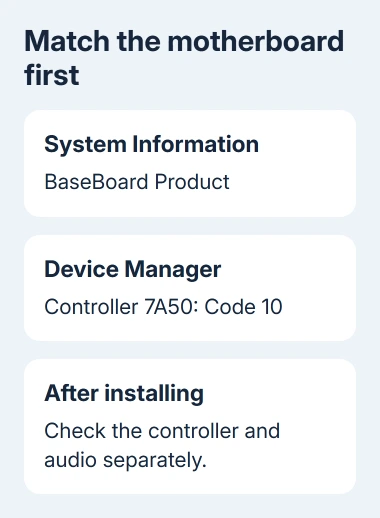
The confirmed owner had moved from an ASRock B760M-H/M.2 to an ASUS PRIME B760M-K. Monitor audio still appeared, but their other audio devices weren't detected. They had already tried formatting Windows and reinstalling drivers.
Missing headphones don't always mean the SPI controller has failed. Check whether your controller actually shows the same error before treating the two symptoms as one repair job.
I'd identify the board before uninstalling anything. PRIME B760M-K, a D4 variant, and a B760M-A WiFi D4 are different models. Use the download for your exact model.
2. Get the packages from your board's support page
For the matching model, open the PRIME B760M-K driver page. For another board, search ASUS support by the complete model instead.
Select the Windows edition that matches your installation. Review the chipset-related downloads, including Intel Serial IO, chipset, and Management Engine packages, as well as the board's audio package. Save the files locally.
Use the current package names and supported operating system listed there, rather than an old forum-linked version. The files can change as the manufacturer updates its support page.
In Microsoft's forum, an owner confirmed that the complete motherboard-specific sequence solved the fault. It involved several driver packages and a BIOS update. They didn't identify one package as the single cause of the repair.
Serial IO is a sensible download to check, though the owner didn't confirm it alone fixed the error. As you follow the board's instructions, check both whether the controller error clears and whether the headphones appear.
A computer assembled by a system vendor may have its own supported firmware and drivers. Use that vendor's model page when it supplies the motherboard as part of a complete PC, especially for firmware updates.
3. Install the motherboard drivers and check again
Extract each downloaded ZIP before running its installer. Follow any installation order or restart instructions included with the package. Let each installer finish and check its result before opening the next.
Start with the board's chipset and Intel Serial IO packages, then install its other required platform drivers. Install the audio package intended for that board rather than using a generic package selected only by the Realtek name.
If the installer rejects your platform, check the operating system and exact board again before proceeding. Don't force it through a manual selection just because the package contains the word Intel.
Restart when requested, then return to the SPI controller's Properties. Record whether Code 10 is gone. Next open Settings > System > Sound and check whether the intended headphone or speaker device appears.
On Windows 11, choose the device under Output. Windows 10 also has its output selector in Settings > System > Sound. Use the selector that names the physical output you're testing rather than the monitor's HDMI audio.
Test the rear motherboard audio connector separately from the case's front connector. Report which connector works. Support can use that difference to decide between checking the front-panel wiring and checking audio software.
For an audio device that appears but remains silent, the Windows no-sound checks cover the output selection and volume settings. Tell support if Code 10 remains; that's different from a working device with its volume muted.
4. Reinstall the failing device only if needed
If the controller still shows Code 10 after the matching packages are installed, right-click it in Device Manager and select Uninstall device. Restart, then follow the board manufacturer's instructions for reinstalling its package.
The Device Manager driver instructions explain the uninstall and manual-update controls. Have the downloaded installers ready before removing a driver.
After the restart, inspect the device status and retry the function that failed. If the controller works but headphones are still missing, continue with audio checks rather than reinstalling the controller again.
The Intel driver error guide handles a separate wireless Bluetooth device. Don't uninstall that adapter simply because both device names begin with Intel.
5. Ask ASUS to review firmware if Code 10 remains
The confirmed repair included a BIOS update. Send ASUS your board model, current BIOS, Windows build, and installed package versions.
Ask which BIOS version and motherboard drivers they recommend for the error that remains.
Firmware is model-specific. Use that board's instructions and stable power. Retrieve your BitLocker recovery key before proceeding with a recommended update. Don't use the PRIME B760M-K file on another B760 board.
The forum's full sequence also changed a Windows Update driver policy. That isn't needed just to identify the board or install its supported packages. Ask support about recurring driver replacement if the error returns after Windows Update.
Report whether the motherboard replacement immediately preceded the error and whether monitor audio still works.
If supported drivers and firmware leave the controller failing, ask ASUS to assess the board rather than repeatedly formatting Windows.
The Short Version
Match the exact motherboard, install its platform and audio packages, and check Code 10 separately from headphone detection. The repair took several steps, including firmware; the owner didn't identify one driver that fixed it.
Checked November 17, 2026.