

Search Ads 360 web queries can stop at Google sign-in because Excel's legacy browser doesn't share your Chrome sign-in. Try Google's supported workaround using Internet Explorer mode in Edge, then retry the query.
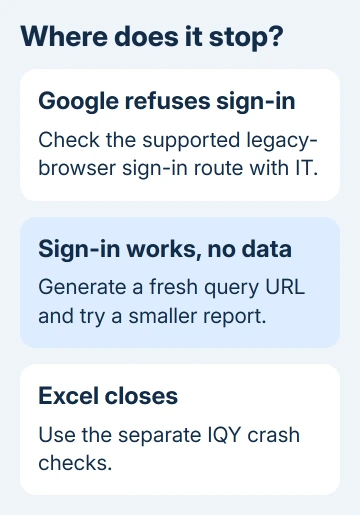
If sign-in works but data won't load, check the report URL and reduce its scope.
The Internet Explorer workaround helped owners in 2020, but that browser is retired. Use your organization's supported route on a current PC. Check whether sign-in fails or the report requests too much data before choosing a fix.
In this guide
1. Match the error before changing the query
Check whether Excel displays Couldn't sign you in and This browser or app may not be secure after entering your Google email address. That is a sign-in failure, so changing worksheet formulas won't get the report through.
Use your normal supported browser to open Search Ads 360. Check the intended account's access to the advertiser and report. If access fails there too, have the account administrator check your permissions before changing Excel.
If the browser opens the report but Excel can't, tell support that the report opens in your browser and give them the Excel error. That directs support to the query's sign-in problem instead of your account access.
If Excel closes while showing Getting Data, use the IQY crash checks. A retrieval crash needs different troubleshooting from a Google page refusing sign-in.
The original discussion began after password changes interrupted working reports. Its successful replies involved signing in through the browser used by the legacy query, rather than replacing the workbook or changing its calculations.
2. Try the current Edge route for a legacy query
Google's web-query instructions now include an alternative when Internet Explorer can't download the query: enable Internet Explorer mode in Edge, sign in, obtain the web-query URL and run it in Excel.
On a managed Windows PC, open Edge > Settings > Default browser. If Allow sites to be reloaded in Internet Explorer mode is available and your organization permits it, choose Allow and restart Edge when requested.
Open the approved Search Ads 360 page and select Settings and more > Reload in Internet Explorer mode. Managed devices show that command only when the organization's policy permits it.
On a personal PC with Edge 141 or later, open Settings > Default browser > Internet Explorer mode pages > Add a page. Add the site's address, then reload it. This replaces the managed-device reload route for that setup.
Use the Google account with report access to sign in. Open Search Ads 360 with that account and obtain the report's query URL. Keep the legacy-mode list limited to the approved site and use the account with report access.
Return to Excel and retry the query with that URL. A successful connection displays report data instead of looping through Google sign-in. Close and reopen the workbook later to check whether refresh still works for your reporting routine.
Edge's normal browsing mode and IE mode aren't the same environment. Signing in through an ordinary Edge or Chrome tab doesn't by itself follow this legacy-query workaround. Check that the intended mode is active.
If the setting or reload command is missing, ask IT whether IE mode is managed for this site. These steps are for legacy queries in Windows Excel. They don't apply to Mac Excel or the browser edition.
3. Use a fresh URL from the intended report
In Search Ads 360, open the reporting table with the account, date range, columns and filters you actually need. Select Download > Web Query, choose the report options, name it and generate its URL.
For a Report Editor report, create or open the report, set its date range, then save it. Use Copy URL from the saved-report notification or find the saved report's query link in the reporting area.
In Windows desktop Excel, open Data > From Web (Legacy) when that legacy connection is the one your workbook uses. Enter the generated URL and try loading the report. Keep the original workbook while checking the fresh connection.
Use the URL generated for this report, rather than its ordinary browser address. A page that displays a campaign dashboard isn't necessarily the data address Excel expects to retrieve.
For a URL that ends in =webquery, the troubleshooting instructions suggest changing that ending to =webqueryphtml and retrying. Apply that only when the generated URL has that exact ending; don't rewrite unrelated query parameters.
A modern Power Query connection uses different account and data-source controls. The OneDrive Power Query guide explains that separate type of connection for OneDrive files; it doesn't replace Search Ads 360 authentication.
4. Reduce a report that signs in but won't return data
Generate a smaller report by shortening the date range or limiting the selected campaign or ad group. Use its fresh URL in a separate test connection. That lets you check whether requesting less data gets the report working.
If the smaller report works, gradually add back the dates or campaigns you need. Keep the same account and connection method while comparing the results so you're changing the report's scope rather than its sign-in path.
The service's web-query instructions give a maximum of one million report rows for Excel 2010 or later. Keep your request within that report limit. A worksheet's capacity doesn't mean the service will deliver every larger query.
When the query loads but appears stale, use Data > Refresh All. Check the report's chosen date range as well as the refresh result; retrieving the same fixed dates again won't turn them into a different reporting period.
If even a small fresh query fails after successful sign-in, send the details to support. Repeatedly cutting the date range won't resolve an access error that returns before any report rows arrive.
5. Keep the report moving and escalate the connection
For an urgent report, download a regular spreadsheet or CSV export from Search Ads 360 and open it in Excel. Match its account, dates, columns and filters so the export contains the data your workbook expects.
Keep the export separate until you decide how its figures should feed the workbook's calculations. It doesn't repair automatic refresh. Avoid overwriting formulas with an entire downloaded sheet.
I'd take the export when a deadline is close, then repair the connection afterward. You can keep working with the exported data while IT checks how the legacy query signs in.
One owner in 2020 restored queries after a full Internet Explorer sign-in; another also changed Protected Mode. On a managed current PC, have IT review legacy security settings rather than disabling protection across all sites.
Use Search Ads 360's Contact us route. Send your operating system, Excel edition/build, exact error and the small query's result. Share a requested query URL privately through support; it can expose account and report details.
The Short Version
For sign-in failures, use the supported IE-mode route in Edge. For missing data after sign-in, generate a fresh query and reduce its scope. Export an urgent report separately, then send support the connection details.
Checked November 16, 2026.
 If you have any business, I can build it online






