

Connect a OneDrive work or school file to Power Query with its cloud URL and the Web connector.
Open the source workbook in desktop Excel, use File > Info > Copy path, then remove the trailing ?web=1 when entering that address in Power Query.
For a personal OneDrive, importing a locally synced file is a different route. Decide whether the query needs to refresh only on your computer or travel between coworkers before choosing the connection.
In this guide
Choose a cloud connection or a local file
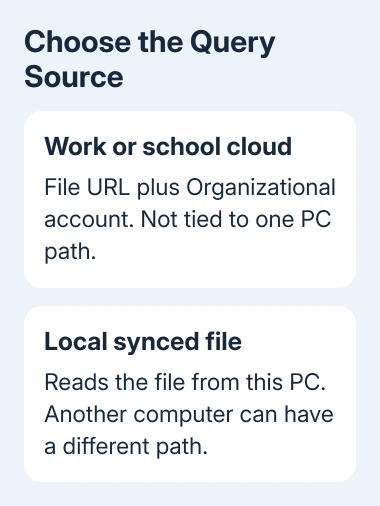
A path starting with C:\Users\… points to a file on one Windows computer. Even when that folder syncs with OneDrive, Power Query is reading the local copy through that path.
An https:// file address points to the cloud location. With an organization account, this avoids a source tied to one Windows profile and its local sync folder.
Microsoft's OneDrive and SharePoint connection instructions describe the authenticated cloud route for work or school files.
Use that route when colleagues need to refresh the query with their own accounts and permission to read the file.
The menu paths here apply to the Windows desktop edition of Excel. The connectors you can use depend on your Excel edition and platform. A screenshot from Power BI or a Power Apps dataflow can show controls that aren't in Excel.
For an older report needing Microsoft Query, enable its legacy wizard rather than opening a new Power Query editor.
In particular, Browse OneDrive isn't a general button you should expect in every desktop Power Query dialog. That browsing option is limited to the Power Query Online and Power Apps setups covered in the instructions.
I'd choose how to connect before building the steps that clean or rearrange your data. Switching from a local path to a cloud address afterward can require changing the query's source and checking every later step.
Get the work or school file's actual address
Start with a workbook you have permission to read in the organization's OneDrive. Open its location in the browser, then use the command that opens that workbook in desktop Excel.
The wording can vary between Open in Excel and an Open in app choice. The goal is the same source workbook in the installed application, rather than a downloaded duplicate.
In desktop Excel, select File > Info > Copy path. Paste the result somewhere temporarily so you can inspect it. It should identify the cloud file, rather than a C: path to a local download.
Keep the URL private if it identifies company locations or documents. You don't need to make the workbook public for an authenticated work or school connection.
If the copied path ends with ?web=1, remove that ending when you enter the URL into the connector. That suffix tells a browser how to open the document; the connector needs the file address.
Don't substitute a shortened sharing link simply because it opens in your browser. A sharing link can lead through a sharing page rather than directly identifying the file Power Query should read.
If Copy path isn't offered, check that the installed Excel app opened the cloud original. Request a supported direct file URL from its owner or your administrator if the organization's interface differs.
Import the workbook through From Web
Open the destination workbook, where the query result should appear. Using a separate workbook keeps the original data apart from the results you import.
- Open Data > Get Data > From Other Sources > From Web.
- In From Web, select Basic and paste the file URL.
- Remove ?web=1 from the end if present, then select OK.
- For Microsoft 365 or OneDrive work or school, choose Organizational account when credentials are requested.
- Select Sign in, use an account allowed to read the source, then choose Connect.
The Navigator should list the workbook's available tables, sheets or ranges. Select the item you need and inspect its preview. A table of worksheet data is the expected result, rather than a web sign-in page.
Choose Transform Data to clean columns or change data types in Power Query. Choose Load when the selected data is already suitable. Save the destination workbook after the query and output are ready.
Importing data with Power Query doesn't give the destination workbook permission to edit the original.
For a source supplied as text, the CSV import steps explain how to preserve identifiers and choose data types.
Use SharePoint Folder for a collection of files
For several files from a work or school location, SharePoint Folder can be a better source than separate Web queries. OneDrive for work or school uses SharePoint storage, but its site address differs from a normal team site's address.
Select Data > Get Data > From File > From SharePoint Folder. Enter the appropriate site-root URL, rather than a link to an individual workbook or a folder's sharing page.
Follow the organization's sign-in prompts. Review the returned file list and filter it to the location and files you need before combining data. The site can contain more files than the particular folder you intended to use.
Combining is useful when the files have columns and layouts that work together. Check their names and previews before applying the same changes to every selected file.
For a OneDrive work or school site, use the site URL format in the linked instructions or ask IT for it. Guessing a team-site address from an employee's email doesn't reliably identify their OneDrive location.
Handle a personal OneDrive without exposing private data
The Web method for personal OneDrive requires a publicly available source and Anonymous authentication, meaning no account sign-in. Don't use that shortcut for private financial or work documents.
For a query you refresh on this PC, let OneDrive sync the source locally. In desktop Excel, select Data > Get Data > From File > From Excel Workbook, then browse to that synced workbook.
Make the source available locally before relying on the import. Our OneDrive settings explanation describes the difference between an online-only file and one kept on the device.
The local route depends on the file path on this computer. Sending the query workbook to another person doesn't create that same path or supply the source file on their PC. Recheck the source before expecting it to refresh elsewhere.
Check refresh and repair the account choice
Change one harmless source value, save the source, then choose Data > Refresh All in the destination. Check that the value changes in the output. This checks whether the query retrieves new changes, rather than just importing once.
For an exported IQY query that closes Excel at Getting Data, check the older query crash and current repair steps.
If the missing values come from the old MSN stock-quote add-in, check that source separately from the workbook's OneDrive connection.
If the wrong sign-in method was saved, open Data > Get Data > Data Source Settings. Select the relevant source and use Edit Permissions to review its credentials.
Correct that source rather than clearing permissions for every connection.
For a legacy query supplied by Search Ads 360, use its Google sign-in repair route; OneDrive organizational credentials belong to a different service.
A connection that opens but repeatedly stalls has separate query-refresh checks for the running job and its transformations.
For a missing connector, check Microsoft's Excel connector availability for your edition.
On a managed account, send IT the error, connector, account type and whether the original file opens normally.
The Short Version
For work or school storage, connect with the file URL and choose Organizational account to sign in. Use SharePoint Folder for a suitable file collection.
A locally synced personal file can work on one PC, but its path won't automatically travel with the query.
Checked November 13, 2026.
 If you have any business, I can build it online






