
Shift+P can stop typing a capital P when a background app has claimed that key combination. Check Lightshot first if it's installed: changing its screenshot hotkey from Shift+P restored normal typing for an owner.
The same fault on two keyboards, or with the On-Screen Keyboard, points toward software handling the shortcut. Before buying another keyboard, quit capture tools and compare typing in a simple text document.
In this guide
1. Quit Lightshot before changing Windows settings
Open Notepad and type a lowercase p, a capital letter using Shift with another key, and then Shift+P. Try both Shift keys. Keep this short sample open so you can repeat exactly the same check after closing a background app.
Look for Lightshot among the small app icons near the Windows clock. Open the hidden-icons menu if necessary. Right-click its icon and choose its exit command, then return to Notepad and try Shift+P again.
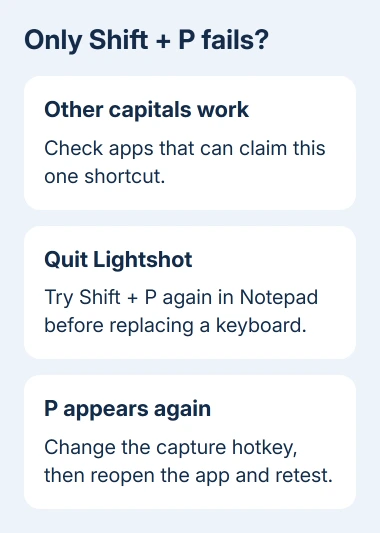
If capital P now appears, your keyboard can send the combination. Reopen Lightshot to change the shortcut rather than uninstalling keyboard drivers or replacing the keyboard.
The confirmed fix in the Shift+P discussion was a Lightshot hotkey assigned to Shift+P. Changing that shortcut fixed the owner's typing problem.
If Lightshot isn't installed, or quitting it makes no difference, continue to the other background apps. Check Lightshot if it's already installed; installing it won't help fix this problem.
2. Change the capture shortcut and test it again
Right-click the Lightshot tray icon and open Options. Inspect the hotkey settings for a capture action assigned to Shift+P. Remove that assignment or replace it with a combination that doesn't conflict with ordinary typing.
Save the change, return to Notepad, and type capital P with each Shift key. Then test your replacement screenshot shortcut so you know both typing and capture still work the way you want.
I'd change the shortcut before removing the app. You can keep taking screenshots without the app blocking Shift+P. The result should be easy to see: P appears in your document when you type it.
Labels can differ between versions, so inspect the hotkey list. The owner had assigned Shift+P to full-screen capture. Change whichever capture action actually contains Shift+P in your installed copy.
Don't assign another plain Shift-plus-letter shortcut as a replacement. It can create the same problem with a different capital letter. Pick a combination the capture tool accepts and that you don't use in your usual apps.
3. Check other apps that can claim keyboard shortcuts
Capture tools aren't the only apps with global hotkeys, which are shortcuts that work even while another app has focus. Check clipboard managers, launchers, macro tools, keyboard utilities, and graphics overlays you actually have running.
Save work before quitting an app. Close one suspect, repeat Shift+P in Notepad, and reopen it if nothing changes. By checking apps individually, you can spot the culprit without leaving several useful tools disabled.
If the combination starts working after a particular app closes, inspect that app's shortcut or macro settings. Remove the conflicting assignment, then restart the app and repeat the typing check.
Turning off the suggested NVIDIA overlay failed for the original asker. Check bindings in tools you already use, but don't install graphics software or remove a display driver just for this typing fault.
For another shortcut problem, the Windows key checks distinguish a blocked Windows key from a single letter combination claimed by an app. Those symptoms need different first steps.
4. Compare both Shift keys, Caps Lock, and screen keys
Press Caps Lock, type p, and turn Caps Lock off. If that produces P while Shift+P doesn't, the capital character itself is available. Check what's blocking the key combination rather than changing the font or spelling settings.
Next try Shift with several other letters and punctuation marks. If one Shift key fails with many keys but the other works, the problem is broader than the reported Shift+P conflict and may involve that physical key.
Open Settings > Accessibility > Keyboard > On-Screen Keyboard in Windows 11. In Windows 10, use Settings > Ease of Access > Keyboard. Select Shift and P on the screen keyboard in the same text document.
If the screen keyboard fails with the same combination, a new physical keyboard won't fix that software problem. The original asker had already bought a second keyboard and saw the same failure.
If a second keyboard works while only the built-in keyboard fails, use the device maker's keyboard checks. The Dell Inspiron Shift guide covers a physical Shift-key fault, including comparing the two sides.
5. Find a hidden conflict through a clean boot
If the simple app check doesn't reveal the conflict, follow Microsoft's clean boot procedure. It temporarily starts Windows without the usual third-party startup programs and services.
Search Start for System Configuration. Select the Services tab. Check Hide all Microsoft services, then disable the services still listed. On Startup, open Task Manager and record which enabled startup items you disable.
Restart and test Shift+P in Notepad. If P appears, restore a group of disabled items, restart Windows, and compare typing again. If the fault returns, test smaller groups of the items you just restored until you've found the program.
Don't change System Configuration's advanced boot options. The service and startup-app checks are enough for this comparison. Restore the normal startup configuration when you've identified or ruled out the conflict.
If typing still fails after a clean boot, give support your results for both Shift keys, Caps Lock, screen keys, a second keyboard, and affected apps. Ask them to check whether software is blocking the keys before replacing hardware.
The Short Version
Quit Lightshot and test Shift+P in Notepad. If that restores P, change the capture hotkey. Otherwise check other shortcut tools, compare screen keys with physical keys, and use a clean boot to find a hidden background conflict.
Checked November 16, 2026.





