

Pictures can keep pointing to OneDrive after you uninstall it because Windows remembers the old location. Change the personal folder's Location setting first. The Pictures library's Restore Defaults button changes a different setting.
When the folder's Location tab can't restore the path, Microsoft's repair is to correct its saved location in the registry. Keep your photos safe before changing that setting, especially when some files still exist only in OneDrive.
In this guide
1. Open the Pictures folder rather than its library
Press Windows + R, enter %USERPROFILE%, and press Enter. This opens your Windows account folder. Look for Pictures, then right-click it and select Properties.
Your personal Pictures folder has a Location tab. The Pictures library lists the folders it includes and where it saves files by default. Restoring that list doesn't necessarily fix your personal Pictures path.
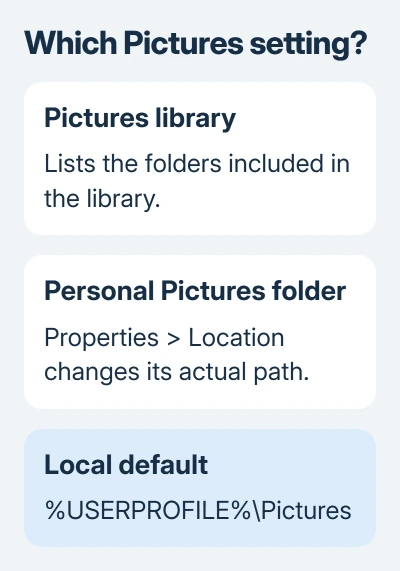
The original Pictures discussion described this exact mix-up after OneDrive was removed: the library kept offering the old OneDrive location.
If Pictures is missing, continue to the saved-path check. Creating a folder with that name won't automatically make Windows recognize it as the personal Pictures folder.
For a problem limited to Word or Excel's save dialog, use the Office default save-location settings. Those settings don't repair the Pictures folder used by Windows and other apps.
2. Restore the location when its tab is available
In the personal folder's Properties > Location tab, read the current path. A path containing OneDrive\Pictures explains why the library keeps returning to the old location, even though OneDrive no longer runs.
Select Restore Default. The default path is %USERPROFILE%\Pictures, usually displayed as C:\Users\yourname\Pictures. Your account folder name replaces yourname. Select Apply and follow the folder-creation prompt if it appears.
If Windows asks to move files, check the source and destination carefully. Back up the actual photos before accepting a move; a location change shouldn't be your only copy of important pictures.
Look inside the destination for the expected photos. Changing the location doesn't always move your photos. The Location tab can show the right path while older pictures remain in the OneDrive folder.
If the tab is missing, the operation fails, or the path returns to OneDrive, continue with the registry repair. Don't keep clicking the library's Restore Defaults button, because that doesn't address the saved personal-folder path.
3. Correct the saved Pictures path
Microsoft lists the Pictures default in its personal-folder location repair using My Pictures as the registry value for Pictures and %USERPROFILE%\Pictures as its default.
- Press Windows + R, type regedit, and press Enter. Approve the permission prompt.
- Use Registry Editor's address bar to open this branch:
HKEY_CURRENT_USER\Software\Microsoft\Windows\CurrentVersion\Explorer\User Shell FoldersBack up this registry branch first: select the branch in Registry Editor, choose File > Export, and save the export somewhere you can find again. Change only the Pictures value described here.
- In the right pane, double-click My Pictures.
- Set Value data to %USERPROFILE%\Pictures, then select OK.
- Close Registry Editor and restart the PC so Windows uses the saved folder locations.
The variable %USERPROFILE% means the current Windows account folder. Keep the percent signs so Windows supplies the actual account-folder name for you.
The forum answer also proposed changing a second value with a long identifier. The repair instructions name My Pictures, so I'd change that first rather than copy extra registry edits from the discussion.
After restarting, open your account folder again and check Pictures. If the destination is missing, create Pictures inside that account folder. Open its properties and confirm that the location now points to your local account folder.
4. Put the photos in the repaired folder
Open the old OneDrive\Pictures folder and the repaired local Pictures folder in separate windows. Compare their contents. The registry tells Windows where Pictures belongs; it doesn't download cloud files or copy your photo collection.
Copy the available photos to your local Pictures folder. Open several copied pictures and check important subfolders before removing anything from the old location. Keep both folders until you've checked that all your photos are copied.
Download any cloud-only photos through OneDrive before finishing the transfer. Their placeholders aren't local backups, and uninstalling OneDrive won't download the missing content.
For files that won't open or download, use the OneDrive connection checks when that specific connection error appears. Fixing Windows' folder path can't recover content the PC hasn't downloaded.
Return to the Pictures library only after the personal folder works. In its properties, include the repaired local Pictures folder and choose it as the save location if that is where new library saves should go.
When the path changes back again
If Pictures returns to OneDrive at sign-in, check whether folder backup is active again. On a managed PC, ask IT about folder-redirection policies. Registry edits won't reliably keep your choice when a policy controls the folder.
Open Get Help from Start and describe a personal Pictures folder that won't keep its default location. Include the current Location-tab path, the My Pictures value, and whether OneDrive is installed or connected.
Keep photo recovery separate from the location repair. Tell support whether the pictures still open in the old folder or are missing altogether, because those need different next steps.
The Short Version
Restore the personal Pictures folder through its Location tab, not the library's Restore Defaults button. If that fails, correct My Pictures to %USERPROFILE%\Pictures, restart, then copy and verify the photos in the repaired folder.
Checked November 16, 2026.
 If you have any business, I can build it online






