

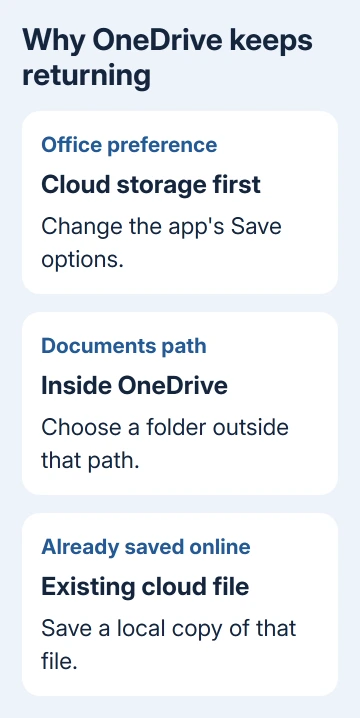
Save As keeps choosing OneDrive when Office prefers cloud storage or Documents is inside OneDrive. Enable Save to Computer by default and set a local folder outside OneDrive. Test a new file; existing documents keep their location.
Windows doesn't have one Save As switch that controls every app. Office's save preferences, the actual Documents path, and a browser's download folder are separate settings.
In this guide
1. Save the current document to an actual local folder
In the desktop Office app, choose File > Save As > Browse. If the file is already stored in OneDrive and the menu offers Save a Copy, use that command to make the local version.
Choose a folder whose full path doesn't include OneDrive. A folder named Documents can still be a OneDrive folder, so look at the address in the file picker rather than trusting its short name in the sidebar.
For a clear test, create a folder named Local Work directly in your Windows user folder. Select it in the save dialog and save a copy with a recognizable name. Use File Explorer to check that your file appears in that folder.
Keep the document's original until the local copy opens and contains your latest work. Saving locally creates a separate copy when the original is in the cloud; later changes to one copy won't automatically update the other.
If Browse accepts that folder, local saving works. The remaining problem is which location the app selects first. If saving fails there too, record the actual error, because permissions or a document fault needs a different repair.
For Can't display online services in Office's account page, refresh its sign-in instead of changing the default folder again.
2. Change the default inside each Office app
Open File > Options > Save in Word, Excel, or PowerPoint. Select Save to Computer by default. In Default local file location, enter the full path to the local folder you want to use, then select OK.
For several recurring project destinations, pin local Word folders rather than changing this single default each time.
Microsoft's save-experience instructions describe both controls. Checking the box without changing a OneDrive-backed folder path can still leave files inside OneDrive.
For example, use the Local Work folder you just created. In File Explorer, open that folder and copy its address into Default local file location. User folder names differ, so copy your folder's actual address rather than guessing it.
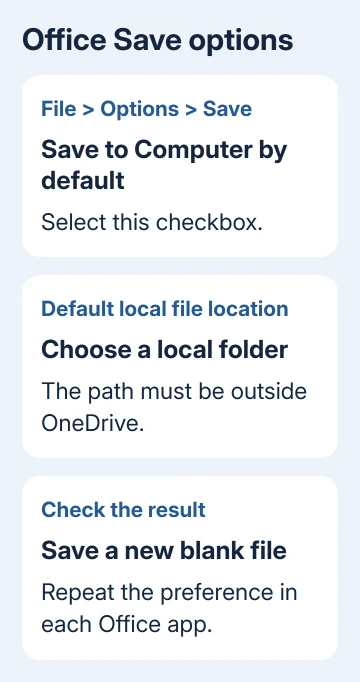
These preferences apply to the Office program you're using. Repeat the change in Excel and PowerPoint if you use them too. Changing Word's default folder doesn't change the other programs' folder settings.
Create a blank document and save it for the first time. Check the proposed location before confirming. If the change worked, the save dialog starts in your chosen local folder and the file appears there without you browsing to it again.
I'd use that blank-document test before changing OneDrive itself. It's the smallest change when the only complaint is Word or Excel choosing cloud storage first.
3. Check whether Documents is being backed up by OneDrive
If choosing Documents still takes you into OneDrive, open Documents in File Explorer and check its full address. A path through OneDrive or OneDrive followed by an organization name means the folder is within that account's sync area.
This explains why selecting This PC or a familiar Documents shortcut can still produce a cloud copy. The name on the shortcut doesn't change where the folder is stored. Choose your separate local folder if that's all you need.
If Pictures still points to OneDrive after removal, repair its personal-folder location before changing the library save folder.
To review folder backup, open OneDrive from its taskbar cloud icon. Open its settings, then Sync and backup > Manage backup. Look at the Documents entry rather than changing every folder at once.
Stopping Documents backup is a separate decision from changing Office's default. The OneDrive folder settings guide explains that relationship when relocating Documents is your goal.
If you stop backup, read the choice about keeping files on the PC or in OneDrive. For cloud-only files, select Always keep on this device to download them first. Don't unlink or uninstall OneDrive just to change a new document's default.
The OneDrive removal guide covers a full move away from syncing when that's the intended outcome. For an Office-only fix, keeping the local work folder outside the sync area avoids that larger change.
4. Separate new-file defaults from existing cloud documents
Open an existing OneDrive document after changing the default. Pressing Save normally updates that existing file where it already lives. The default local folder doesn't move previously saved documents out of OneDrive.
Use Save As or Save a Copy when you want a local version of that particular file. Close it, open the local copy through File Explorer, and continue editing that copy so your next Save reaches the intended file.
AutoSave and the default first-save location also serve different purposes. Turning AutoSave off doesn't move a file out of its existing cloud folder. Check the location itself rather than using the AutoSave switch as the location test.
For a privacy warning on an eligible cloud document, repair the Word AutoSave account setup separately from the default save folder.
If you prefer the familiar file picker, open File > Options > Save and select Don't show the Backstage when opening or saving files with keyboard shortcuts. F12 also opens Save As in the desktop Office programs covered by these controls.
That changes the window you use to save files. It doesn't relocate Documents or remove OneDrive. If the picker still opens to a synced folder, browse to the local path and check the program's default location again.
5. Handle other apps and settings that won't stay changed
If the problem occurs in a browser download instead of desktop Office, use that browser's download settings. Chrome, for example, has Settings > Downloads > Location and the Ask where to save each file before downloading option.
Office in a browser doesn't expose the desktop File > Options > Save page. Use its download command for a local copy, then check the browser's download folder. A web document remaining in OneDrive isn't the desktop preference being ignored.
An administrator can control Office's cloud-saving settings on an employer's or school's PC. If you can't change the checkbox, or it switches back when the app restarts, ask IT whether an Office save policy or managed folder backup applies.
Send the app's name and version, the default path shown in Options, and the path offered for a new blank file. For a personal PC, use Get Help or Office support with the same comparison if the setting won't stay changed.
The Short Version
Set Office to save to the computer and choose a folder outside OneDrive. Test a new blank file in each app. Existing cloud files need a local copy; a synced Documents folder needs a separate decision.
Checked November 15, 2026.
 If you have any business, I can build it online






