

No, Word's Add a Place command can't add an ordinary project folder on your PC to its list of storage services. For several local destinations, pin the folders in File Explorer, then use F12 to select them in Word's classic Save As window.
That gives each project a shortcut without connecting another cloud account. A single default save folder is a separate choice: use it when most new documents belong in one place, rather than when you need several folders within reach.
In this guide
Open the folder browser instead of Add a Place
Press F12 while a document is open. On keyboards that use the function row for brightness or volume, try Fn + F12. Word should display the classic folder browser and its filename box.
This isn't the same as File > Save As, the page inside Word that lists storage services. In the original Word 2013 discussion, that difference caused confusion when readers tried dragging folders onto the wrong screen.
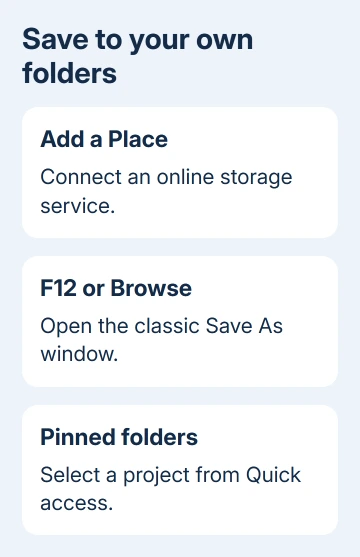
If F12 doesn't open that window, select File > Save As > Browse where available. Some older layouts have More options near the filename instead. Look for the window that actually lets you browse your computer's folders.
Both screens appear when you save, but they do different jobs. Pinning a project in the folder browser won't create a service under Add a Place.
Microsoft recommends F12 for the classic Save As window. Use that window to choose where to save; add and remove your project shortcuts in File Explorer.
Pin the local folders you actually use
Open File Explorer in Windows 11 and locate one project folder. Right-click that folder. Pick Pin to Quick access. Repeat for the other projects you switch between, then return to Word and press F12.
Windows 11 calls the starting page Home, but still uses the Pin to Quick access command. Windows 10 uses Quick access too. Expand that part of the folder browser's navigation pane if the pinned entries aren't visible.
Pin the project folder rather than a document inside it. You're choosing where to put new files, so the shortcut helps even before your next document has a name. Keep several project folders pinned if you switch between them.
For nested projects, choose the folder where the finished documents belong. Pinning its parent still works, but leaves another browsing step every time. A shortcut to the final destination saves that repeated trip through the folder tree.
Older Windows 7 and Windows 8 installations used a Favorites area in the folder browser. The original 2014 answer described dragging folders there. Don't expect that old Favorites instruction to match Windows 11's current Home layout.
I'd use pins for separate clients or projects. A changing default folder is easy to forget, while a visible list lets you select the destination for the document you're saving now.
Select a pin, then save into that folder
Choose a pinned folder in the classic Save As window. Read the folder path in the address area, enter your filename, and select Save. Selecting the pin chooses a location; it doesn't save anything by itself.
After the first save, open the chosen folder in File Explorer and check that your file is there. Open the saved file if you aren't sure which version Word saved. Keep your working document open while you check.
Two folders can have the same short name. For example, separate clients can each have a Reports folder. Read the parent folders in the address too, so the familiar name doesn't send the document to the wrong project.
If your file must stay off cloud storage, check the full folder path. OneDrive folders can appear in the same folder browser as ordinary local folders. A pin to a synchronized folder still saves inside that service's sync area.
After the first save, ordinary Save updates that document. Selecting another pin through Save As creates or replaces a file at that destination; it doesn't move the original. Check which copy you continue editing.
Keep the shortcuts useful as projects change
Remove an obsolete shortcut by right-clicking its pinned entry and selecting Unpin from Quick access in File Explorer. The project folder and documents remain in their original location. Only the navigation shortcut is removed.
If a project folder moves, find and pin its new location in File Explorer. Remove the old pin after checking the replacement. This avoids relying on a shortcut that no longer matches your folder structure.
For a project on a removable drive, connect the drive before selecting its folder. For a shared work folder, restore your normal network connection first. A pinned entry can't make disconnected storage available to Word.
If the folder opens in Explorer but saving fails, note Word's exact error. A missing shortcut is different from a problem with folder access or the document itself. Keep your work open until you've saved a usable copy.
Use a default folder only when that's the real need
When almost everything belongs in one directory, the Office default save-location guide covers choosing that starting folder. It also explains why Documents can still be inside OneDrive.
If Word keeps forgetting your default folder, follow that guide rather than adding more pins. One default folder also can't replace several shortcuts when your work belongs in different places.
If the document keeps requesting another name without completing a save, use the Word Save As loop checks. Adding navigation shortcuts won't repair a document that can't be written successfully.
If managed settings hide the pinning command, ask IT about Explorer and Office policies. Include your Windows version, Word version from File > Account > About Word, and whether the folder opens outside Word.
The Short Version
Pin local project folders in File Explorer, then select them through Word's F12 Save As window. Check the destination and save normally. Add a Place connects storage services; a default folder is a separate preference.
Checked November 17, 2026.
 If you have any business, I can build it online






