

Word's the number must be between 1 and 31 envelope error can be cleared by changing the label position first. Open Mailings > Labels, choose Single label, and set both Row and Column to 1. Then return to Envelopes and try printing again.
The warning appears during envelope printing, but the successful change is on Labels. An owner confirmed this workaround, though they had to repeat it each time they printed an envelope.
In this guide
1. Open Labels before returning to Envelopes
Dismiss the number warning and stay in desktop Word for Windows. Select Mailings > Labels, even though you're trying to print an envelope. This opens the Labels side of the Envelopes and Labels dialog.
In its Print section, select Single label. Set Row to 1 and Column to 1. Set both values before switching tabs.
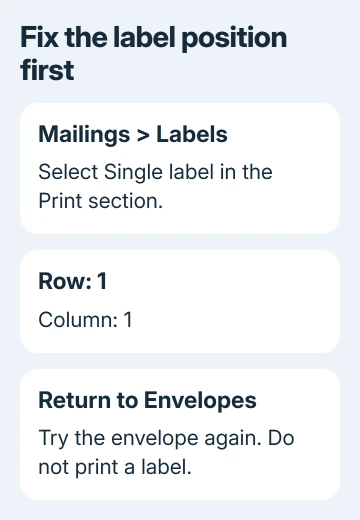
Now select the Envelopes tab, enter the delivery address if necessary, and try the envelope again. Check whether the number warning disappears and Word sends the print job.
This workaround changes the starting label position. It doesn't ask you to load label stock or print a label. Keep the envelope loaded as your printer requires, and don't press the Labels tab's Print button as part of this correction.
If the warning clears, keep this sequence handy. The confirmed report said it had to be repeated for each envelope. You can use it to get an envelope printed, but don't expect the setting to stay fixed after Word closes.
2. Try the saved label-product workaround if it returns
A second owner cleared the error by choosing a label product, printing a blank sheet, and reopening Word. Use this if the Single label position correction doesn't stay set. The successful report used 1/2 Letter.
Note your current label product before changing it, especially if you print real label sheets later. The workaround changes the selected label layout, so you'll need the original product for those jobs.
Open Mailings > Labels > Options and select 1/2 Letter if it's offered in the product list. Confirm with OK, then use Print from Labels with ordinary paper loaded. In the successful report, printing one blank page kept the setting saved.
Close Word, reopen it, and try your envelope through Mailings > Envelopes again. The owner reported that envelopes printed normally afterward. If the label product isn't offered, don't create a custom size just to reproduce this workaround.
Microsoft's single-label instructions show the label-product and position controls. Row and Column identify a position on a label sheet; they aren't envelope measurements.
3. Compare the warning in a new document
Save your document, then choose File > New > Blank document. Apply the Labels correction there and open Mailings > Envelopes. Use a simple test address to try printing without the old file's formatting.
If the new document prints without that warning, continue in it. Re-enter the addresses instead of importing the old layout. Include the envelope size in its saved filename for easy identification later.
If both documents show the same number warning, the fault isn't confined to the original file. Record that result before considering Office repair or asking support. That tells support more than saying envelope printing sometimes fails.
I'd make this comparison before deleting templates or creating another Windows user. The successful owner report didn't require a new profile, and the simple Labels change makes more sense as your first attempt for this exact message.
Another person reported failed attempts at Office repair and removing headers and footers. Start with the label settings that produced a working result before repeating those repairs.
If printing fails after the warning clears, you've reached a different stage. Read the printer queue or connection error instead of continuing to change the label position.
4. Check the envelope setup after the warning clears
Choose the actual envelope size in Mailings > Envelopes > Options. Follow the feed picture under Printing Options. That information comes from the selected printer's driver, so another model can show a different orientation.
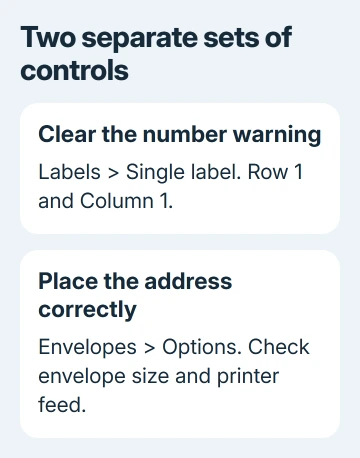
The separate Word envelope-printing guide covers size, feed direction, and saving an envelope document. Use those controls for misplaced addresses or upside-down printing after the number error is resolved.
Check one printed envelope before starting a larger job. If the address prints in the right place without the warning, the loading and layout are working too. A printer jam needs the manufacturer's media and tray instructions.
For a saved envelope-and-letter document, check the print preview and page selection. Sending the whole document can print the letter as well. The Word document-printing controls explain choosing the intended page.
Don't change label rows and columns to move an address on an envelope. Once the number warning has cleared, use the envelope settings to position the address. That keeps the label workaround from getting mixed up with your print layout.
5. Does the warning return for every envelope?
Open File > Account > About Word and copy the displayed Word version information. Use Word's Help support controls, or give your IT team the exact warning and the result from a new blank document.
Say whether Single label, Row 1, Column 1 clears it temporarily, whether it returns for every envelope, and whether ordinary documents print. Include the printer model, but keep real customer addresses out of any example or screenshot.
These checks apply to desktop Word for Windows. The browser version lacks this Envelopes and Labels workflow. Use the installed Word app to reach these controls, rather than changing browser settings.
The Short Version
Start in Labels, select Single label, and set Row and Column to 1. Then return to Envelopes. The confirmed workaround may need repeating for each envelope. Use envelope size and feed settings only after the number warning is gone.
Checked November 16, 2026.
 If you have any business, I can build it online






