

Microsoft Query is usually hidden in Excel's legacy import settings, rather than removed from your subscription. Turn on From Microsoft Query (Legacy) in File > Options > Data, then open it through Data > Get Data > Legacy Wizards.
This brings the command back in the Windows desktop app. If the command already opens but your database isn't listed, the missing piece is the connection or its driver, which needs a different check.
In this guide
1. Turn on the legacy Microsoft Query command
Open your workbook in Excel installed on Windows. Select File > Options > Data, then find Show legacy data import wizards. Select From Microsoft Query (Legacy) and click OK.
Microsoft's data import options still list Microsoft Query among these legacy wizards. Legacy is Excel's name for its older import tools, kept separately from the newer Get Data connections.
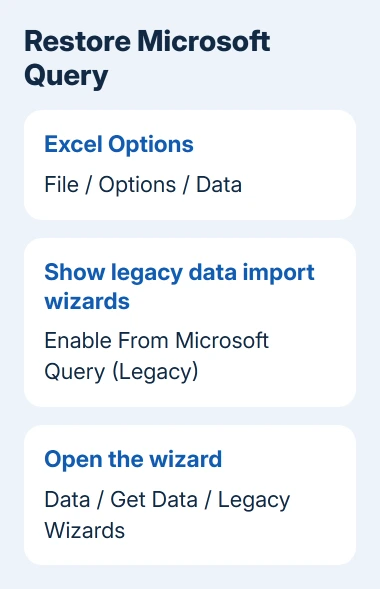
Return to the workbook's Data tab. Open Get Data > Legacy Wizards > From Microsoft Query (Legacy). When Choose Data Source opens, the command is working again. Repairing Office isn't needed just because the old menu position changed.
If the new choice doesn't respond immediately, save your work, close Excel, and reopen it. Try the same Legacy Wizards path again. The saved solution suggests restarting if the enabled command still won't open.
Owners confirmed this restored Microsoft Query. An owner reported it with version 2403, build 16.0.17425.20058, after failing to find the command under All Commands. That's the version they had; you don't need to install that old build.
I'd try this setting before changing the ribbon. It brings back the menu command without changing your workbook's existing connections.
2. Check the submenu before rebuilding the ribbon
The previous menu route was Data > Get Data > From Other Sources > From Microsoft Query. The current legacy route is different. Look inside Legacy Wizards after enabling the setting, even if From Other Sources still doesn't contain it.
The ribbon is the row of tabs and commands across Excel's window. Customize Ribbon changes which commands appear there; it isn't the same as turning on a hidden import wizard in Options.
If your window is narrow, maximize Excel and open the Data tab again. Some ribbon groups collapse into smaller menus. Look for the command names, since the spacing and icon positions can differ from an older picture.
Don't reset all ribbon customizations to solve this first. A reset can discard a layout you rely on, while the Data setting addresses the missing command directly. If the legacy option is available, use it and check that its window opens.
If the Data category or File > Options itself is missing, check which Excel app you're using before attempting an Office repair.
3. Is this the installed Windows edition?
These menu paths apply to Excel for Microsoft 365 on Windows. The browser edition lacks this File > Options > Data dialog. Open the Excel app installed on your PC to find the legacy checkbox.
This Excel setting works the same on Windows 11 as on Windows 10. Their Windows Settings apps differ, but you don't need Windows Settings to restore this command.
Excel for Mac has different import menus. The missing Windows Options dialog doesn't mean your subscription expired. Use an import connection your Mac supports, or ask for Windows Excel to keep using an existing Microsoft Query report.
Check File > Account > About Excel on Windows if you need to identify the installation. Record the product, version, build, and whether Excel is 32-bit or 64-bit. Those details help when the command opens but its connection fails.
If your task is actually loading a cloud workbook, connecting OneDrive files to Power Query uses a separate connection route. Restoring Microsoft Query isn't required for every import.
4. Fix a missing data source after the wizard opens
Once Choose Data Source appears, you've fixed the missing command. A database missing from that list is a connection problem. Repeating the checkbox step won't create the missing connection.
Microsoft Query uses ODBC, a driver system that lets an application talk to a database. The computer needs a suitable driver for the database you're connecting to, plus the correct server and sign-in details.
Use the Databases tab to check for an existing source. If your administrator has supplied one, select it. If you're setting up a new source, choose <New Data Source>, name it, select the correct driver, and follow its connection prompts.
The Microsoft Query connection instructions cover this separate setup. Ask your database administrator for the required driver and connection details rather than choosing a similarly named database at random.
On a replacement PC, give IT the old connection's name and say whether Excel is 32-bit or 64-bit. A workbook moving successfully doesn't mean its database driver and connection settings moved with it.
If a connection succeeds but a refresh hangs, Excel stuck running a query addresses that later stage. Keep the exact error message when reporting a failed connection.
5. Keep Power Query and Microsoft Query separate
Power Query is Excel's newer Get & Transform import system. Microsoft Query is the older tool restored through Legacy Wizards. They can both bring data into a workbook, but their editors and connection steps differ.
Opening Blank Query in Power Query doesn't reopen an existing Microsoft Query workflow. Its Advanced Editor uses its own query language, so pasting database SQL into it won't directly replace the old SQL window.
For an existing report, recover its original command first. Check the report before deciding to rebuild its connection. For new reports, use a current connection that supports your data source and your organization's sign-in needs.
If From Microsoft Query (Legacy) stays missing in Windows desktop Excel, send your help desk the About Excel details and a picture of Options > Data. Ask them to check your Excel edition and whether its older import tools are available.
Personal subscribers can use Help > Contact Support in Excel. Say whether the checkbox is absent, the enabled menu stays hidden, or Choose Data Source opens but fails to connect. This helps support focus on the part that's failing.
The Short Version
Enable From Microsoft Query (Legacy) under File > Options > Data, then use Data > Get Data > Legacy Wizards. Restart Excel if needed. Once Choose Data Source opens, handle a missing database as a driver or connection issue.
Checked November 16, 2026.
 If you have any business, I can build it online





