

Gmail setup in Outlook 365 can fail after Google sign-in because of an old build or a blocked Office connected experience. Update Outlook, then check Enable optional connected experiences if setup stops after Google's permission screen.
A password rejected by Google is a different case. Use the current Google sign-in flow, rather than old instructions to allow less secure apps or switch personal Gmail's IMAP access on.
In this guide
1. Install the current Outlook update
In classic Outlook, select File, then Office Account. Under Update Options, choose Update Now. Complete the update, restart Outlook, and retry adding the Gmail address through File > Add Account.
An old fault produced Could not sign you in to Google - IMAP during setup. The documented repair was Version 2008, Build 13127.20296. That is a historical fixed build, not a version you should install on a current PC.
Microsoft's Gmail setup fault page gives both the fixed build and the connected-experiences workaround. A modern supported build should already contain that old repair.
If your organization manages Office updates, ask IT to check your installed build and update channel. A current error with similar wording can have a different cause. The 2020 notice doesn't explain every Gmail setup failure.
2. Allow the connected experience used during setup
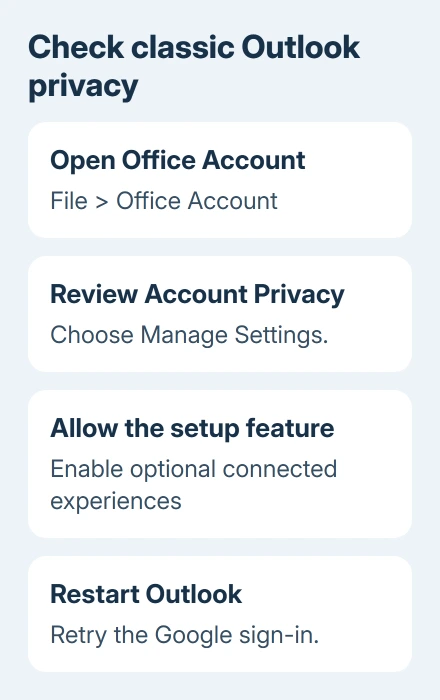
In classic Outlook, select File > Office Account. Under Account Privacy, choose Manage Settings. Find and enable Enable optional connected experiences, then confirm the change and restart Outlook.
If Outlook won't reach that screen, use Word or PowerPoint instead. Their route is File > Account > Account Privacy > Manage Settings. The setting belongs to Office, not to Gmail's browser settings.
Retry Gmail setup after restarting. Enter the Gmail address, finish Google's sign-in, and approve the requested Microsoft access if you're connecting that account. Check the address in the Google window before granting permission.
When this works, setup completes and the Gmail account appears in Outlook. Getting past the password screen alone isn't the end of setup; Outlook still needs permission to access the mailbox.
On a work PC, a grayed-out or missing privacy control can be managed by your organization. Ask IT whether the connected experience is permitted. Don't try registry changes to override a company setting.
This setting is relevant to classic Office's setup failure. The new Outlook app lacks this Office Account privacy window, so don't spend time searching its Settings for this exact checkbox.
3. Use Google's sign-in rather than a basic password setup
If Google rejects the credentials before permission approval, try that same address and password in Gmail through your normal browser. Resolve any account recovery or security prompt there first.
For reconnecting the mail app, Google's email-client instructions recommend an up-to-date client and Sign in with Google. That lets you give the app access without having it use your normal Google password each time it connects.
The 2020 discussion mentioned less secure apps and manually entered server settings. Those details are historical. Gmail no longer supports the old less-secure username-and-password access described in that thread.
For personal Gmail, IMAP has been always on since January 2025, so the old Enable IMAP switch is gone. A managed Google Workspace account can also have administrator restrictions; ask its administrator about access for Outlook.
An app password is a separate password for certain apps when you use 2-Step Verification. It isn't the first repair for updated Outlook with Google sign-in. Don't turn off 2-Step Verification to simplify setup.
4. Reconnect after a Google password change
If the problem started when you changed your Google password, Outlook may need a fresh sign-in or a repeat of account setup. Complete any pending sign-in prompt for the affected address first.
I'd inspect the account list first to avoid adding a duplicate Gmail connection. Connection errors can look similar whether an account is stuck during setup or is waiting for another sign-in.
If reconnecting requires removing the Gmail account from the app, protect any local-only mail and unsent items first. Check that the messages you need are available in Gmail before removing the local account.
Then use the Outlook account-addition steps for your edition. Classic Outlook uses File > Add Account; new Outlook uses Settings > Accounts > Your accounts > Add Account.
Finish Google's permission flow and inspect the connected inbox. Email a second address of your own, then reply to check both directions. Setup can finish before Outlook has finished syncing your mail.
5. Follow the exact error when setup succeeds but mail fails
If Outlook adds the account and then shows 0x800CCC0E, use the saved-sign-in repair for that error. It addresses an existing Gmail or Yahoo connection, rather than the optional connected-experiences setup failure.
If Inbox works but one folder is absent, use the Gmail All Mail checks. Label visibility and folder subscriptions won't repair an account that never finishes signing in.
For Too many simultaneous connections, close or sign out of other mail clients using that Gmail account. Google allows up to 15 clients per account at once. That named error needs fewer connections, not another account copy.
If signing in again fails, record the full error and your Outlook version. Note whether it's before or after Google's permission screen. Tell Outlook support that browser Gmail works and whether connected experiences changed the result.
For a managed account, have the Google Workspace administrator review third-party app access too. Privately send them the account address and the time it failed so they can find that sign-in attempt.
The Short Version
For the known Google IMAP setup error, update Outlook and enable optional connected experiences. Use Sign in with Google, reconnect after a password change if needed, and use the displayed error to choose further sync repairs.
Checked November 16, 2026.
 If you have any business, I can build it online






