

Word 2010's missing dictionary can mean definitions, synonyms or spelling checks. For missing definitions with working spell check, start in Research Options. Changing the proofing language won't restore a missing reference provider.
Owners got their reference choices back through Research Options, but later replies said the old service address had stopped working. Check whether your spelling tools have failed or Word can't reach its definitions service.
In this guide
1. Check which dictionary feature has disappeared
Open a document and right-click an ordinary word. Compare the available spelling suggestions, Synonyms and Look Up choices. Then open Review > Thesaurus and see whether related words appear.
When Thesaurus opens from Review but Shift+F7 does nothing, check the keyboard's function mode before changing reference providers.
Spelling dictionaries check whether words are spelled correctly. A thesaurus offers alternatives with related meanings. A reference dictionary supplies definitions. People call all three the dictionary, but they do different jobs.
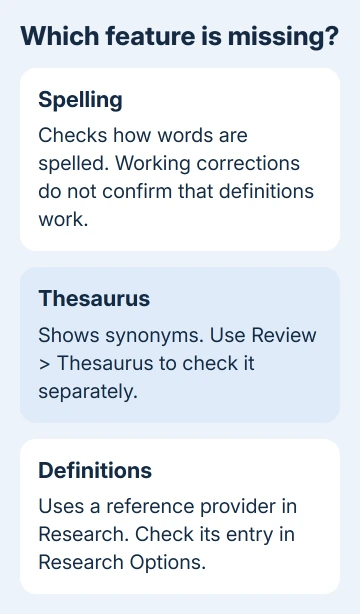
If synonyms and spelling corrections work, Word's installed proofing tools are working. For a missing definitions entry, check Research instead of reinstalling the spelling dictionary.
If only spelling has failed, use the Word spelling controls. That route covers checking being disabled for selected text, document exceptions and the manual review command.
I'd compare those three features before changing Office. It keeps a definitions problem from turning into a series of unrelated language changes.
2. Select the reference sources already available
Right-click a word and choose Look Up if it's offered. In the Research pane, open the source list and inspect the available reference books. Click Research options near the pane's lower edge to inspect its enabled services.
A source can appear in that dialog without being selected for your current lookup. Enable the reference you need, confirm the dialog, then choose it in the pane and look up the same word again.
Look for an actual definition. A thesaurus entry only tells you synonyms work. If the reference list contains only thesauri, continue with the service updates in step 3.
Check whether the dictionary appears in the list but returns no results, or isn't listed at all. A missing dictionary can't be selected. A listed provider that returns nothing isn't supplying the information you requested.
3. Refresh the Research service entries
In Research Options, click Update/Remove. Select a listed provider and use Update when that choice is available. Work through the relevant dictionary or reference providers, following any setup choices that appear.
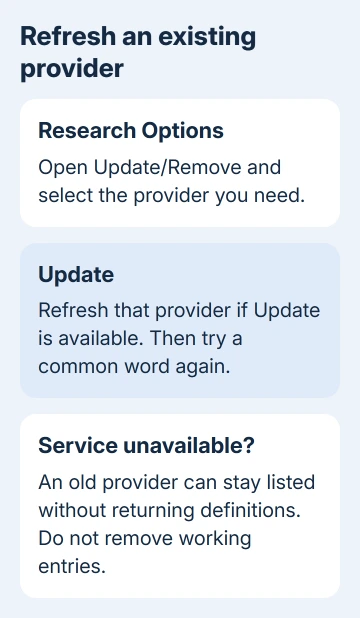
Close the service dialog, confirm Research Options, and repeat the lookup from your document. Look for the reference entry returning to the source list and an actual definition appearing for a common word.
This restored the choices for an owner in the original missing-dictionary discussion. They described updating the listed services, then getting their previous right-click choices back.
That result dates from July 2013. It's a reasonable step for an existing provider, but not every service used by Word 2010 remains available today. If updating produces an error, keep its exact text for the next decision.
Don't remove every provider to rebuild the list from scratch. An old provider may no longer offer an installation service, leaving fewer working choices than you started with.
4. Stop when an old service address no longer responds
Earlier replies recommended adding office.microsoft.com/Research/query.asmx through Add Services. Some owners confirmed success in 2013. Replies from 2016 and 2017 then reported failed addresses or services that couldn't be located.
That address worked in the past, but you can't rely on it for a repair now. Entering it again won't fix your proofing language or bring back a service that no longer responds.
If Update/Remove can't refresh the provider, use a separate dictionary for definitions and keep using Word's working spelling and synonym tools. Your document and its file format can stay as they are.
For a work computer, give IT the provider name and update error. Ask whether that reference service is still supported on the installed Office version. Asking to reinstall the dictionary doesn't identify the failed component.
5. Correct the language only when proofing is affected
For missing or incorrect synonyms and spelling suggestions, select the affected text. Open Review > Language > Set Proofing Language and choose the language the passage actually uses.
Clear Do not check spelling or grammar if checking is disabled. For recurring incorrect language selection, clear Detect language automatically, then confirm the dialog and retry the same passage.
Word can give you the wrong spelling suggestions if it thinks the text is in another language. The language used in Word's menus doesn't decide which dictionary checks your document.
For text that keeps changing back after pasting or typing, follow the language-switching checks. Repeatedly resetting a whole document can miss the keyboard or pasted formatting that changes new text.
If the proofing tools for your language aren't installed, ask IT to check your licensed Office installation and its available language components. That won't restore Encarta or another online definitions provider.
6. Choose a supported route when the provider stays missing
Office 2010 no longer gets support; that ended October 13, 2020. Don't expect a new Office 2010 update to repair its reference services. Keep a usable copy of your documents while planning a supported replacement.
Before changing products, list the spelling languages, synonyms, definitions and specialist dictionaries you need. Ask IT to check those features in the proposed version; an old Research service won't necessarily carry over.
For a spelling or synonym problem, tell IT the text's language, which command failed and what happens in a fresh document. For missing definitions, give them the provider's name and service error. Those need different repairs.
The Short Version
Check Research Options for missing definitions and refresh existing providers. If the service can't return definitions, use another dictionary. Change proofing language for failed spelling or synonyms, rather than a missing provider.
Checked November 16, 2026.






